
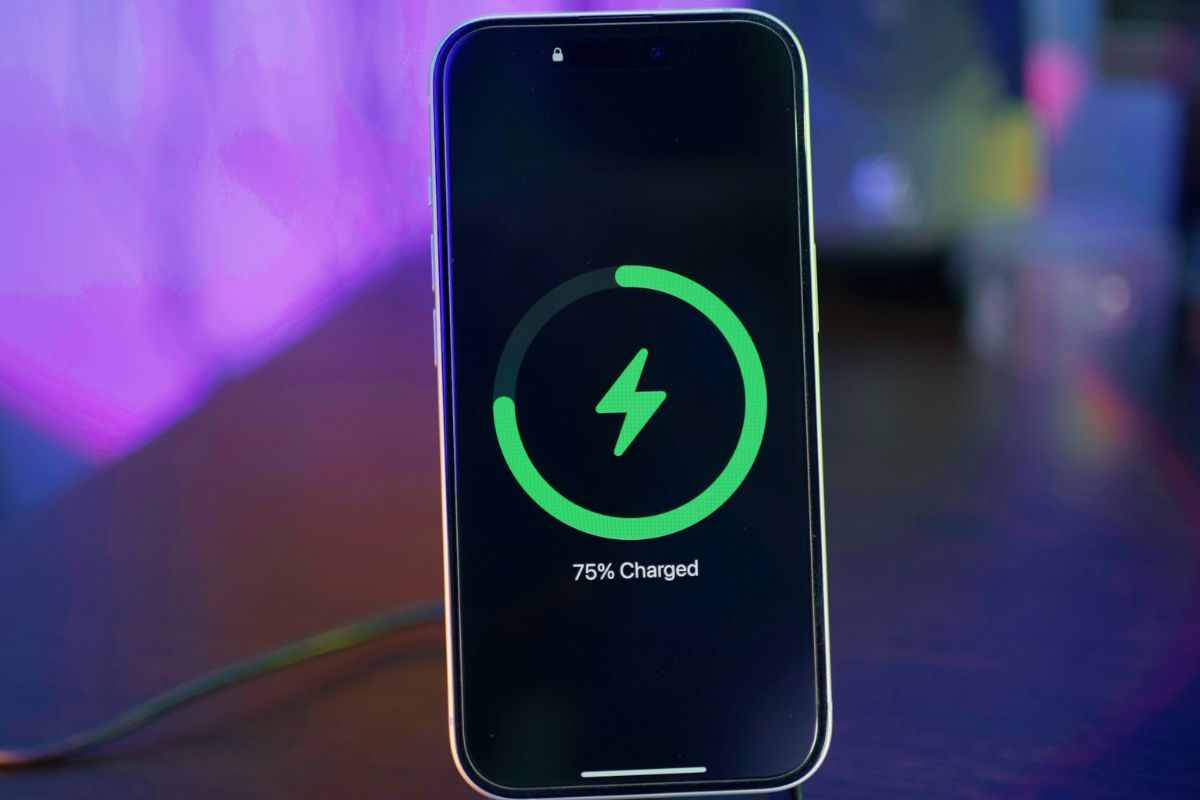
Your iPhone says 43% battery, then it dies. You plug it back in, and it jumps straight to 46%. Something feels off, and you’re right to think so.
The number on your screen isn’t a live measurement of electricity in your battery. It’s a software estimate, and that estimate can drift wildly out of sync with what the battery is actually doing.
That gap between perceived charge and real charge is the whole reason battery calibration exists.
Your phone’s software builds its percentage readings from historical patterns of how the battery charges and drains. When those patterns get stale or inconsistent, the numbers stop making sense.
A full drain-and-recharge cycle forces the system to relearn what 0% and 100% actually feel like for your specific battery right now.
The Setting You Need to Turn Off First
Before you do anything else, head into your battery settings and switch off Optimized Battery Charging.
This feature is genuinely useful day-to-day since it slows charging to protect long-term battery health, but it will actively prevent your battery from reaching a true 100% during calibration. Turn it off temporarily, and don’t forget to re-enable it afterward.
Once that’s off, charge your phone to 100%, then leave it plugged in for another 20 to 30 minutes after it reaches 100%. You want the battery fully saturated, not just nominally full.
Also: Apple’s next MacBook could make today’s premium laptop screens feel surprisingly outdated
What the Actual Process Looks Like
Use your phone normally from that full charge until it shuts off due to a dead battery. Don’t top it up partway through. After it powers down, leave it sitting off for a few hours.
That rest period lets the battery settle completely to zero, giving the software a clean floor to calibrate from.
Then charge it back to 100% without interruption. Using it heavily during this phase can muddy the readings you’re trying to reset.
Once it’s full, do a hard reset while it’s still on the charger: press volume up, then volume down, then hold the side button until the Apple logo shows up. When the phone restarts, check that the percentage reads 100%.
Also: Apple may have quietly found the formula that makes budget Windows laptops much harder to recommend
How Often Should You Actually Bother?
Running your battery down to zero repeatedly does wear it out faster, so calibration shouldn’t become a habit.
Every 1 to 3 months is a reasonable window, or whenever you notice genuinely strange behavior, like the phone shutting down at 20% or the percentage jumping around erratically.
On iOS 26.5, this process brings your battery metrics back in line and tends to resolve those phantom shutdowns that seem to come out of nowhere.

