
With iOS 26.4, Apple is giving users a way to make iOS 26‘s new Liquid Glass design a bit more tolerable without sacrificing its core look.
It introduced two targeted controls that tone down the parts people have been complaining about since launch—bright flashes and constant motion.
The update adds a new toggle called Reduce Bright Effects and upgrades the existing Reduce Motion setting. On paper, these look minor. In practice, they change how aggressive the interface feels during everyday use.
1. Reduce Bright Effects
Reduce Bright Effects is the more noticeable addition. Liquid Glass relies heavily on bright highlights when you tap buttons, links, or interface elements.
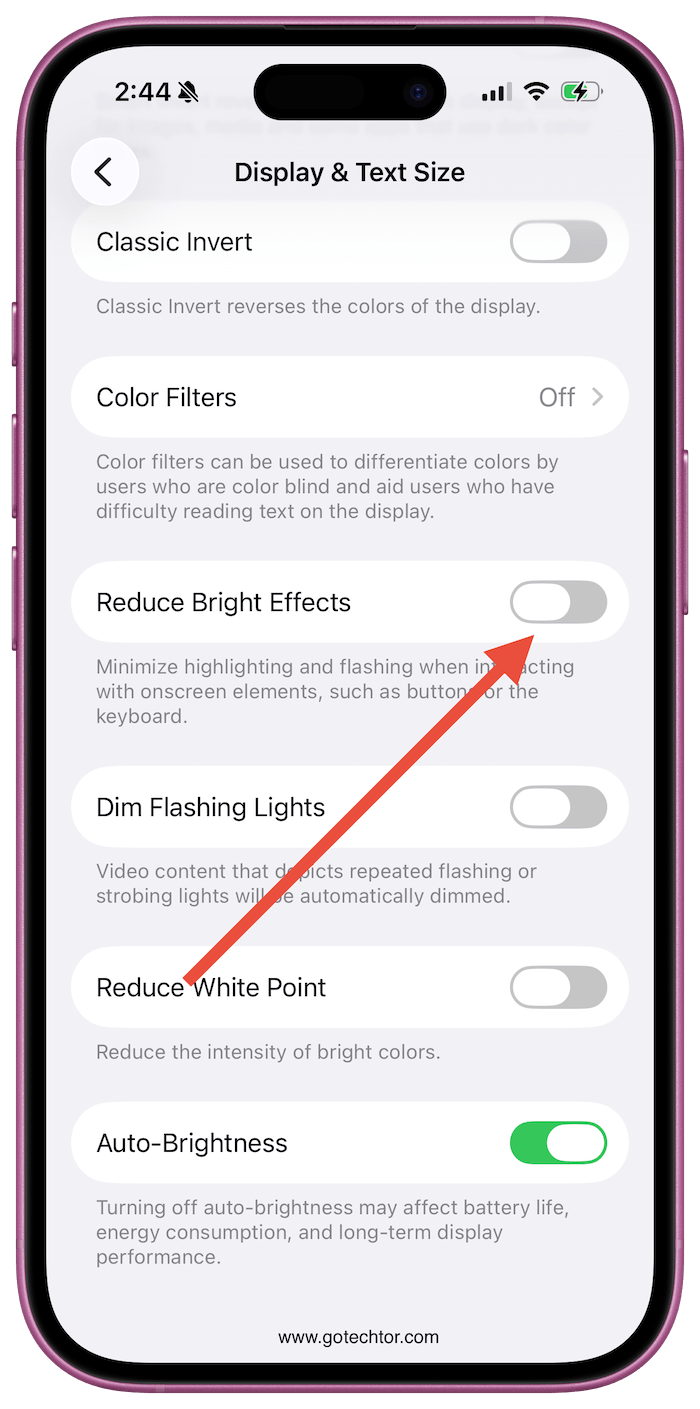
That visual feedback can feel sharp, especially in darker environments. The new setting softens those flashes without entirely removing the effect, making interactions feel less harsh on the eyes.
It’s tucked inside Settings under Accessibility > Display & Text Size. Once enabled, the difference is immediate, particularly at night when those flashes tend to stand out the most.
2. Improved Reduce Motion
The second change builds on something Apple already offered. Reduce Motion has been around for years, but it wasn’t fully adapted to Liquid Glass.
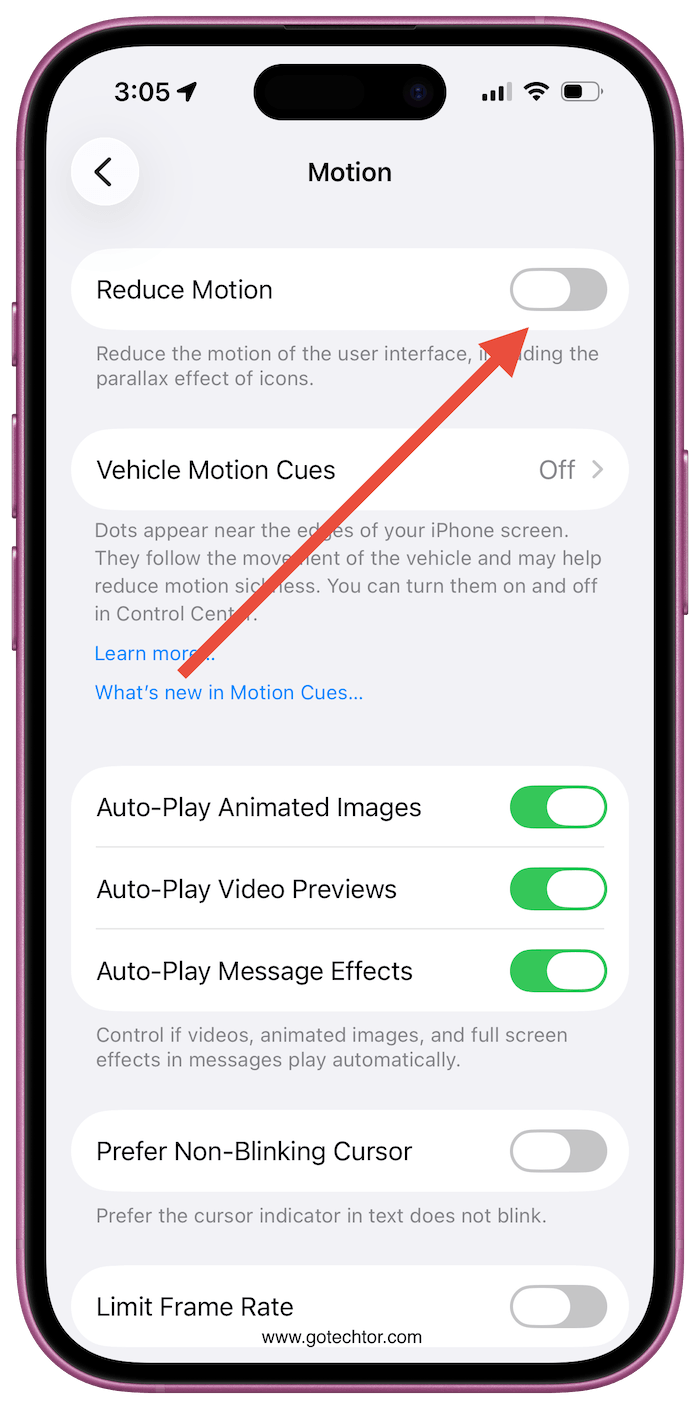
Even with it turned on, iOS 26 still felt overly active for some users due to the fluid transitions and layered animations baked into the design.
In iOS 26.4, that changes. The updated version does a better job limiting those effects, cutting down on the constant movement without breaking the overall experience. You still get a responsive interface, just without as much visual noise.
It lives in Settings under Accessibility > Motion, and it’s worth revisiting even if you tried it before and turned it off.
When used together, these two settings can reshape Liquid Glass more than you might expect. One reduces intensity while the other reduces movement. The result is a calmer version of the same design without changing its look.

