

The arrival of iOS 26 brings Apple’s stunning new Liquid Glass interface, but it comes with a hidden cost: battery drain.
This is especially true for anyone running iOS 26 on older iPhones, as they will quickly notice that the operating system’s visual effects weren’t designed for their device.
Beyond Liquid Glass, iOS 26 introduces several features that can silently drain your battery and heat up your device. Here are 10 critical settings you should adjust immediately to optimize your iPhone’s performance.
1. Reduce Transparency for Better Battery Life
Liquid Glass looks beautiful, but all that visual flair requires serious processing power. The blurred, light-refracting menu bars you see throughout iOS 26 force your iPhone to work overtime in the background.
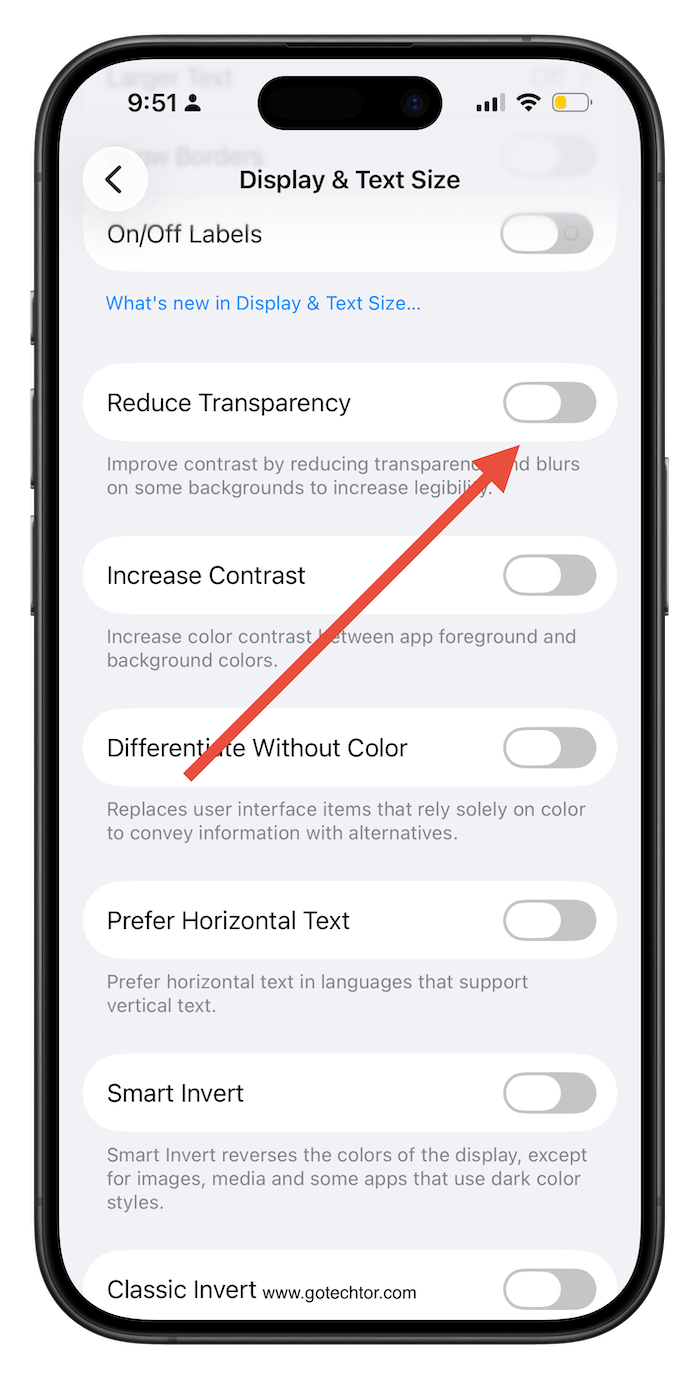
How to adjust:
- Open Settings
- Tap Accessibility
- Select Display & Text Size
- Turn on Reduce Transparency
When enabled, this setting replaces translucent menu bars with solid colors, significantly reducing the workload on your processor, especially beneficial for older iPhone models.
2. Limit Your Frame Rate
For iPhone owners with ProMotion displays, this setting is crucial. While 120Hz looks incredibly smooth, it’s a major battery drain.
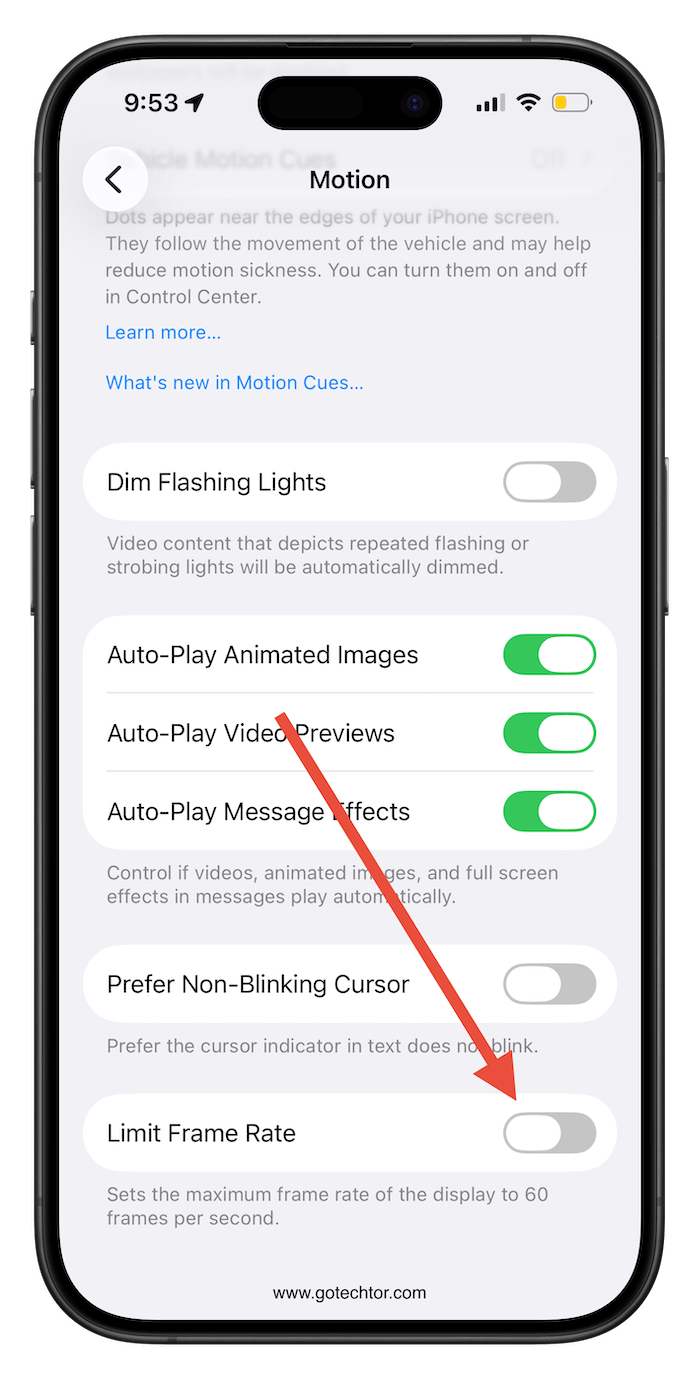
How to adjust:
- Go to Settings > Accessibility
- Tap Motion
- Scroll down and turn on Limit Frame Rate
This change reduces your display’s refresh rate from 120 Hz to 60 Hz, potentially doubling your battery life from display rendering alone.
While you’re here, also turn off Auto-play Video Previews—helpful if friends occasionally send you videos that aren’t exactly work-appropriate.
Note: Don’t enable “Reduce Motion” entirely. The battery savings aren’t worth sacrificing the overall iOS experience.
3. Set a Smart Charge Limit
Lithium-ion batteries degrade faster when constantly kept at 100% charge. Apple’s previous solution, Optimized Battery Charging, attempted to learn your sleep schedule but proved unreliable in practice.
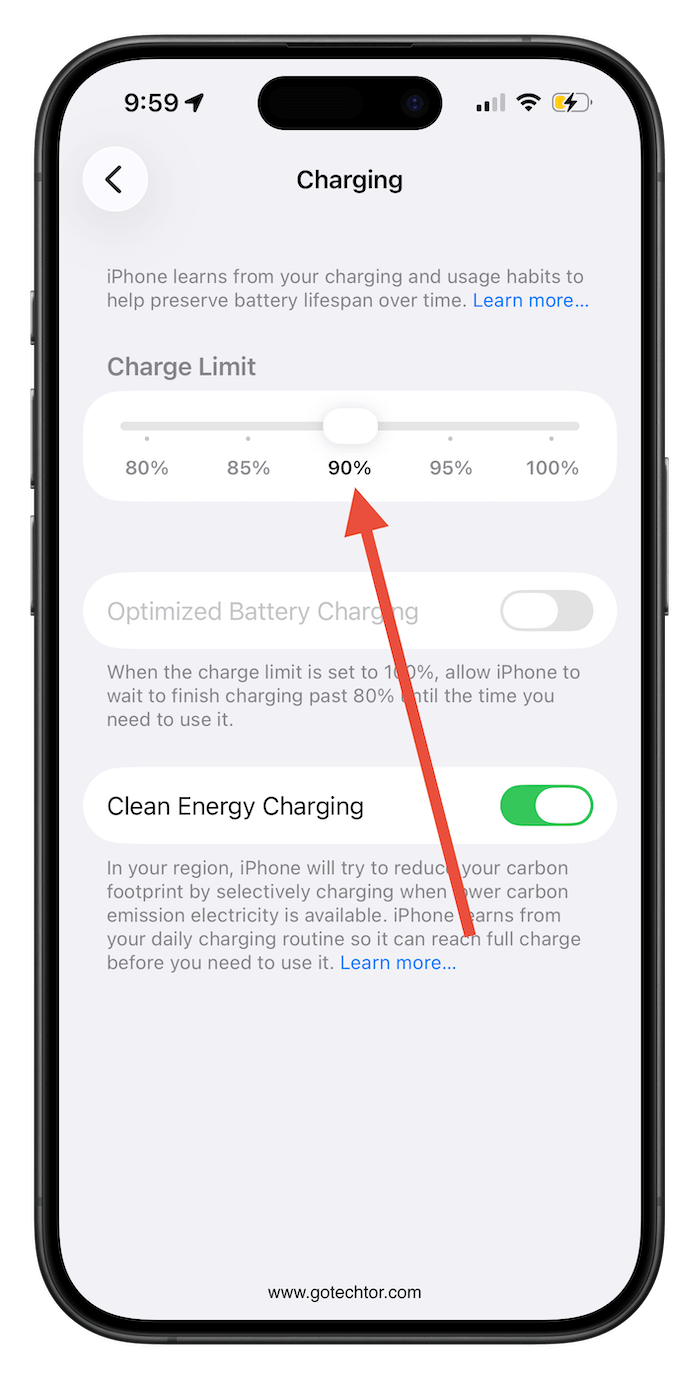
How to adjust:
- Open Settings > Battery
- Tap Charging
- Adjust the Charge Limit slider to 90%
Most users find that 90% provides plenty of charge to get through the day while significantly extending overall battery lifespan.
While you’re in this menu, consider turning off Clean Energy Charging. The feature’s impact on the power grid is negligible compared with the massive daily loads the grid already handles, such as millions of water heaters running during morning showers.
If you don’t see the Charge Limit option on your older iPhone, turn off Optimized Battery Charging during the iOS 26 launch period. You’ll need every bit of extra battery life.
4. Disable Adaptive Power (For Now)
iOS 26 introduces Adaptive Power to newer phones, which sounds helpful but essentially gives Apple permission to throttle your iPhone’s processor.

How to adjust:
- Go to Settings > Battery
- Tap Power Mode
- Leave Adaptive Power turned off
Throttling the processor keeps it cooler. Unless your phone feels super hot and uncomfortable to the touch, keep this setting disabled.
5. Restrict Background App Refresh
Background App Refresh remains one of the biggest battery and cellular data drains in iOS 26.
This feature allows apps to wake themselves and download content even when you’re not using them, to save half a second when opening an app.

How to adjust:
- Open Settings > General
- Tap Background App Refresh
- Select Wi-Fi instead of “Wi-Fi & Cellular Data.”
- Review individual apps and turn off Background App Refresh for any app that doesn’t need to constantly update
- Or you could just turn it off altogether.
There’s a common misconception that turning off Background App Refresh will stop message notifications. It won’t. Notifications use a completely different mechanism, which is why messages still arrive in Low Power Mode.
Ask yourself: Does this app really need to download content and drain my battery when I’m not using it? For most apps, the answer is no.
6. Silence Annoying Communication Preferences
While adjusting these settings, let’s quickly address some annoying Apple marketing preferences.
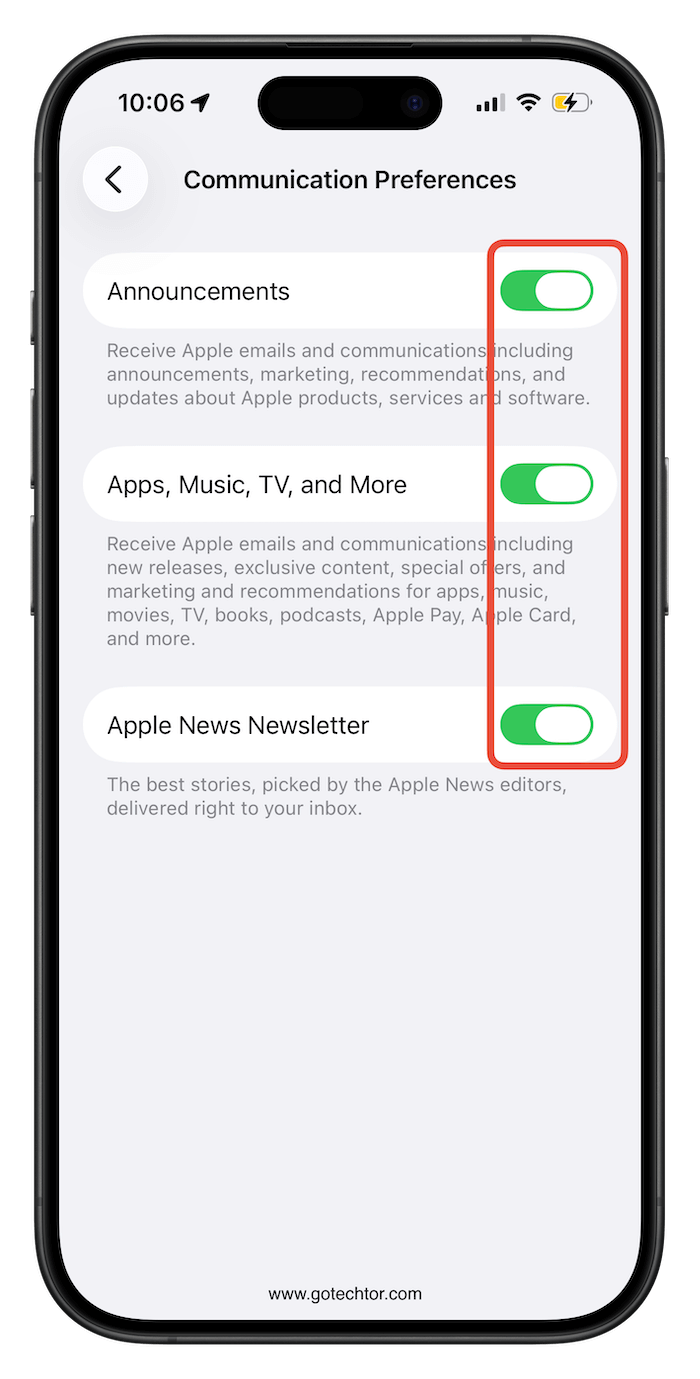
How to adjust:
- Go to Settings and tap your name at the top
- Select Personal Information
- Tap Communication Preferences
- Turn off: Announcements, Apps, Music, TV, and More, and Apple News Newsletter
7. Audit Your Subscriptions (Money-Saving Bonus)
This isn’t strictly an iOS 26 setting, but it’s worth checking while you’re here. You’re probably unaware of how many active subscriptions you’re currently pausing.
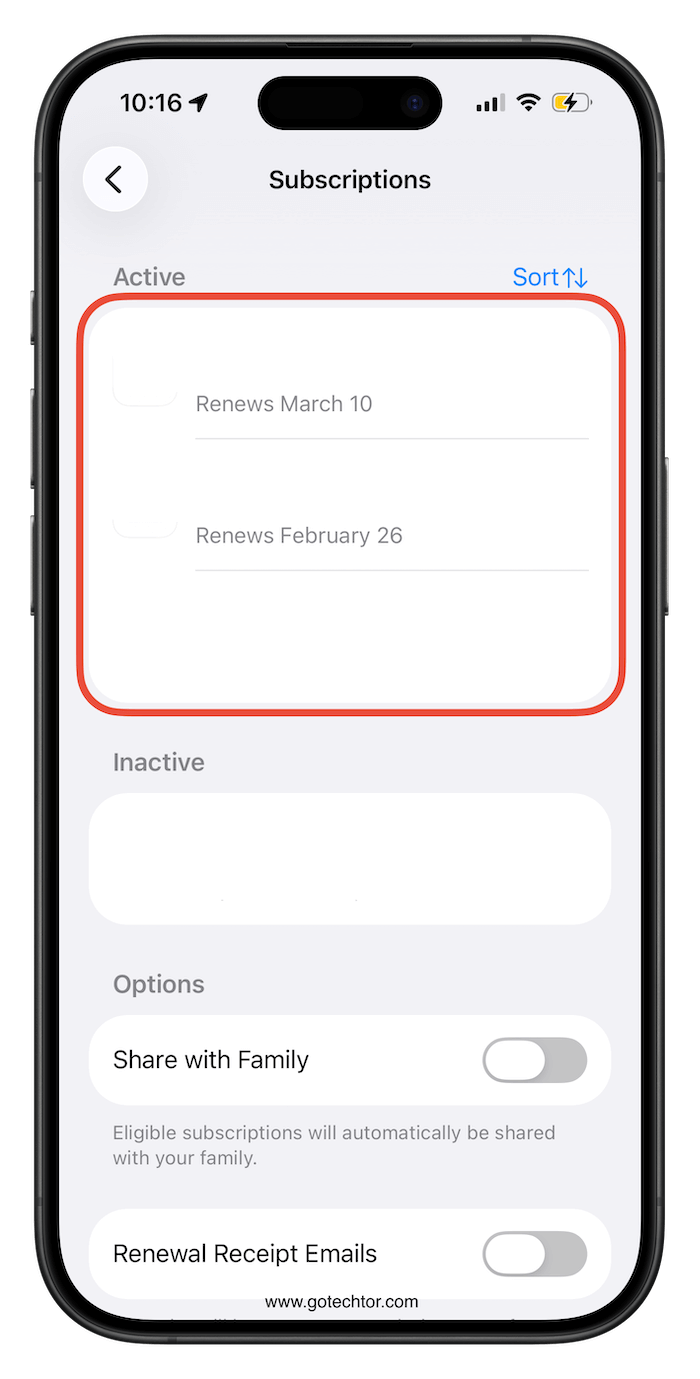
How to review:
- In Settings, tap your name
- Select Subscriptions
Pro tip: When signing up for free trials, immediately open this menu and tap “Cancel Free Trial.” You’ll still get the full trial period, but your credit card won’t be automatically charged at the end.
8. Turn Off Prioritize Faster Shooting
iOS 26’s camera includes several excellent new features, but “Prioritize Faster Shooting” isn’t one of them.
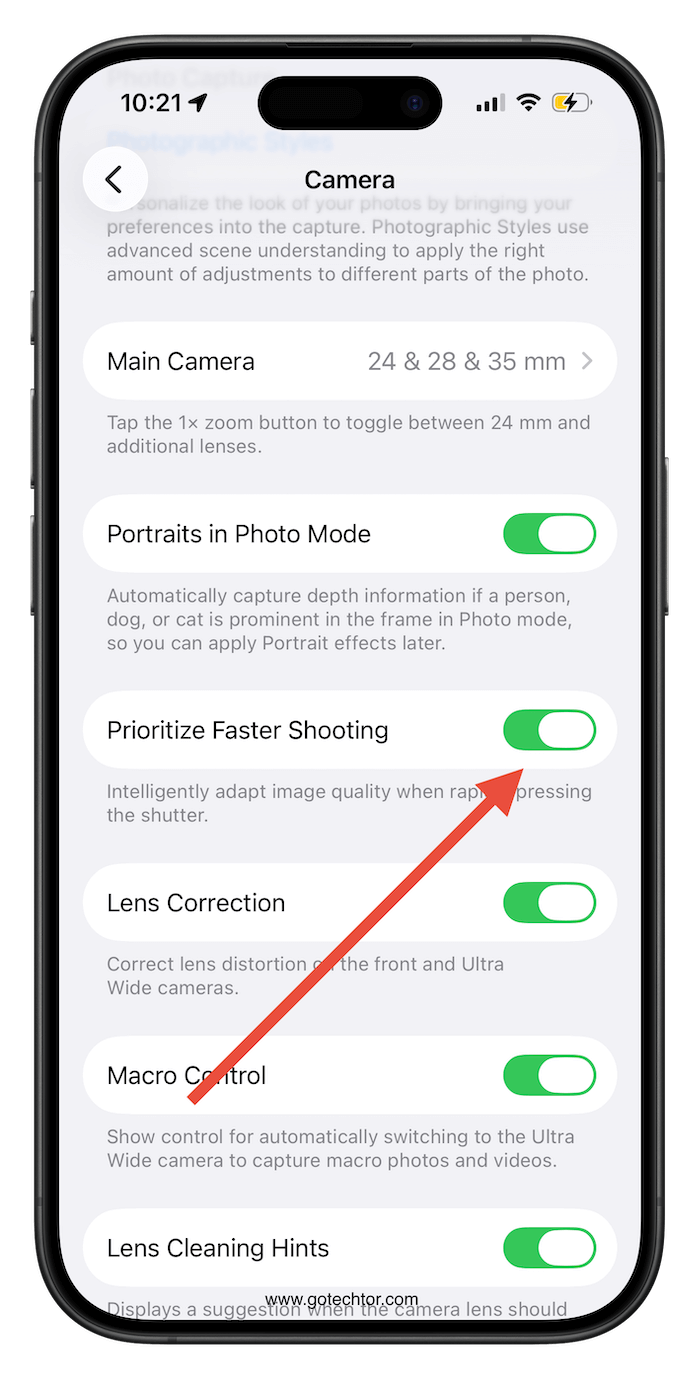
How to adjust:
- Open Settings > Camera
- Scroll down to Prioritize Faster Shooting
- Turn it off
When enabled, your iPhone reduces photo quality when taking rapid shots in succession. Unless you’re a sports photographer, you’d rather have a few high-quality photos than dozens of mediocre ones.
9. Disable Keyboard Sounds and Haptics
These audio and tactile feedback features drain battery faster than you’d expect.
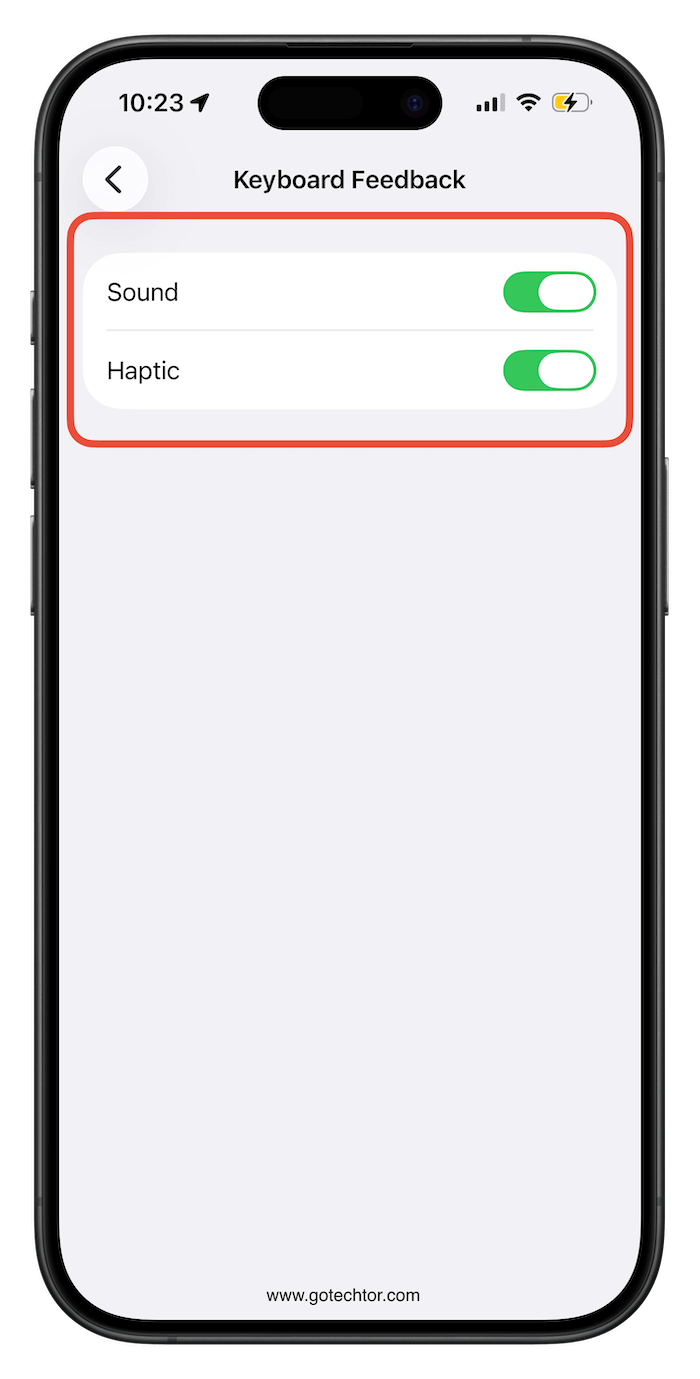
How to adjust:
- Go to Settings > Sounds & Haptics
- Tap Keyboard Feedback
- Turn off both Sound and Haptic
The clicking sound annoys everyone around you, and the haptic feedback, while pleasant, significantly drains the battery. While in this menu, also disable Lock Sound—that click when you lock your iPhone serves no practical purpose.
10. Adjust “Change with Buttons”
This critical setting causes confusion for countless iPhone users.
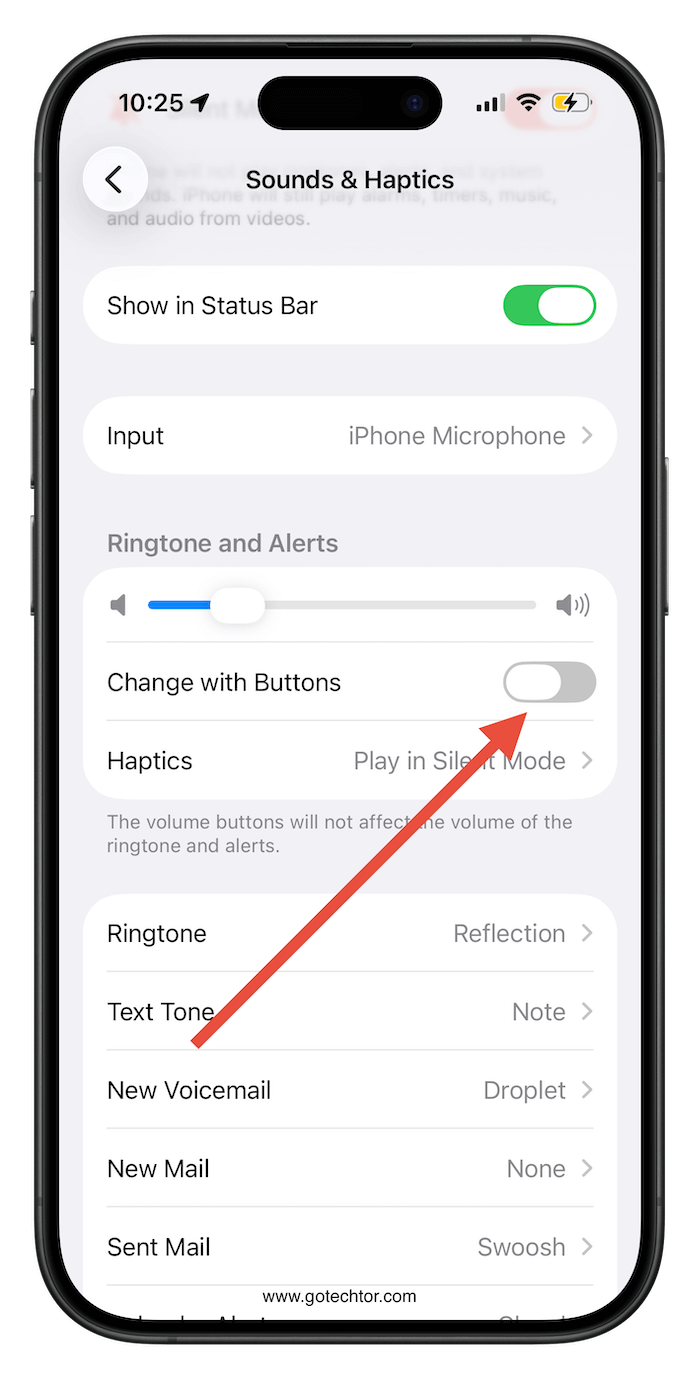
How to adjust:
- Open Settings > Sounds & Haptics
- Scroll to Change with Buttons
- Turn it off
When “Change with Buttons” is enabled, the volume buttons control both media volume and ringer/alarm volume. This leads to a common problem: users turn down a video or game and accidentally silence their alarm clock.
With this setting disabled, volume buttons only affect media volume. Your ringer and alarm maintain consistent volume levels, preventing those “my alarm didn’t go off” mornings.
11. Disable Screen Sharing Notifications
If you ever share your screen or record your iPhone display, this setting prevents embarrassing notification pop-ups.
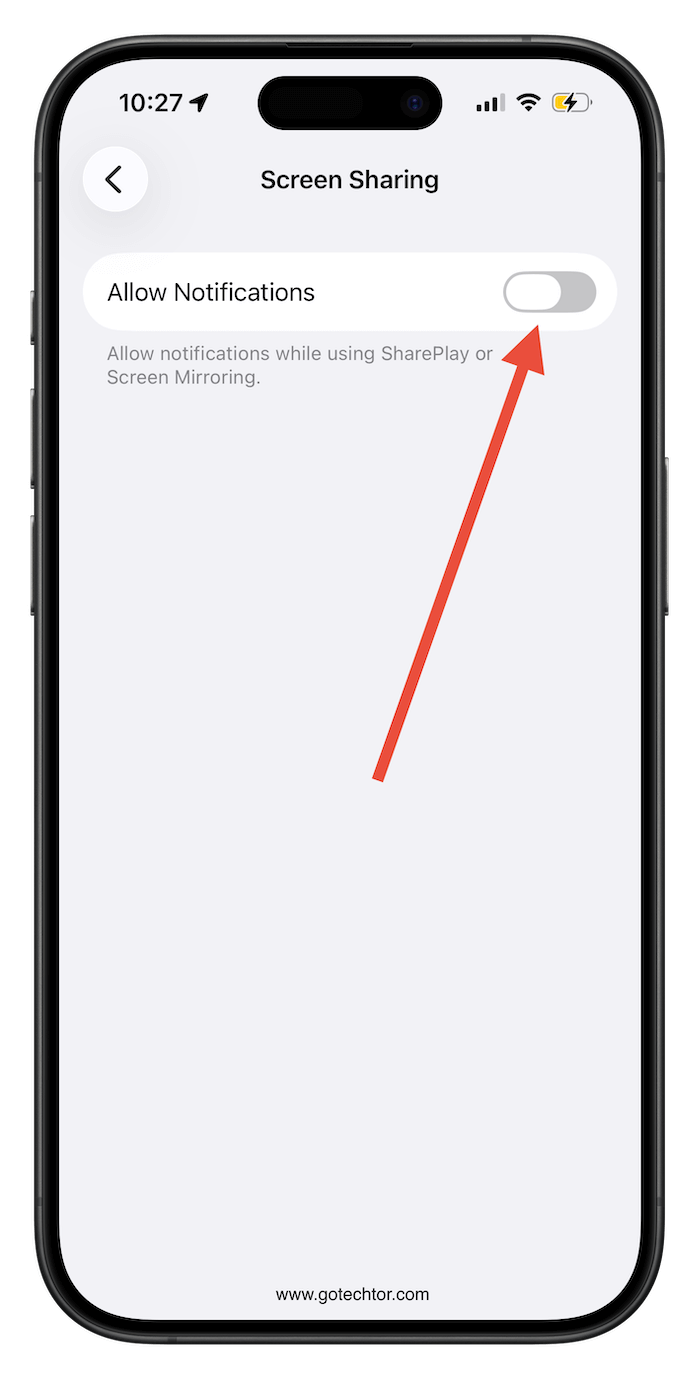
How to adjust:
- Go to Settings > Notifications
- Tap Screen Sharing
- Turn off Allow Notifications
Bonus: Optimize Always On Display
On iPhone 14 Pro and newer Pro models, the Always On Display in iOS 16 offers more customization options. While the feature itself is battery-efficient, the default settings show too much information.
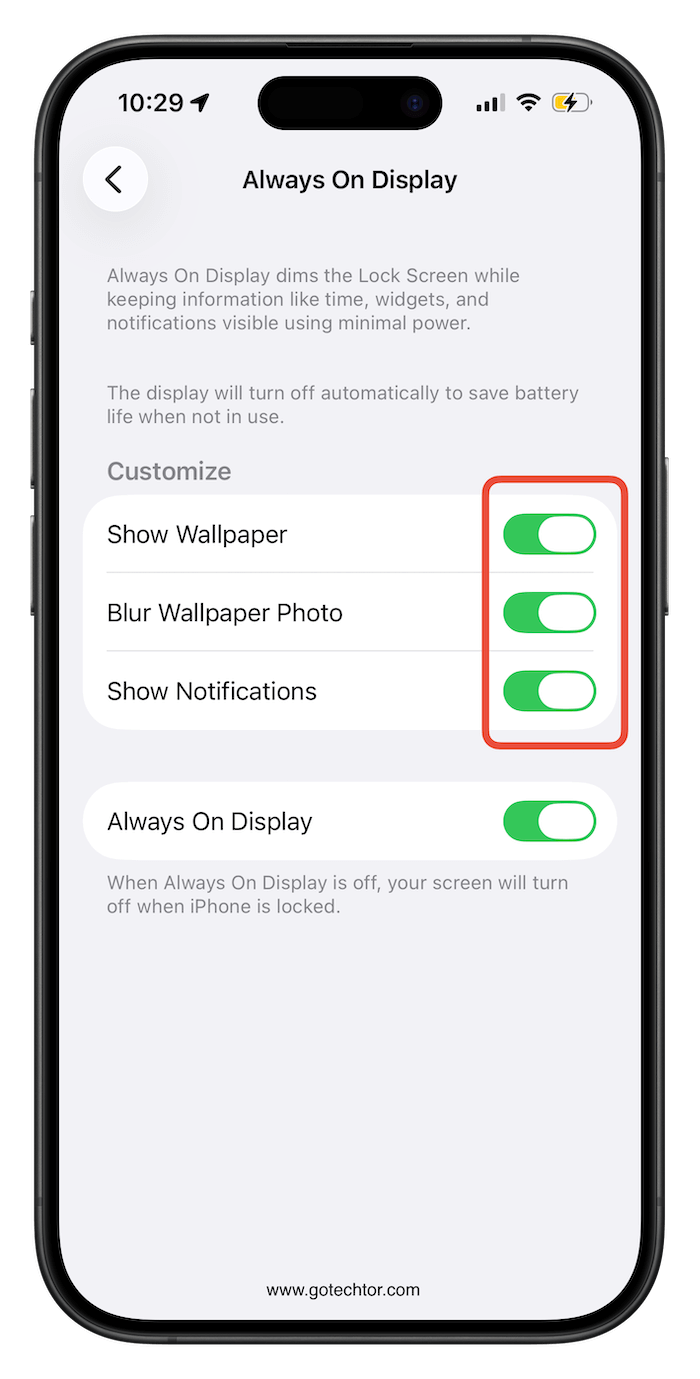
How to adjust:
- Open Settings > Display & Brightness
- Tap Always On Display
- Turn off Show Wallpaper
- Turn off Blur Wallpaper Photo
- Optionally turn off Show Notifications for privacy
This configuration makes the display easier to read at a glance while saving additional battery life.
Should You Sign Out of Game Center?
iOS 26’s new Apple Games app is “integrated throughout the operating system,” appearing in widgets, notifications, and the App Store. For non-gamers, this represents unnecessary battery drain and tracking.
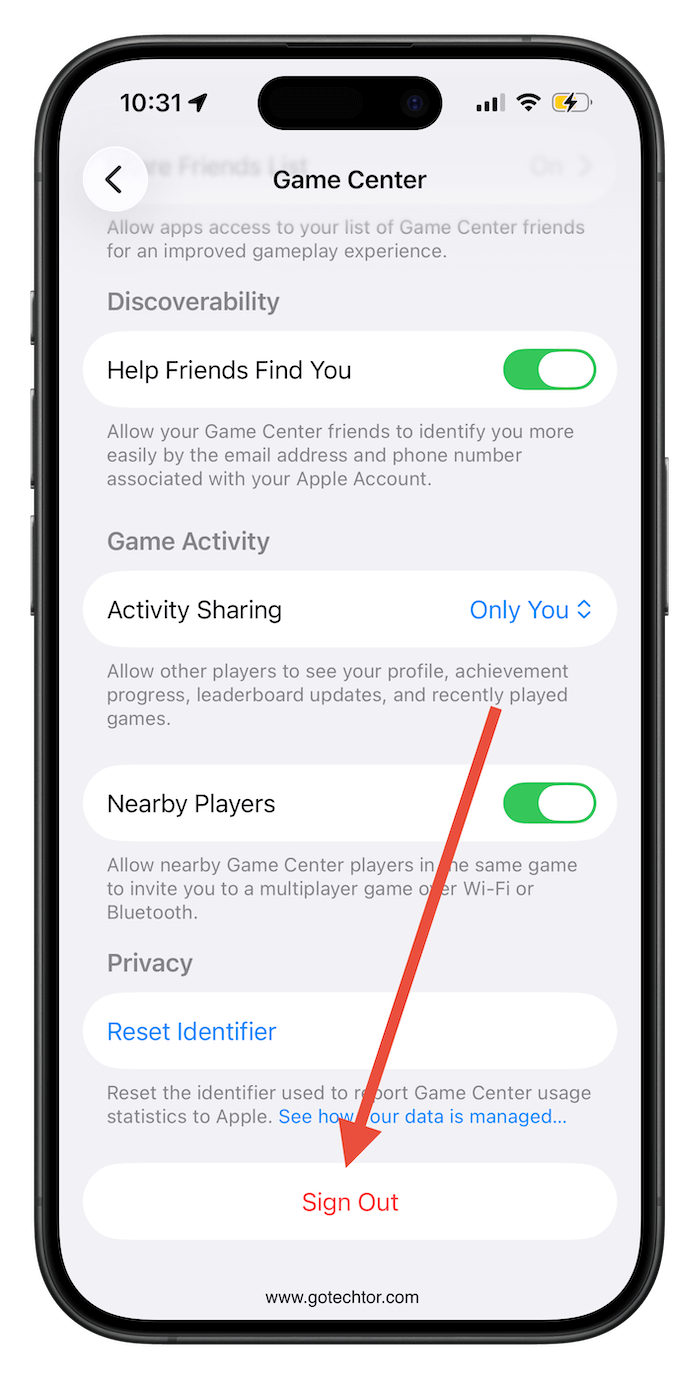
How to sign out:
- Open Settings
- Scroll down tap Game Center
- The, scroll down and tap Sign Out
You can still play games on your iPhone after signing out. You’re simply opting out of Apple’s social gaming features and reducing background activity.
The Bottom Line
iOS 26’s Liquid Glass interface is visually impressive, but it wasn’t optimized for older iPhone models.
It’ll take you a few minutes to adjust these settings. You’ll extend your battery life, reduce heat, and eliminate annoying interruptions all without sacrificing the core iOS experience.
The goal isn’t to strip away everything that makes your iPhone enjoyable, but to find the right balance between aesthetics and practicality.
Have you noticed battery drain issues with iOS 26? Share your experiences and additional tips in the comments below.

