

Since its inception in 2007, the iPhone has continually evolved, boasting powerful processors, stunning displays, and an array of cool features.
While these advancements undoubtedly improve the user experience, they also come with a drawback: increased demands on battery life.
In this story, we’ll explore 5 practical tips to maximize your iPhone’s battery life, ensuring that you can make the most of it without constantly worrying about running out of power.
1. Turn Off App Suggestions
If you pull down on your iPhone screen, you may see some apps waiting for you at the bottom of the search bar, such as Siri App Suggestions.
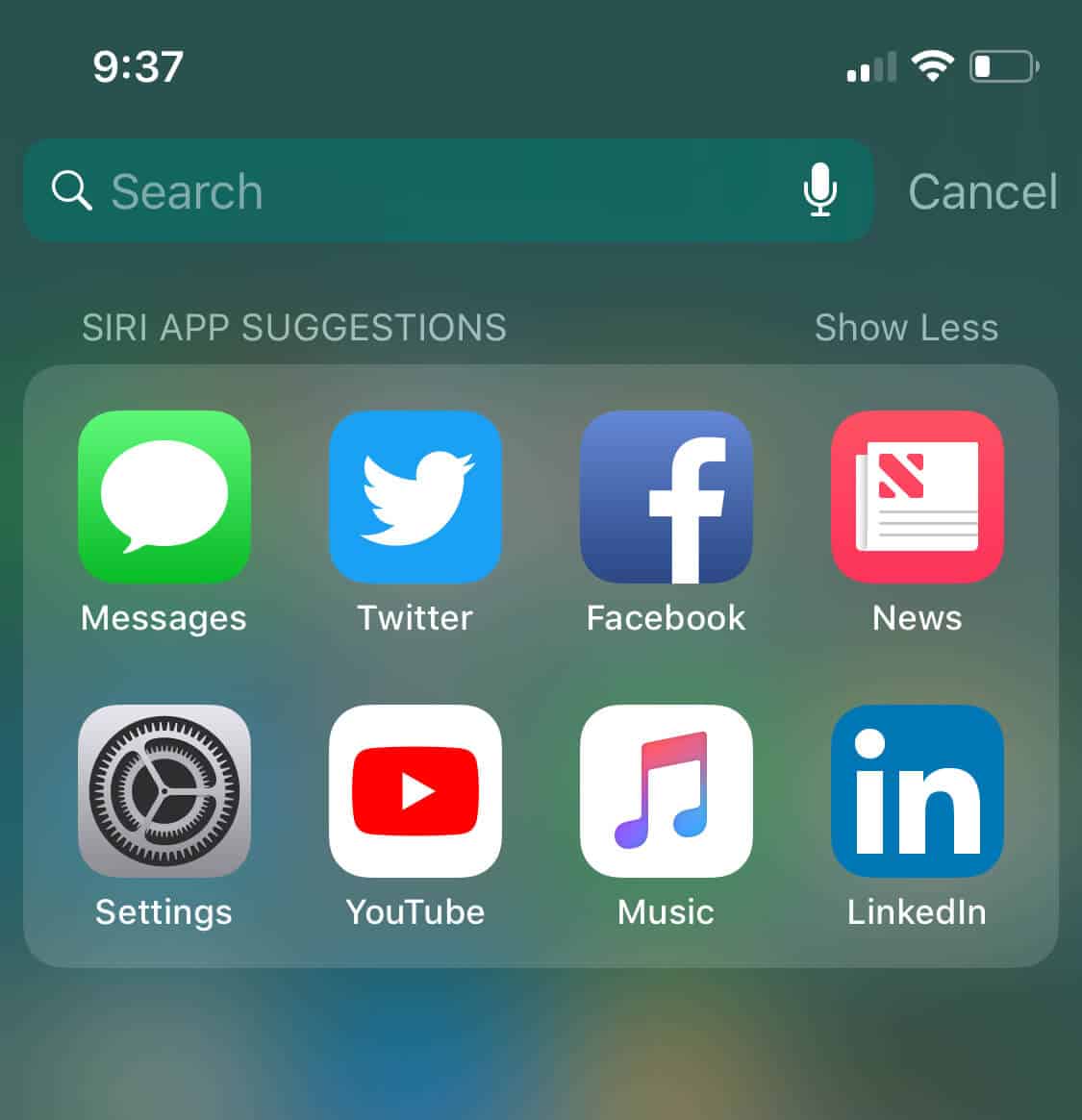
Some people may not even be aware of it, but it can be handy as it suggests apps you use frequently. Have you ever used it? If not, it’s time to turn it off because it’s draining your iPhone battery.
From your Home screen, swipe to the right to access Widgets. Scroll to the bottom and select Edit. Look for Siri App Suggestions, tap the red minus icon next to it, then select Remove.
2. Turn Off iPhone Analytics & Improvements
During your iPhone setup, you may have chosen to send diagnostics data to Apple and developers.
It’s good that you’re sending Apple anonymous information about how your iPhone works to help the company improve its products.

But there’s a catch. It sucks battery life when your iPhone automatically sends data to Apple.
To stop sending iPhone analytics, follow these steps:
- Open the Settings app.
- Select Privacy & Security.
- Scroll to the bottom and open Analytics & Improvements.
- Turn off these analytics data.
3. Adjust Screen Brightness
Displays usually consume a lot of power, which can be problematic for mobile phones that depend on batteries.
Depending on your iPhone’s display, some may consume more energy than others. OLED displays are more power-efficient than LCD ones.
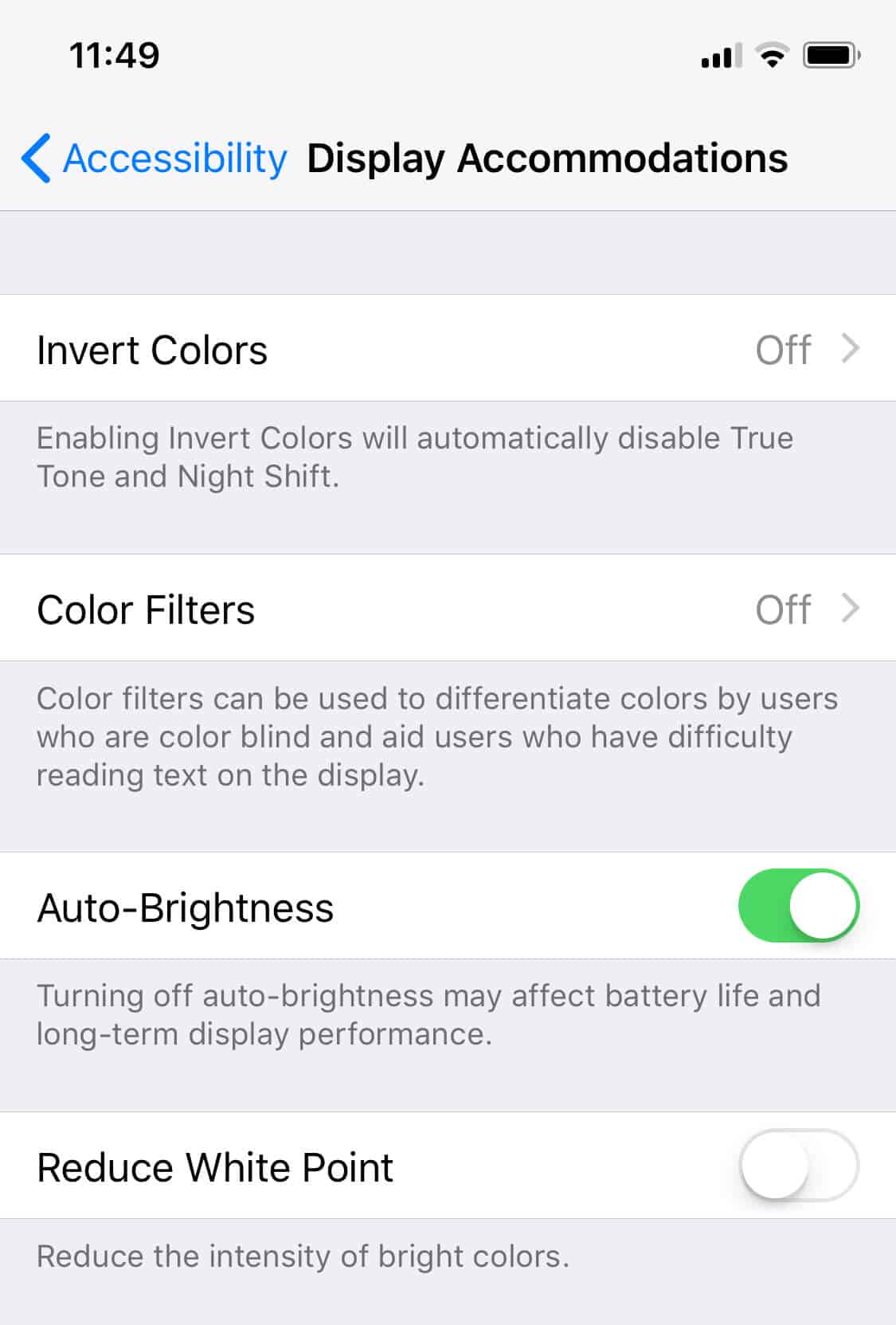
Even though Apple has started using an OLED display on the iPhone X and newer models, you can still squeeze more life out of your battery. The brighter the screen, the more power it consumes.
The iPhone has an ambient light sensor that determines how much light is around your iPhone and automatically adjusts the screen’s brightness.
You can use the slider from the “Control Panel” to manually reduce your screen’s brightness.
You can also enable Auto-Brightness, which will do the job for you.
- Go to Settings.
- Select Accessibility.
- Tap Display & Text Size.
- Then, turn on Auto-Brightness.
4. Turn Off Siri Suggestions
Do you rely on Siri to get stuff done with your iPhone? If not, it’s time to turn it off. Like every app, the more you use it, the more battery it consumes.
But I don’t use Siri. How does it drain my battery? Even though you don’t use Siri, “Hey Siri” listens to you constantly so he/she can respond to your commands. And that drains the battery, my friend.

Go to your iPhone Settings, scroll down, and tap “Siri and Search.” Toggle off all three buttons shown in the image above.
Siri Suggestions can also drain your battery. Siri analyzes how you use your Apple device to give you personalized suggestions and better search results. To do that, Siri needs to send some of this information back to Apple.
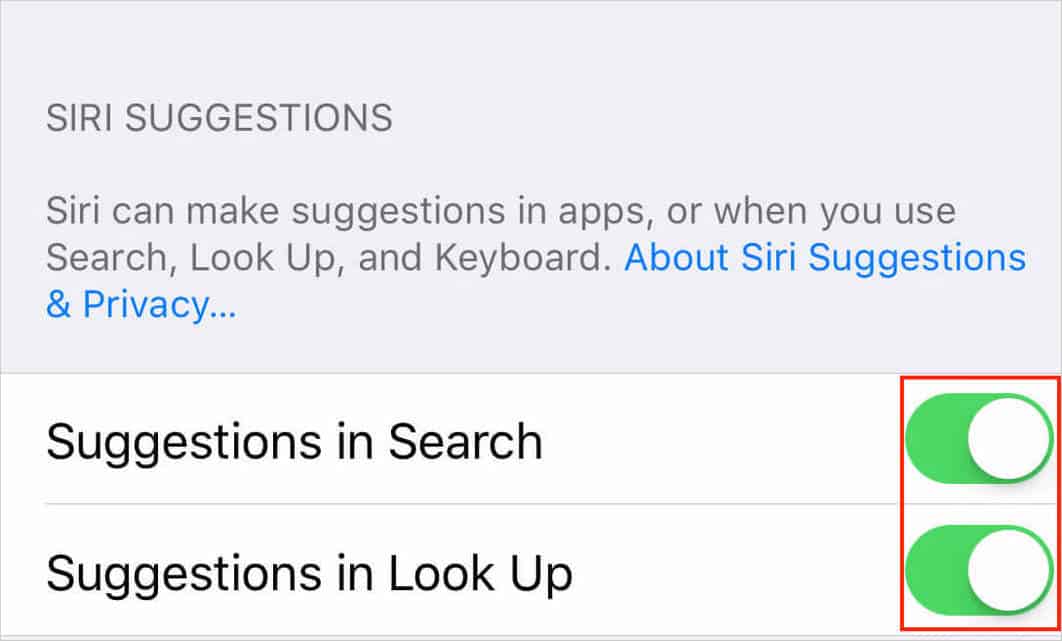
While in Settings, find Siri Suggestions under Siri and Search and toggle the “Suggestions in Search” and “Suggestions in Look Up” switches to off.
You can also prevent apps from allowing Siri to learn how you use them. Scroll down to find the app you want to disable, select it, and slide the “Learn from this App” switch off.

5. Turn Off Personal Hotspot
I use my Mac’s Personal Hotspot feature all the time, especially on long commutes. While it’s nice to turn your iPhone into a wireless hotspot, it can also drain your battery quickly.
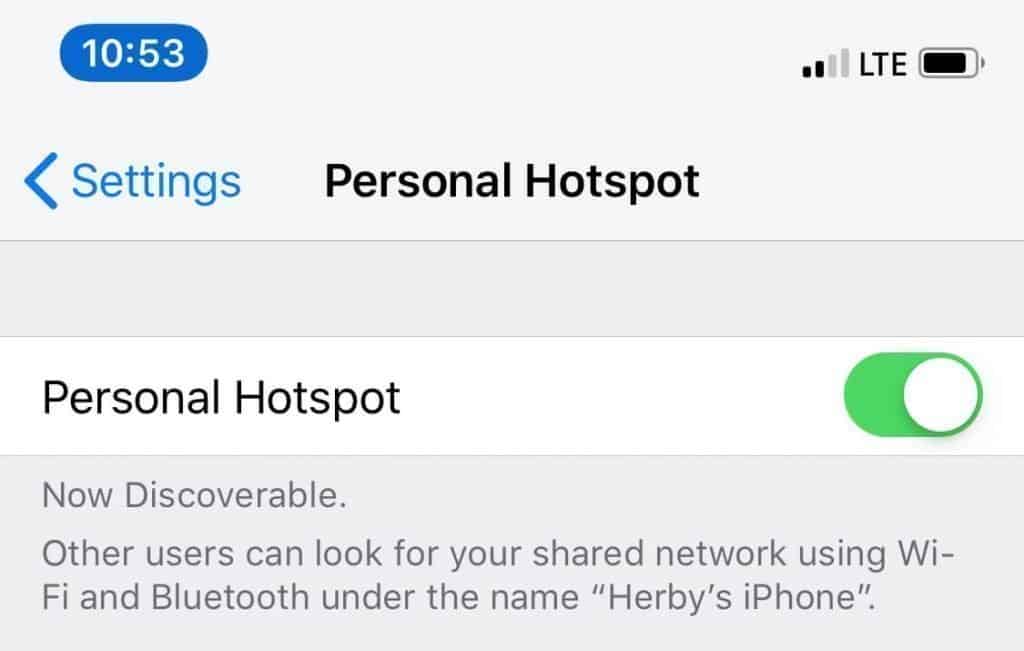
It’s recommended to turn it off if you’re not using it. Here’s how to turn Personal Hotspot off:
- Go to your iPhone settings.
- Tap Personal Hotspot.
- Toggle off the slider on the right.
Do you have some favorite tips for extending your iPhone’s battery life? Let us know in the comments below.

