
You probably open Apple Notes a dozen times a day without realizing how much of it you’ve never actually touched.
But buried inside this free app are features that genuinely change how you organize your life, protect your personal info, and even let AI write for you.
To get the most out of Notes, here are actually 10 useful features worth checking out.
Your Sensitive Stuff Deserves Better Protection
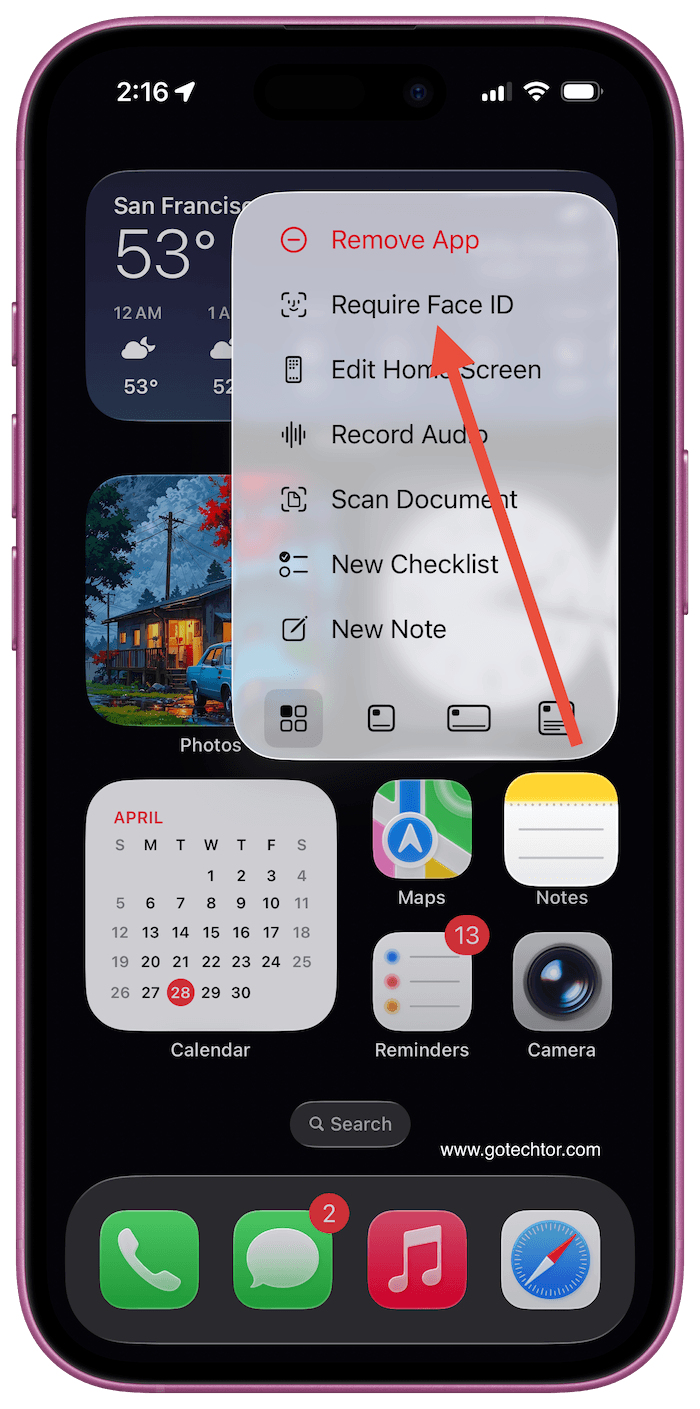
Notes can lock individual entries behind Face ID or a password, which is great. But you can hold down the app icon on your Home Screen and lock the entire app in one move. No more going note by note.
Linking to Apple Notes from another note
Linking notes is now quick and straightforward. Long-press in any note to access the “Add Link” option, then search for the note you want or enter a URL.

You can customize the link text or leave it as-is. After adding it, the link appears underlined, and tapping it opens the connected note immediately.
If you want something even faster, type “>>” to pull up a list of your six most recent notes. Select one, and the link is added on the spot.
Drag & Drop Text and Images Into Note
One of Apple Notes’ most prominent time-saving features is the ability to drag and drop text or images into a note.

When you have an active note, you will see a pop-out arrow on the side of the screen. For text, you can highlight any text on the screen, then pop out the note by tapping the arrow on the side, holding down the highlighted text, and dragging it onto the visible note.
The text will copy and paste right into it. If your text contains links, they will be imported into the Notes automatically. Similarly, you can hold down an image and drag it over to an open note.
Also: How to use drag and drop on iPhone to streamline your workflow and become a productivity machine
Let AI Do the Heavy Lifting
If your iPhone runs Apple Intelligence, the Compose tool inside Notes connects directly to ChatGPT. You can prompt it to write something from scratch right inside your note.
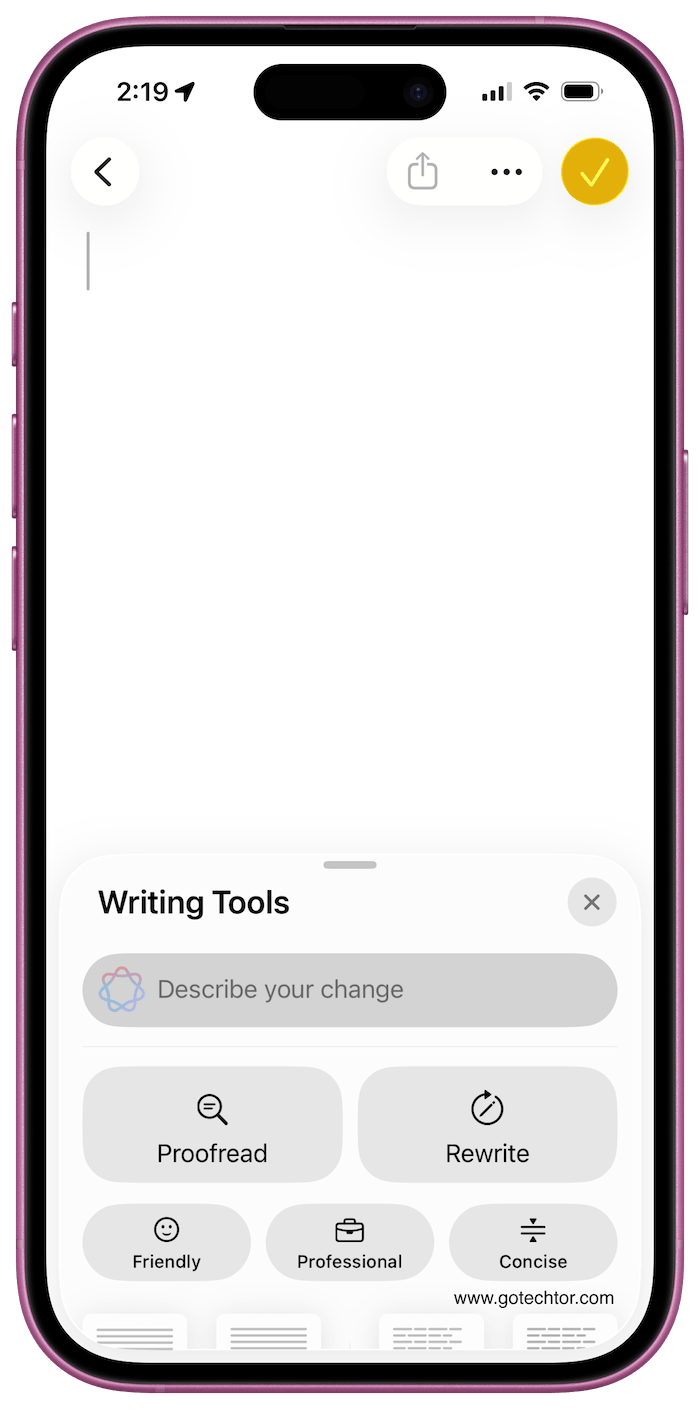
Already have text written? Select it and tap Writing Tools to proofread, rewrite, or shift the tone entirely.
Need a visual? Apple’s Image Playground lets you generate artwork in animation, illustration, or sketch style without leaving the app.
Link Notes to Each Other
If you have two or more notes that contain different but related matters, you can associate them with a link, allowing you to move from one to another easily.

You can do this by writing relevant wording in one note and highlighting it. When the text is highlighted, a pop-up will appear with options for what you would like to do with it.
Simply select Add Link, then on the subsequent stacked screen, enter the title of the note you want to link to and save it. Notes will recognize the connecting note and link the two together.
Stop Typing Everything by Hand
Newer iPhones can record audio inside a note and transcribe speech in real time, even without a Wi-Fi connection.
Sitting through a long lecture or meeting? Apple Intelligence can summarize the full transcript into a few key points afterward.
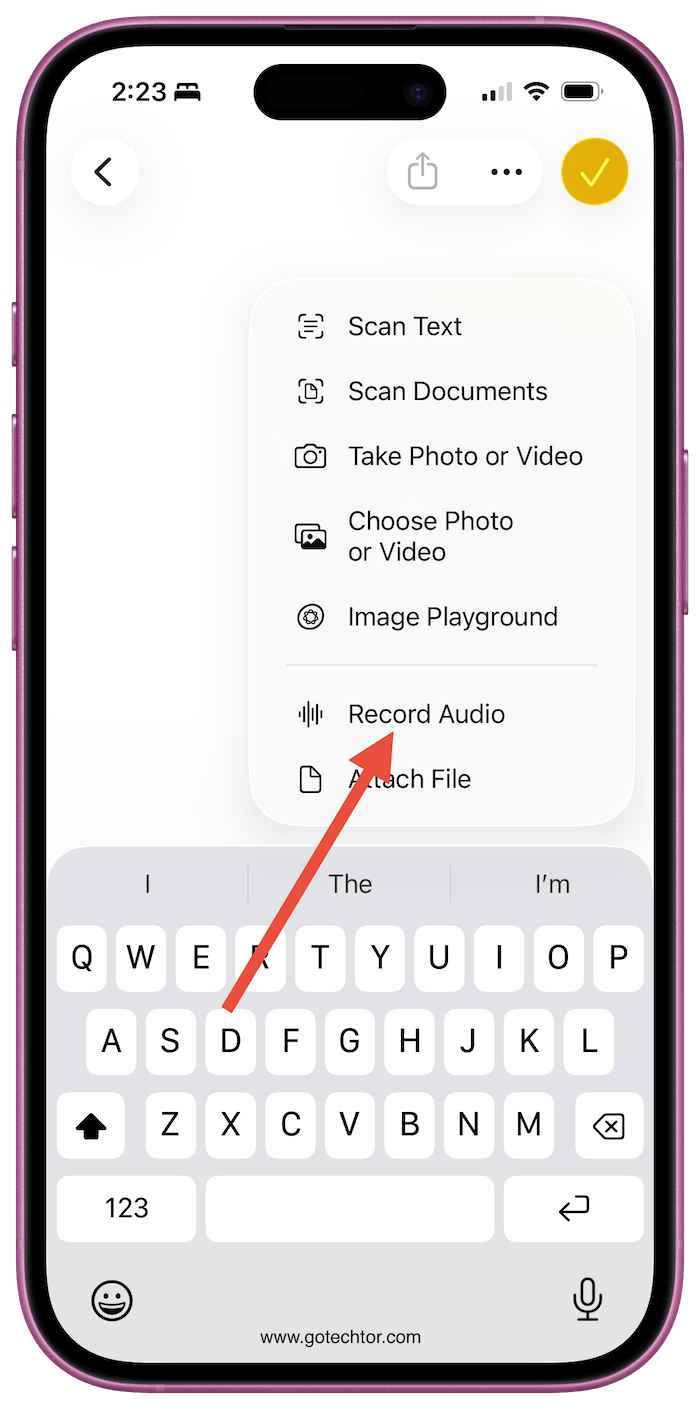
There’s also a document scanner built into the attachments menu, so you can digitize paperwork and drop it straight into a note.
Find Anything, No Matter How Old It Is
Got hundreds of notes piling up over the years? Tags inside notes automatically group related content, and you can pin your most-used notes to the top of the list.
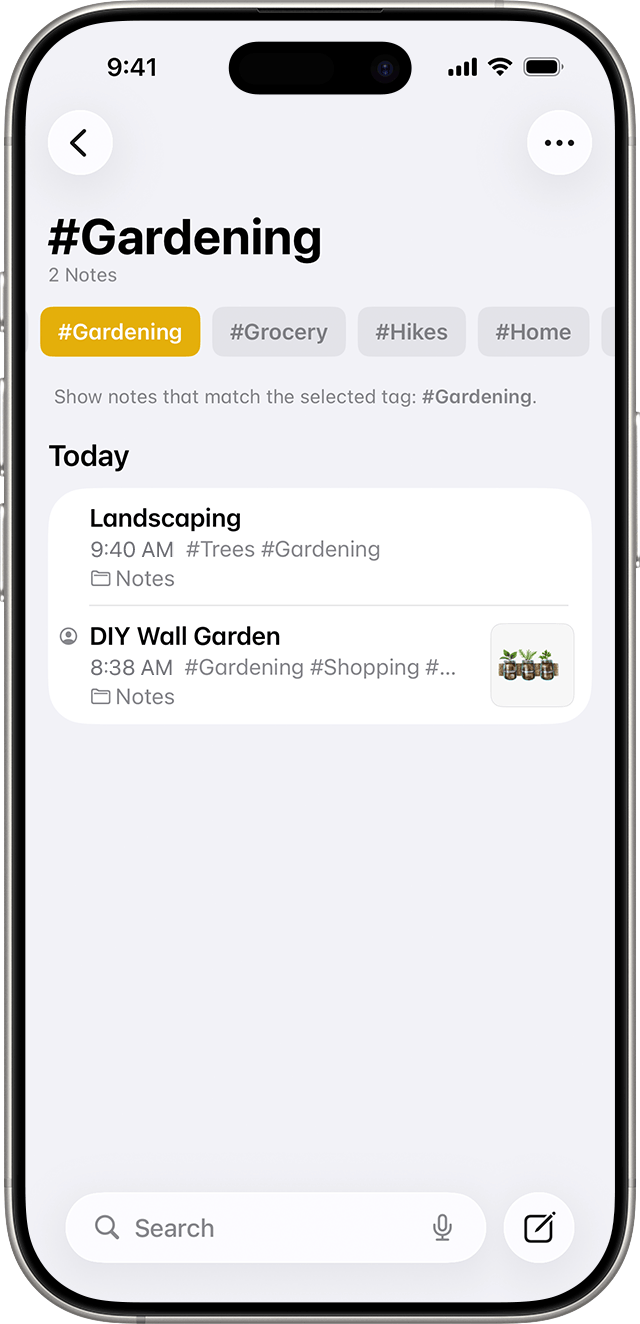
The search feature reads handwritten notes, too, which is surprisingly powerful. You can also link one note to another by name, building a personal knowledge base that actually makes sense to navigate.
Also: 5 AirPods features that feel almost too useful once you realize what they actually do in real life
Features Students Will Actually Use
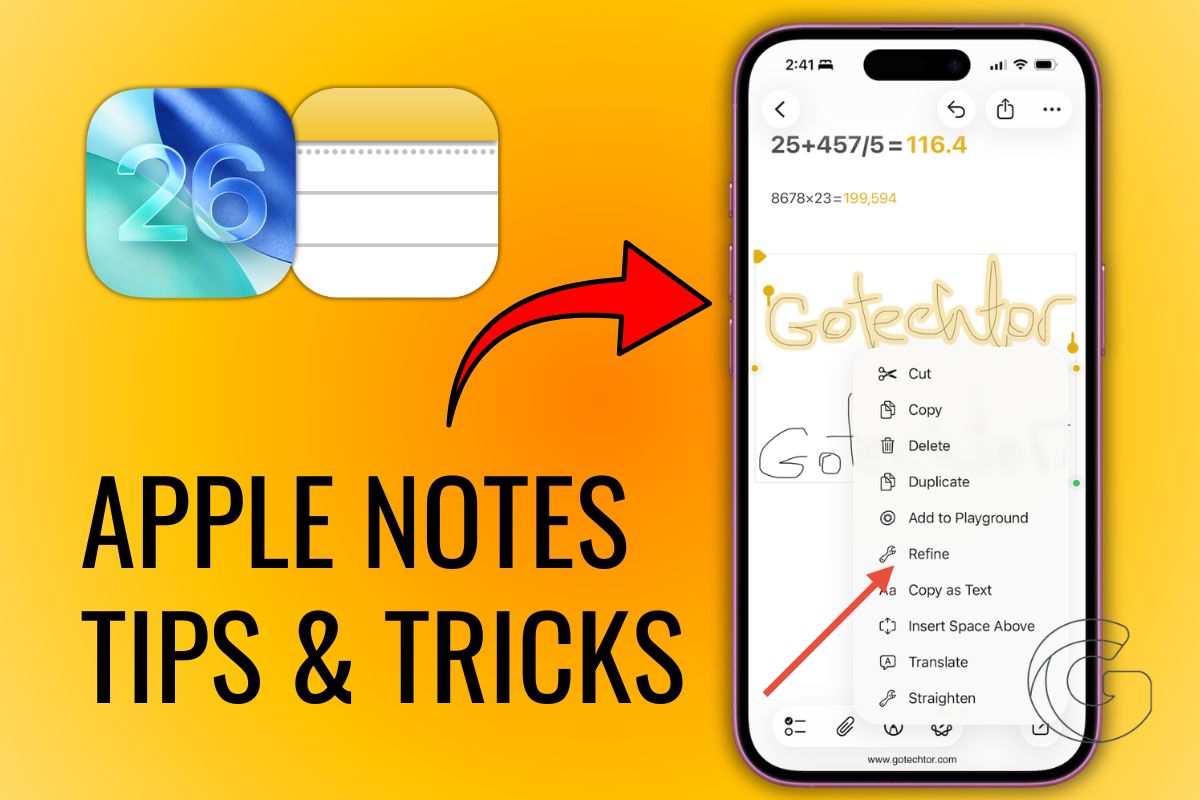
If your handwriting looks like a seismograph reading, tap and hold your scribbles and hit Refine to clean them up automatically.
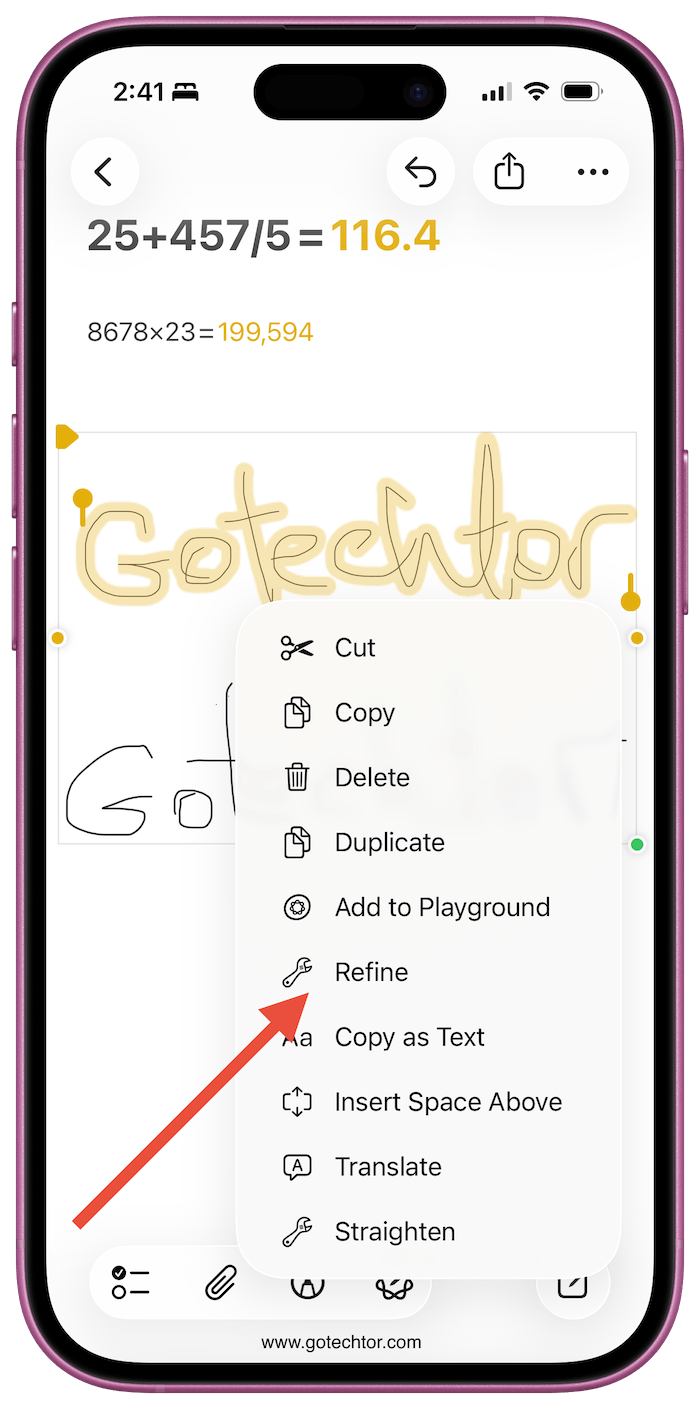
Type out a math equation, and the keyboard will suggest the answer inline without you needing a separate calculator app. Small things, genuinely useful.
Also: 10 actually useful iPhone shortcuts that will make your life way easier
Work With Others Without the Back-and-Forth
Sending a static note file to someone and waiting for edits is a slow way to collaborate. Instead, tap Share on any note, choose Collaborate, and send the invite.
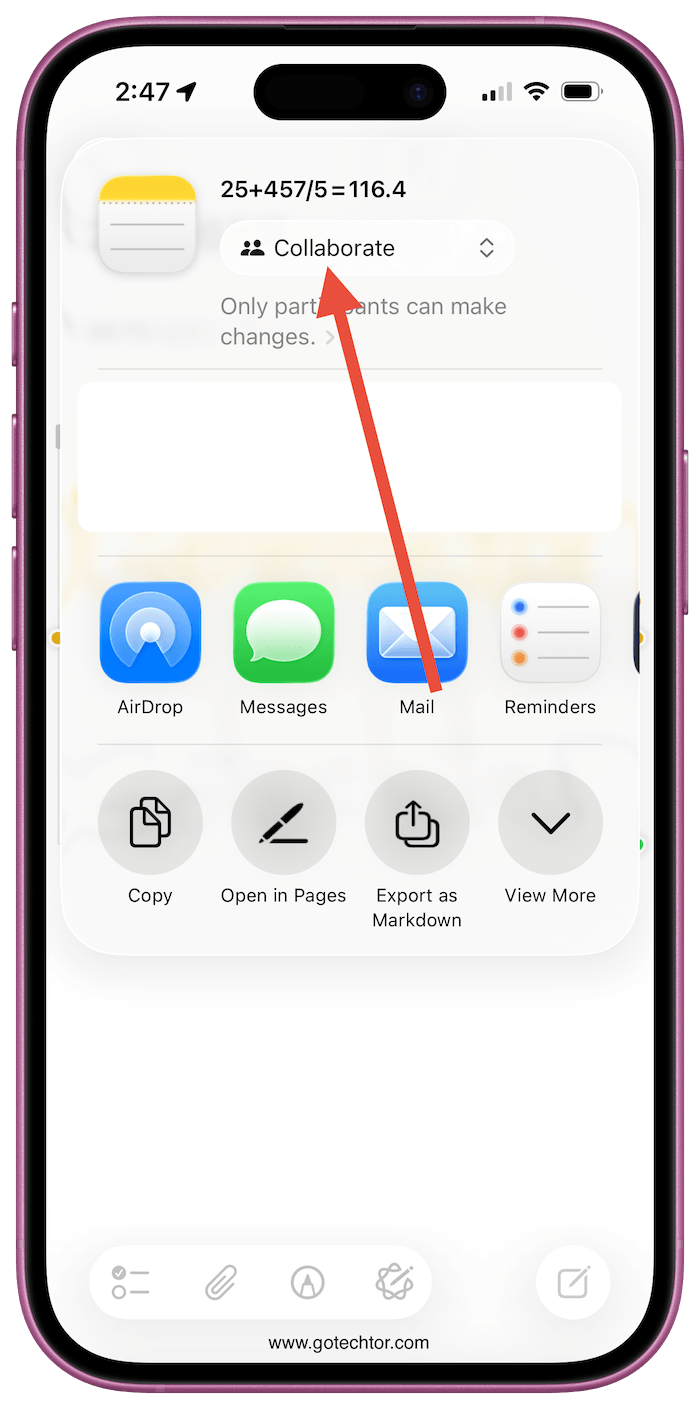
Everyone edits the same live document, can tag each other, and sees changes as they happen. When you’re ready to move a project into a full document editor, you can open the note directly in Pages or export it as a Markdown file.
Shortcuts That Save Real Time
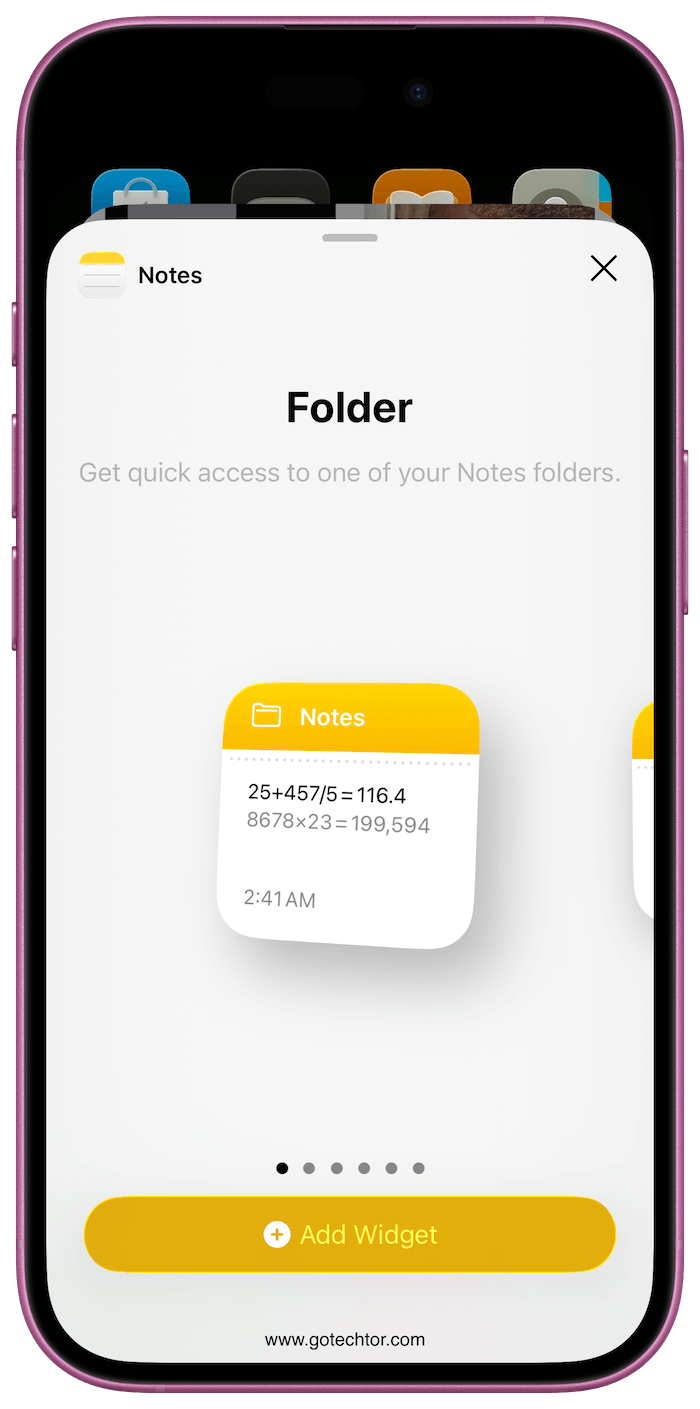
You can add Apple Notes as a widget on your Home Screen, drop a toggle into Control Center, or map it to the Action button on supported iPhones. When you need to capture something fast, you won’t be fumbling through menus.
You can also share content directly from other apps straight into Notes without switching back and forth.

