

A little-known iPhone setting related to AirPlay deserves a closer look if you want to limit unnecessary wireless connections.
AirPlay lets you stream audio, video, or your screen to nearby devices, such as Apple TVs, smart speakers, and compatible TVs.
While convenient, the option controlling automatic connections can increase your phone’s exposure if left unchecked.
You can find it under Settings > General > AirPlay & Continuity > Automatically AirPlay. Apple offers three choices:
- Never – blocks automatic connections
- Ask – prompts you before connecting
- Automatic – connects on its own in certain situations
Many iPhones default to Automatic, especially after updates, leaving devices open to connections without the user’s knowledge.
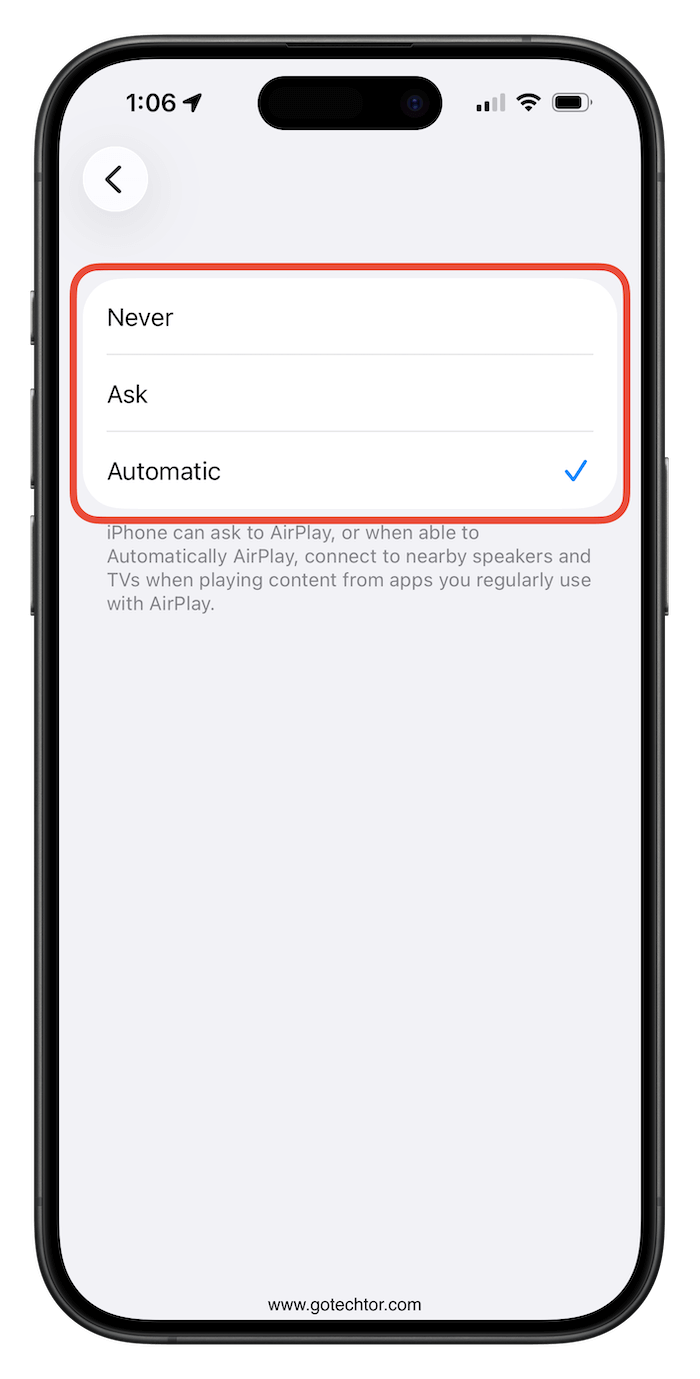
While this can make streaming effortless, it also expands the ways a device could be targeted if a vulnerability exists.
Automatic connectivity is not inherently dangerous, but it does increase risk. Any feature that allows a device to connect automatically adds to its attack surface.
Exploiting the device would still require a specific flaw in the AirPlay system, but devices set to accept connections automatically are more exposed if a new vulnerability is discovered in the future.
Past security issues with AirPlay show why this matters. Certain flaws allowed attackers to send malicious code or gain deeper access to devices over a network, even without user interaction.
Updates patched these vulnerabilities, but the default automatic setting could still increase exposure for future exploits.
iOS updates can also reset preferences, enabling automatic connections or other features that users previously disabled.
While updates protect against known security threats, they can unintentionally expand exposure if users aren’t aware of the changes.
How to stay safer
Follow these tips to reduce your exposure without giving up the features you actually use.
- If you never use AirPlay, set it to Never.
- If you use AirPlay, set it to Ask. This keeps the feature available but prevents automatic connections.
- Apply the same logic to Bluetooth, Wi‑Fi, and other wireless features: only connect to trusted networks and devices.
- After each iOS update, double-check your connectivity settings.
AirPlay isn’t inherently unsafe, and Apple regularly patches vulnerabilities. The concern is awareness and control.
Automatic connections trade convenience for security, potentially increasing risk if vulnerabilities emerge.
Taking a few minutes to review your iPhone settings ensures your device stays both functional and secure.

