

Most people assume their iPhone is protecting them the moment they turn it on. Spoiler: it’s not doing nearly as much as you’d think.
A surprising number of privacy controls sit buried in menus, switched off by default, quietly letting apps, websites, and even Apple itself collect far more than you’d probably be comfortable with.
The good news is that you can fix most of it in under ten minutes. Here’s where to start.
Your Location Is Probably Overshared
Head to Settings, then Privacy and Security, then Location Services. You’ll likely find apps with “Always” access that have absolutely no business knowing where you are around the clock.
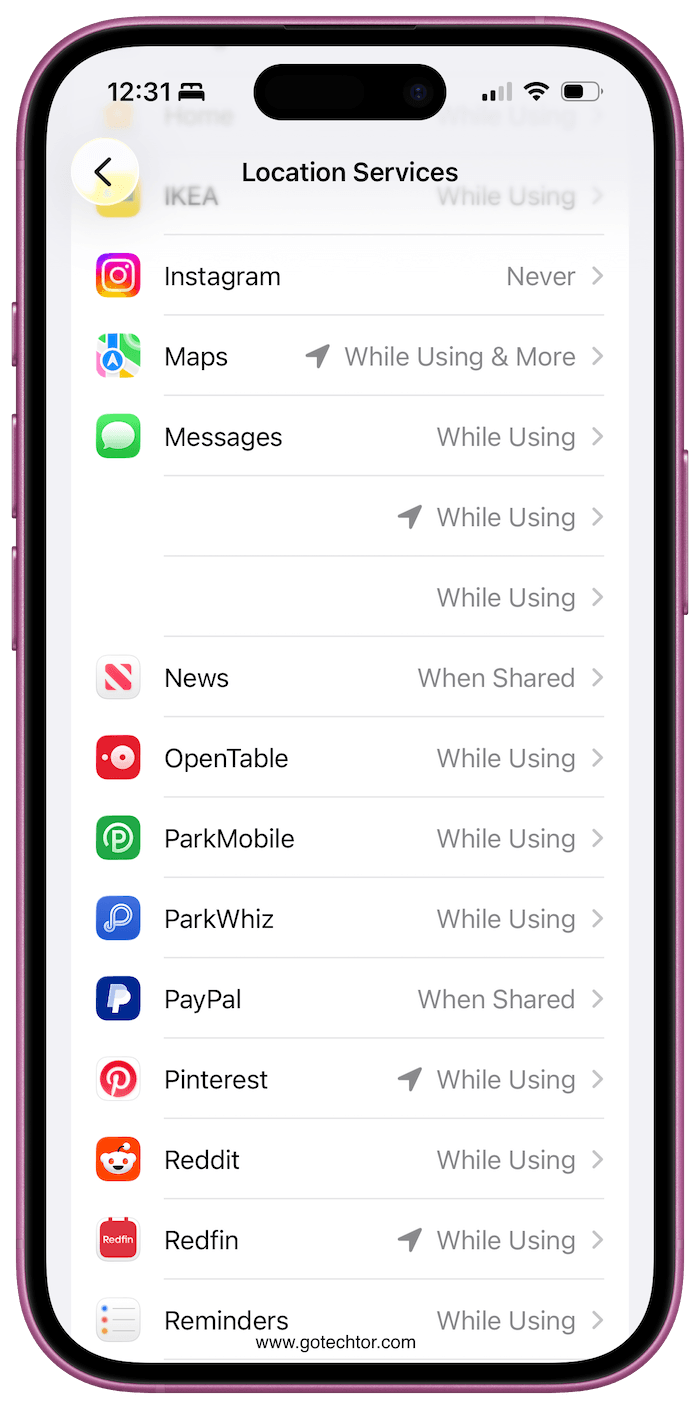
Flip most of them to “While Using the App” and turn off “Significant Locations” under System Services. Clear the history while you’re there, too.
Safari Knows More About You Than You’d Expect
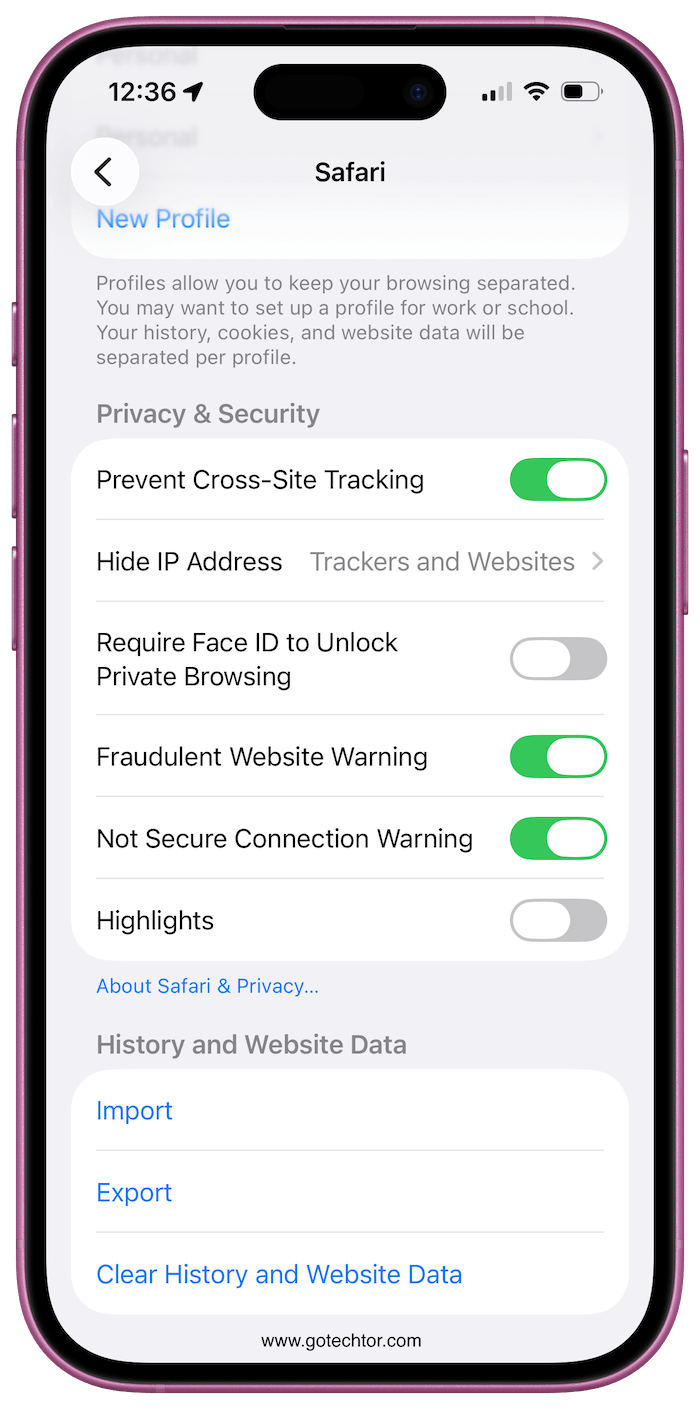
Inside Settings, go to Safari and open Privacy and Security. Turn on cross-site tracking prevention, hide your IP address from trackers, and enable the fraudulent website warning.
While you’re in the Safari settings, jump into the Search section and disable live search suggestions.
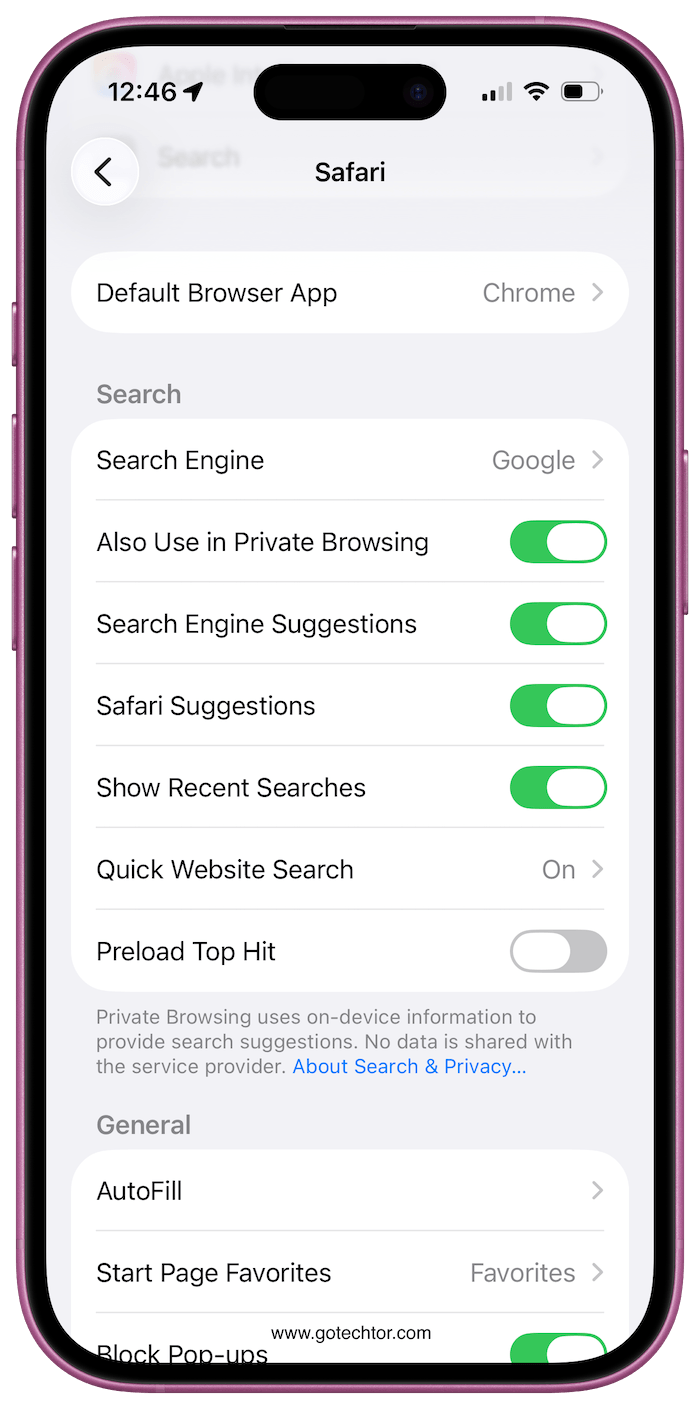
Every letter you type in that search bar gets sent off before you even hit enter, and turning that off keeps your queries to yourself.
Apps Are Listening, Sometimes Literally
Go to Privacy and Security, then Microphone. Scroll through the list and ask yourself honestly whether each app needs that access.
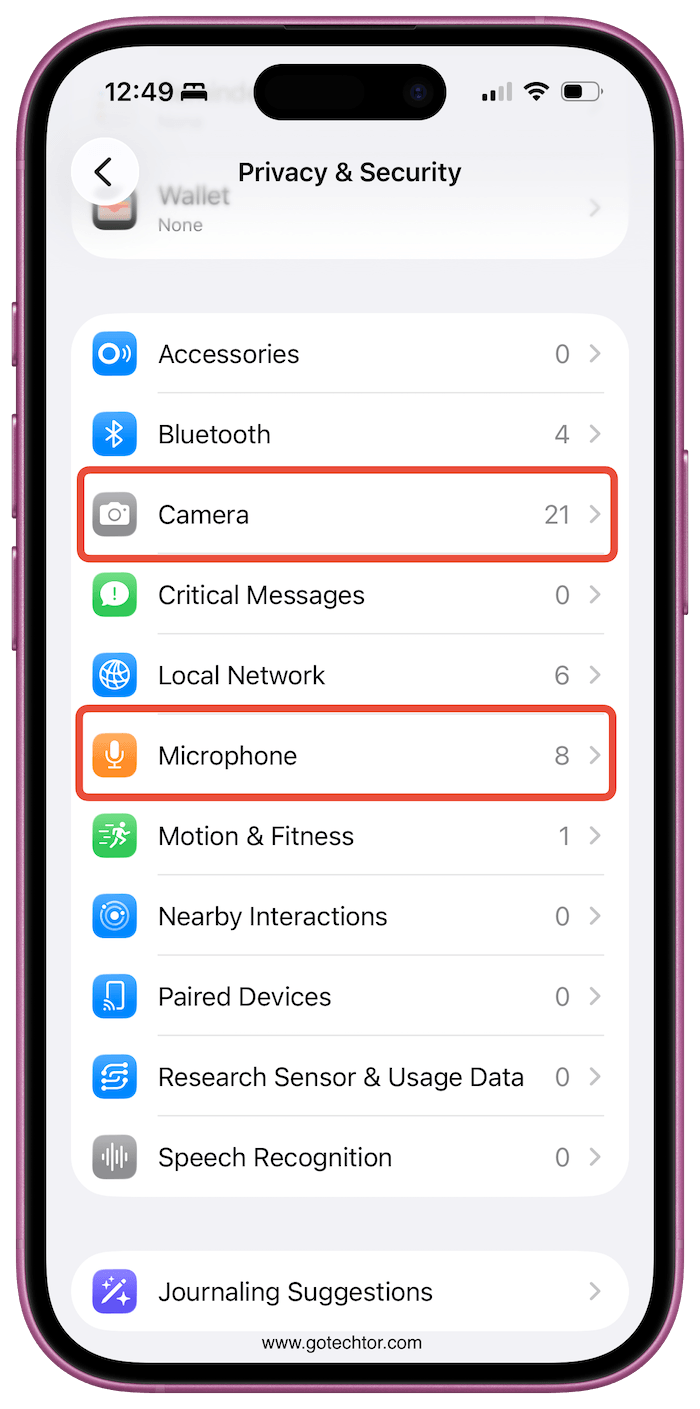
If the answer isn’t obvious, revoke it. The same logic applies to camera permissions. Neither should be handed out freely.
Flip the Switch on Ad Tracking
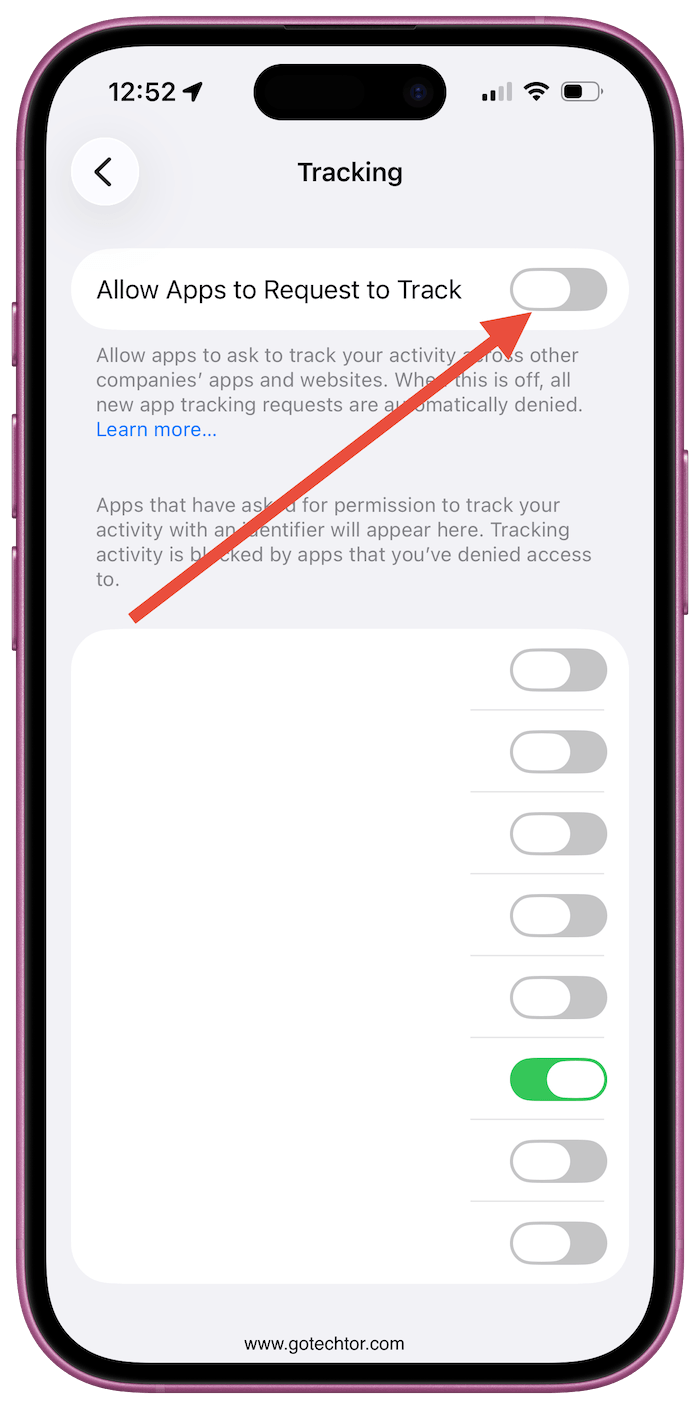
Under Privacy and Security, find Tracking and turn off the option that lets apps ask to track you.
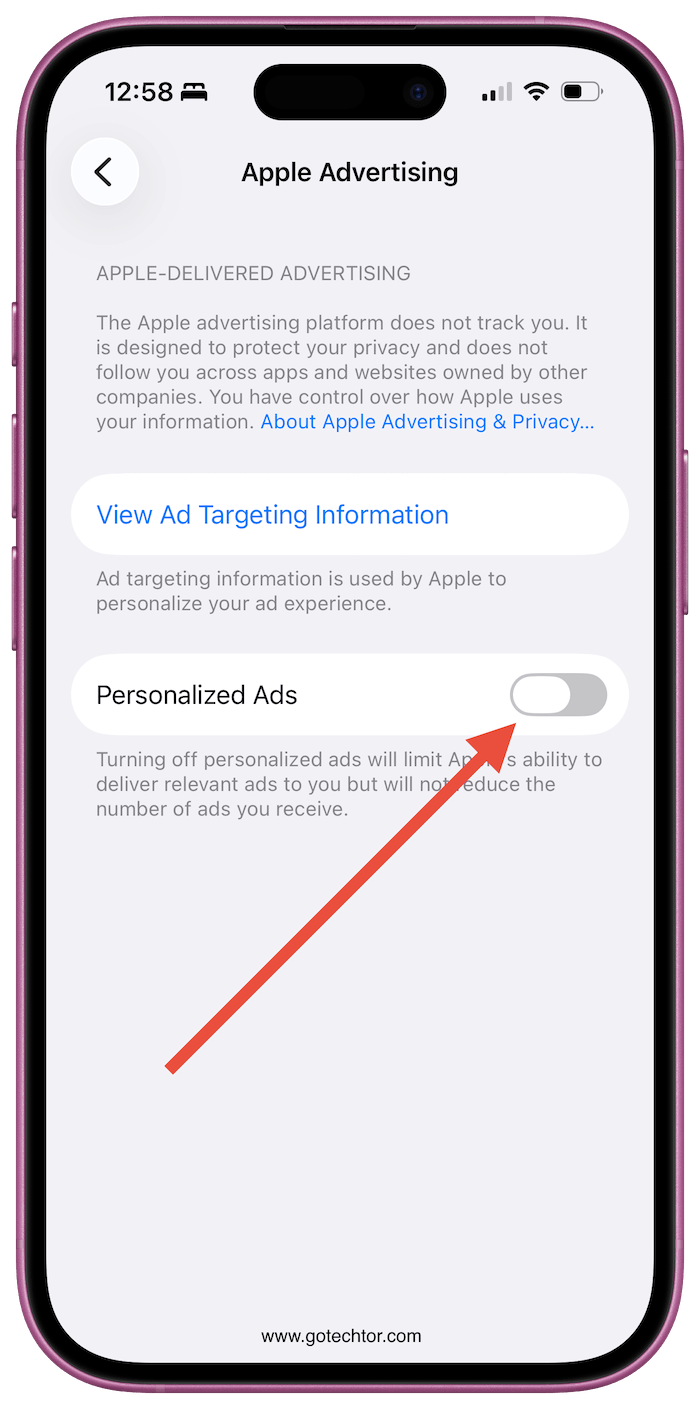
Then scroll down to Apple Advertising and switch off personalized ads. Also, check Analytics and Improvements and disable everything in there.
Apple frames data collection as a way to improve services, but you’re under no obligation to contribute.
Websites Shouldn’t Have Permanent Access to Your Hardware
In Safari’s settings, look for Settings for Websites. Configure it so that the camera, microphone, and location access always require a fresh permission prompt.
Websites don’t need ongoing access, and setting this up means nothing will get through without your active approval each time.
Also: 5 powerful Apple Watch health features most people ignore that flag issues before you feel them
Passwords Are Outdated. Here’s What to Use Instead
Whenever a supported app or site offers a passkey, use it. Passkeys are device-specific and cryptographically secured, which means they can’t be phished or stolen the way a password can.
It’s a much smarter login method, and it’s already built into iOS.
Also: Fix iOS 26 battery drain right now (top 5 settings that actually make a difference)
Spam Calls Have a Fix You Probably Haven’t Tried
In your Phone settings, look for Call Filtering and enable Ask Reason for Calling. Unknown callers get screened before they reach you.
Over in Messages settings, turn on Filter Unknown Senders so random texts are automatically sorted away. Both features are underused and genuinely helpful.
Also: 5 powerful Apple Watch health features most people ignore that flag issues before you feel them
Old App Permissions Pile Up Fast
Every few months, open Privacy and Security and go through each category, location, microphone, and camera, and check what still has access.
Apps you downloaded once and forgot about can hold onto permissions indefinitely. A quick audit takes five minutes and cuts down on a lot of background data collection you never agreed to in the first place.

