
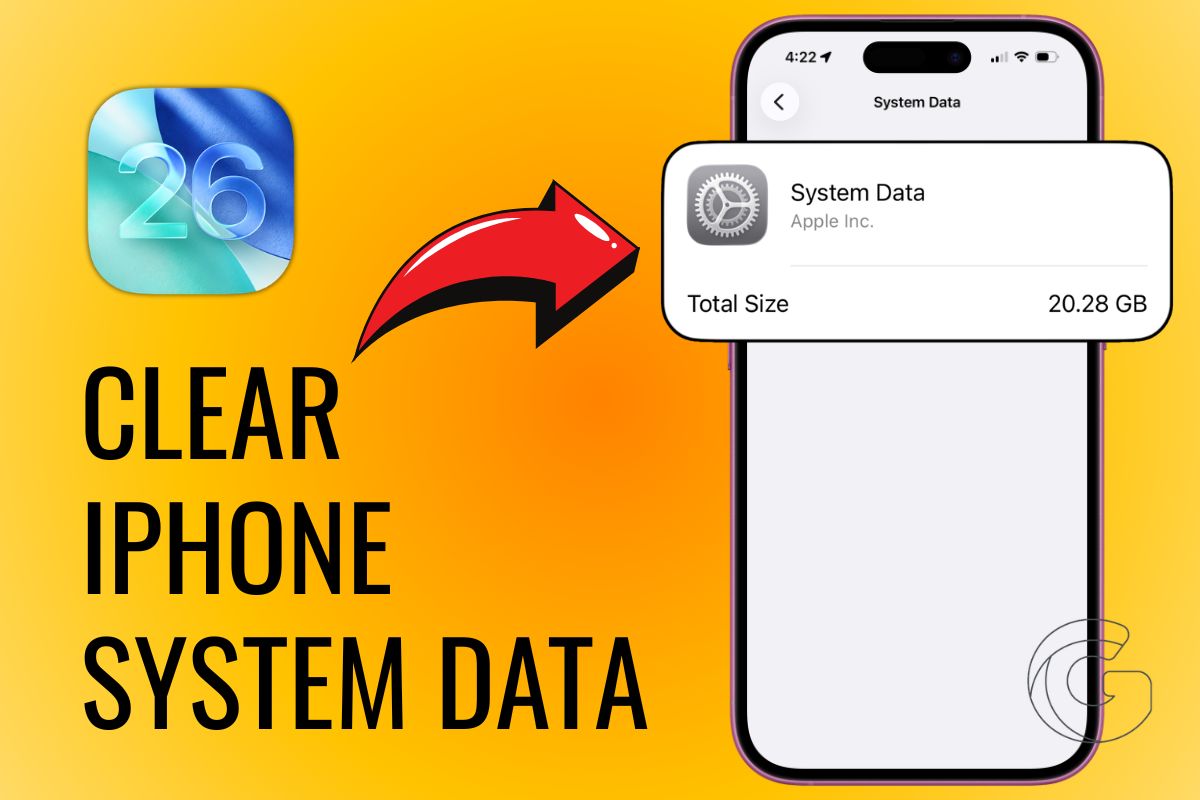
If your iPhone has been feeling sluggish lately or you keep getting that dreaded “Storage Almost Full” warning, there’s a good chance system data is quietly eating up a huge chunk of your available space.
On iOS 26, this category can balloon to sizes that rival the operating system itself, and most people have no idea it’s happening.
But the good news is you can tackle it yourself in just a few minutes.
What Exactly Is System Data on Your iPhone?
You might have noticed a mysterious section in your iPhone’s storage labeled “System Data” or “Other.”
It collects caches, log files, temporary data, and various files the operating system generates during normal use.
Some of that stuff is genuinely necessary, but a surprising amount of it has just been piling up over time with nowhere to go.
iOS 26 actually gives you better visibility into what’s in there, which makes cleaning house a lot more straightforward than it used to be.
Start With Your Messages App
Deleted texts don’t vanish the moment you swipe them away. The Messages app stores them in a “Recently Deleted” folder, and they keep sitting there, taking up space until you manually clear them out.
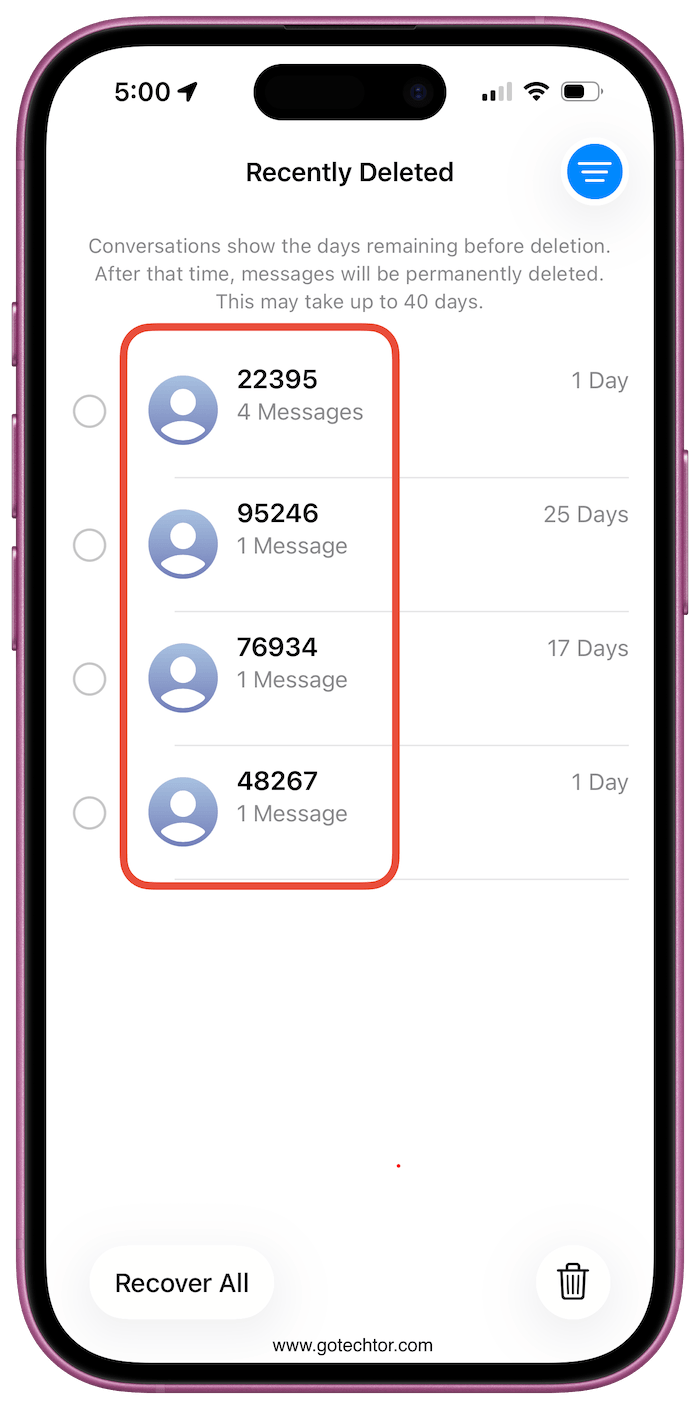
Open the Messages app, find the Recently Deleted folder, pick the conversations you want gone for good, and tap “Delete Permanently.”
That’s all there is to it. If you’ve been skipping this step for a while, you might be surprised how much space comes back.
Your Photos App Is Probably Hiding Gigabytes From You
The same idea applies to photos and videos. When you delete media, iOS holds it in a “Recently Deleted” album under Utilities for up to 30 days.

Since modern iPhones shoot in high resolution, even a handful of forgotten videos in that folder can eat several gigabytes.
Open the Photos app, head to Recently Deleted, select everything you want to clear out, and confirm the permanent deletion.
Making this part of your monthly routine saves you from scrambling for space right when you need it most.
Delete the Apple Apps You’ve Never Actually Used
iOS 26 lets you remove built-in Apple apps that were pre-installed on your device. If you’ve never once opened Stocks, Numbers, or Pages, there’s no reason to keep them sitting on your home screen.
Press and hold the app icon, choose “Remove App,” and confirm. Any app you delete this way can be re-downloaded from the App Store whenever you want it back, so there’s no real risk in clearing them out.
Safari Quietly Accumulates More Than You Think
Every website you visit leaves a little something behind. Browsing history, cookies, cached pages, and login data all stack up in Safari over time.
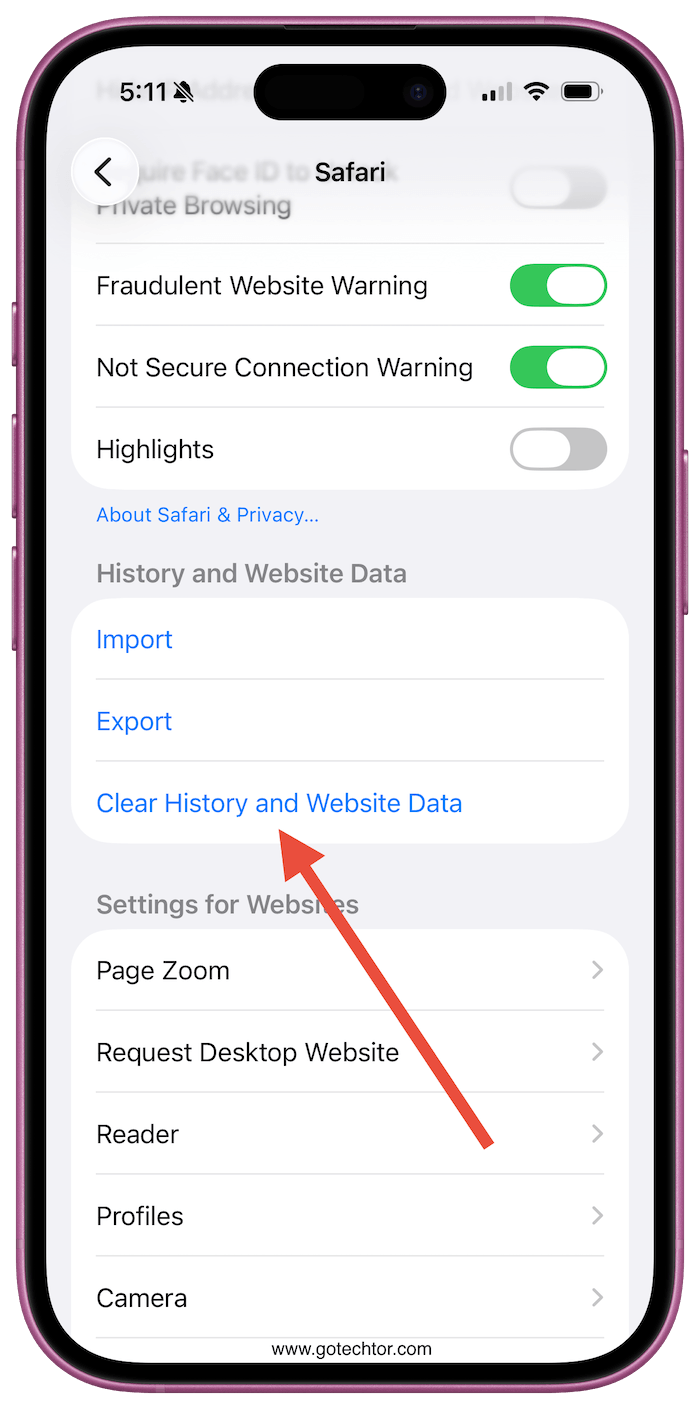
To wipe it clean, go to Settings, tap Safari, then hit “Clear History and Website Data.” If you’d rather not lose everything, iOS 26 lets you get more specific by clearing data from individual sites or choosing a particular time range.
While you’re in there, closing out any browser tabs you’ve had sitting open for weeks is another easy win for both storage and performance.
Give Your iPhone a Restart After Cleaning Up
Once you’ve gone through all the steps above, restarting your iPhone is the finishing touch. Hold the power button until you see the “Slide to Power Off” slider, shut it down, wait a few seconds, then turn it back on.
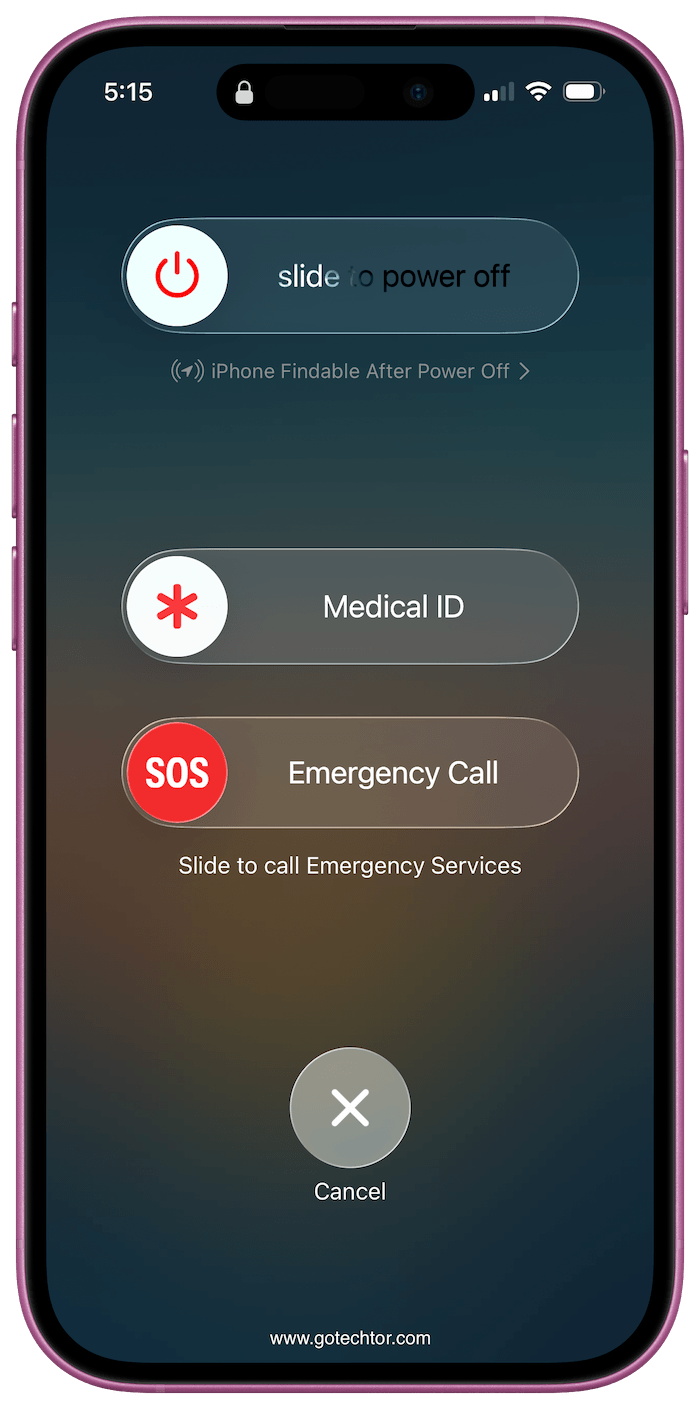
A fresh reboot clears out temporary files that accumulated in the background and helps the system reset its processes. You’ll often notice things feeling a bit snappier right away.
Why It’s Worth Doing This More Than Once
System data doesn’t stop growing just because you cleaned it up once. Caches rebuild, deleted items linger in folders, and Safari keeps collecting bits of data from every site you visit.
Checking in on these areas every few weeks keeps things manageable. Thus, you’re far less likely to hit a storage wall right when you’re trying to shoot a video or download something important. It’s a small habit that genuinely pays off over time.

