
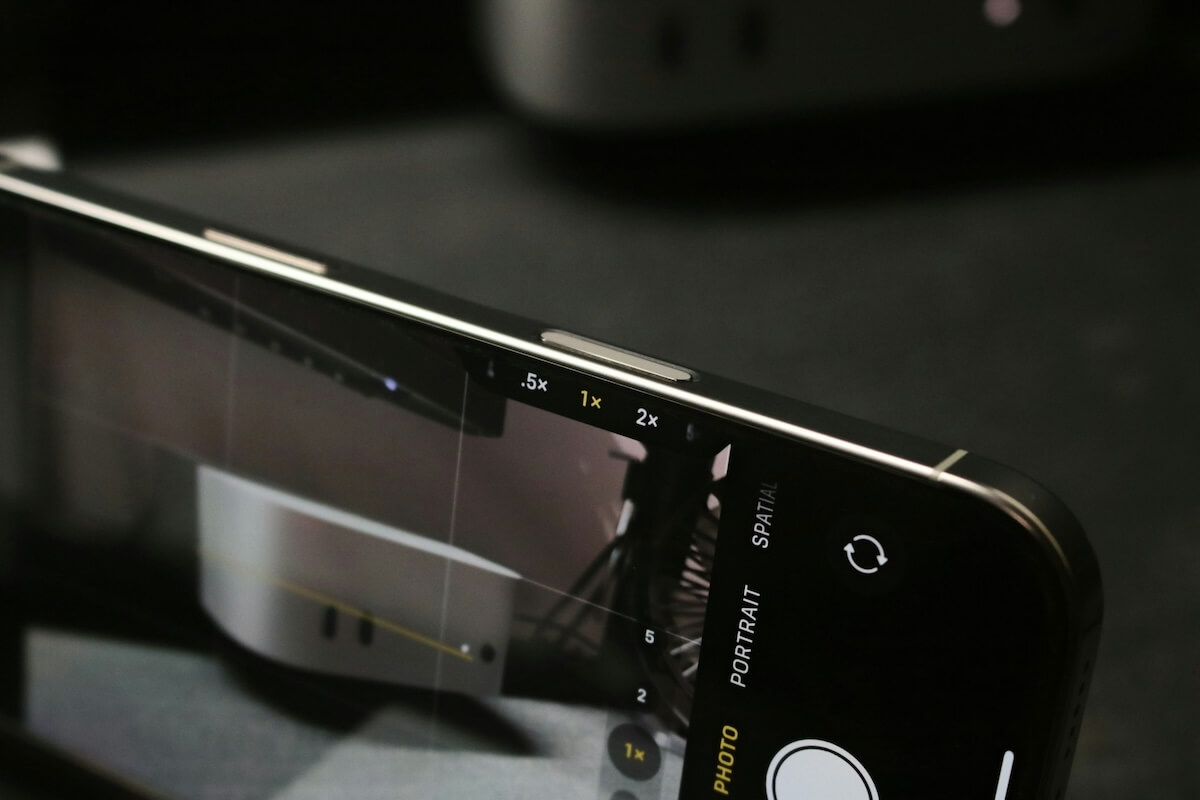
Camera Control has been part of the iPhone since the iPhone 16, but the button can do considerably more than simply open the camera and take a picture.
You can change which app it launches, choose which camera adjustments appear when you swipe, lock focus and exposure, require a double-click to open the camera, and adjust how the button responds to your touch.
Change which app Camera Control opens
Go to Settings > Camera > Camera Control and look for the launch settings.
The Camera app is selected by default, but you can assign Camera Control to another supported app.
Options can include Instagram, Code Scanner, and Magnifier, depending on which apps you have installed and which ones support Camera Control.
You can also change how the app launches. Enabling Require Screen On prevents Camera Control from opening an app while the iPhone’s display is off, which can help with accidental presses in a pocket or bag.
Selecting Double Click requires two presses to launch the assigned app instead of one.
Choose which camera controls appear when you swipe
Turn on Camera Adjustments to use light presses and swipes on Camera Control while shooting.
Tap Customize, and you’ll see six available adjustments:
- Zoom
- Exposure
- Depth
- Cameras
- Styles
- Tone
You can enable or disable each one individually, and rearrange their order by pressing and holding the control beside it.
There’s little reason to keep all six active if you only use a few. If you regularly adjust Zoom and Exposure, for example, removing the others means fewer swipes to reach the controls you actually want while composing a photo.
You can also enable Lock Focus and Exposure, which keeps those settings locked while you maintain contact with Camera Control.
Adjust how sensitive Camera Control feels
More controls are available under Settings > Accessibility > Camera Control.
From here, you can disable Camera Control entirely or adjust how the capacitive controls respond to presses and gestures.
These settings are worth changing if you regularly activate Camera Control unintentionally or have trouble getting light presses and double presses to register consistently.
Try the available sensitivity and timing options until the button responds comfortably without triggering during normal handling.
Customize Visual Intelligence
Camera Control also provides quick access to Visual Intelligence, which uses the camera to identify or provide information about whatever you’re looking at.
You can adjust its behavior in Camera Control settings, including the option to launch Visual Intelligence with a press-and-hold gesture.
That gives Camera Control two distinct roles: quick access to your preferred camera app and a shortcut to Visual Intelligence, with the surrounding gestures and shooting controls configurable around how you actually use the button.

