

iOS 27 doesn’t have a built-in privacy screen, but you can make your iPhone considerably harder for someone nearby to read using settings already built into iOS.
The trick combines Zoom’s Low Light filter, Reduce White Point, lower screen brightness, and Dark Mode.
You can then bundle those settings into a shortcut and activate them from Control Center or the Action Button.
1. Set up the Low Light filter
Open Settings > Accessibility > Zoom and turn on Zoom. Set the zoom level as low as possible, then select Zoom Filter > Low Light.
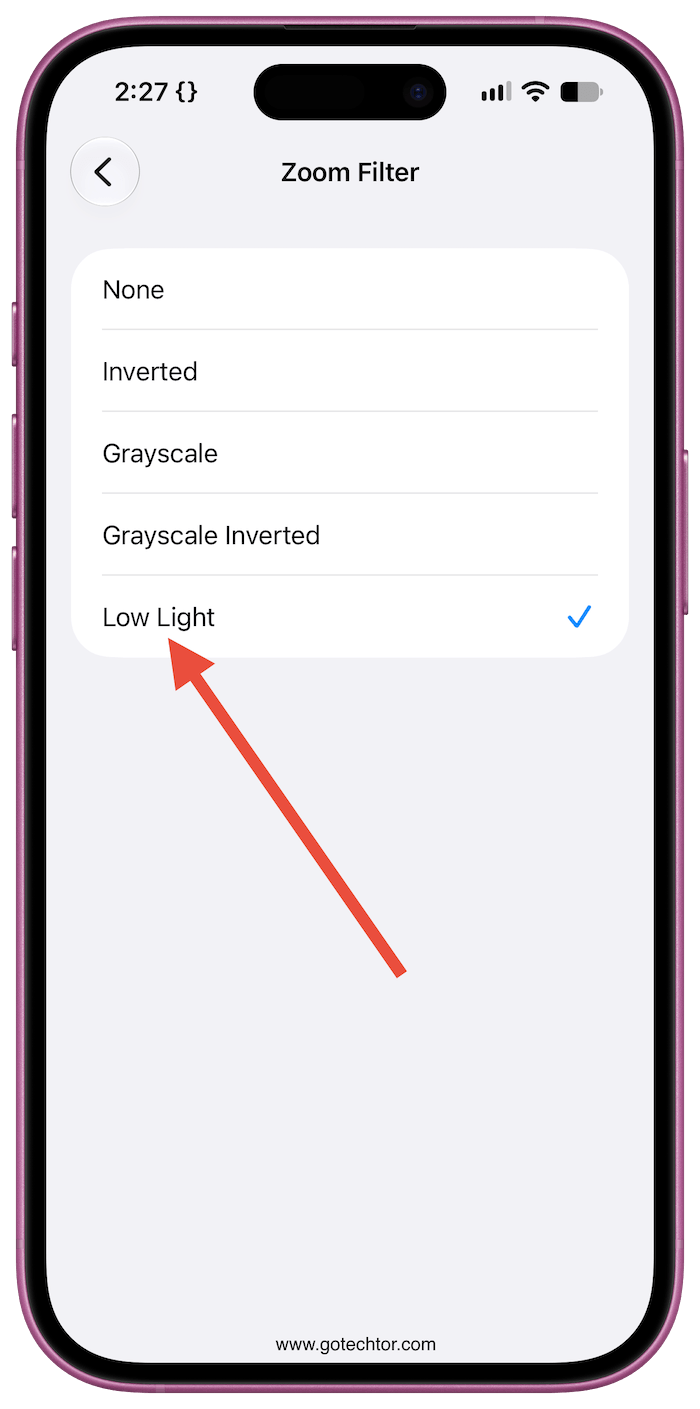
The Low Light filter dims the display beyond what you’d normally get from simply lowering the brightness slider. You don’t need to keep the screen magnified for the effect to be useful.
2. Adjust Reduce White Point
Go to Settings > Accessibility > Display & Text Size > Reduce White Point and turn it on.
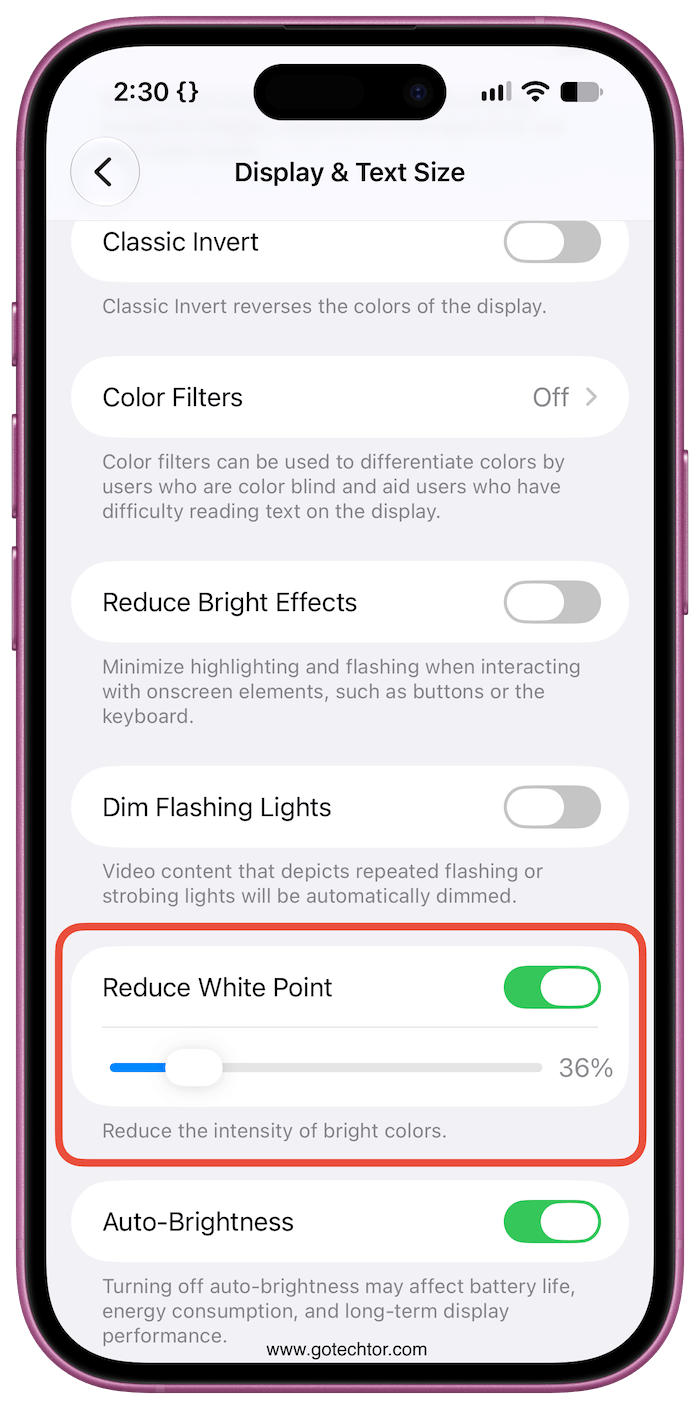
Start around 30% and adjust it until the screen remains comfortable for you to read. Reduce White Point tones down the intensity of bright colors, which makes white backgrounds and other bright interface elements less visible to someone looking from nearby.
You can also use Dark Mode to reduce the amount of bright content on screen.
3. Build the privacy shortcut
Open the Shortcuts app and create a new shortcut. Add actions to toggle the settings you want your privacy mode to control:
- Set Zoom
- Set Reduce White Point
- Set Brightness to around 30% to 40%
- Set Appearance to Dark
- Name the shortcut something like Privacy Mode.
The exact brightness and Reduce White Point levels aren’t important. Adjust them based on your surroundings and how dim you can comfortably make the display.
4. Put the shortcut in Control Center
Once the shortcut is created, add it to Control Center so you don’t have to open the Shortcuts app every time you need it.
Open Control Center, enter edit mode, add a Shortcut control, and select your Privacy Mode shortcut.
You can now activate the darker display whenever you’re reading messages, email, banking information, or anything else you’d rather make less visible to people around you.
On iPhones with an Action Button, you can assign the shortcut there instead for even quicker access.
This isn’t the same as a privacy screen protector
A physical privacy screen uses a filter that restricts the display’s viewing angle, making the screen appear dark when viewed from the side. These iPhone settings can’t reproduce that effect.
Instead, they reduce the brightness and intensity of what’s displayed, making the screen less readable at a glance from farther away. Someone standing close enough or looking directly at the display may still be able to see it.
For situations where you simply want a little more privacy on a train, plane, at work, or in a crowded coffee shop, the shortcut gives you a quick privacy mode without installing another app or putting a filter over your screen.

