
Most iPhone owners point, tap, and never think twice about what’s happening under the hood. And honestly? The camera is good enough that you don’t have to.
But if you spend five minutes in your Settings app, you’ll find a handful of toggles that quietly change how the whole experience feels.
Hust head to Settings, scroll down, and tap Camera. Everything we’re covering lives right there.
Stop the Camera From Forgetting Your Preferences
Every time you close the camera app and reopen it, your iPhone quietly resets whatever you had going on. Switched to video mode? Gone. Turned off Live Photos? Back on again. It’s one of those small annoyances that add up fast.
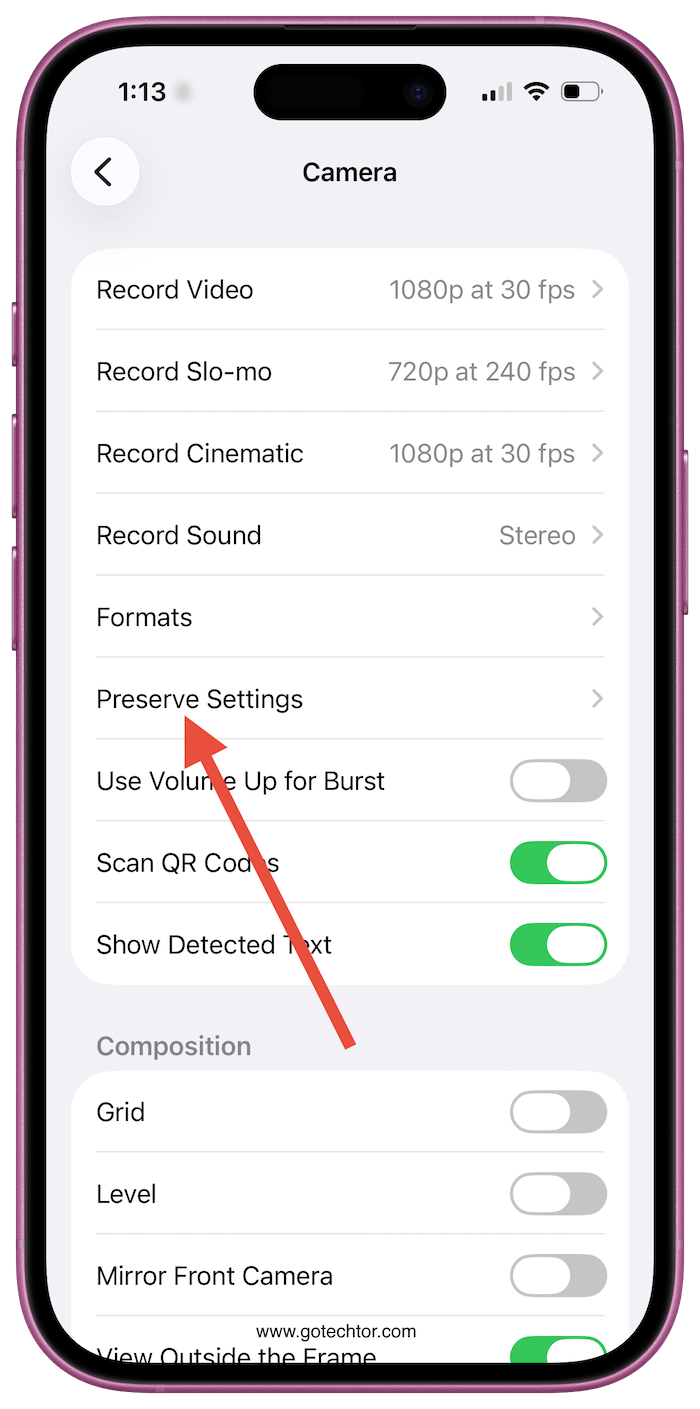
Look for Preserve Settings, which sits just below the video resolution options. You’ll see individual toggles for nearly every major camera feature, so you can pin whichever ones matter to you.
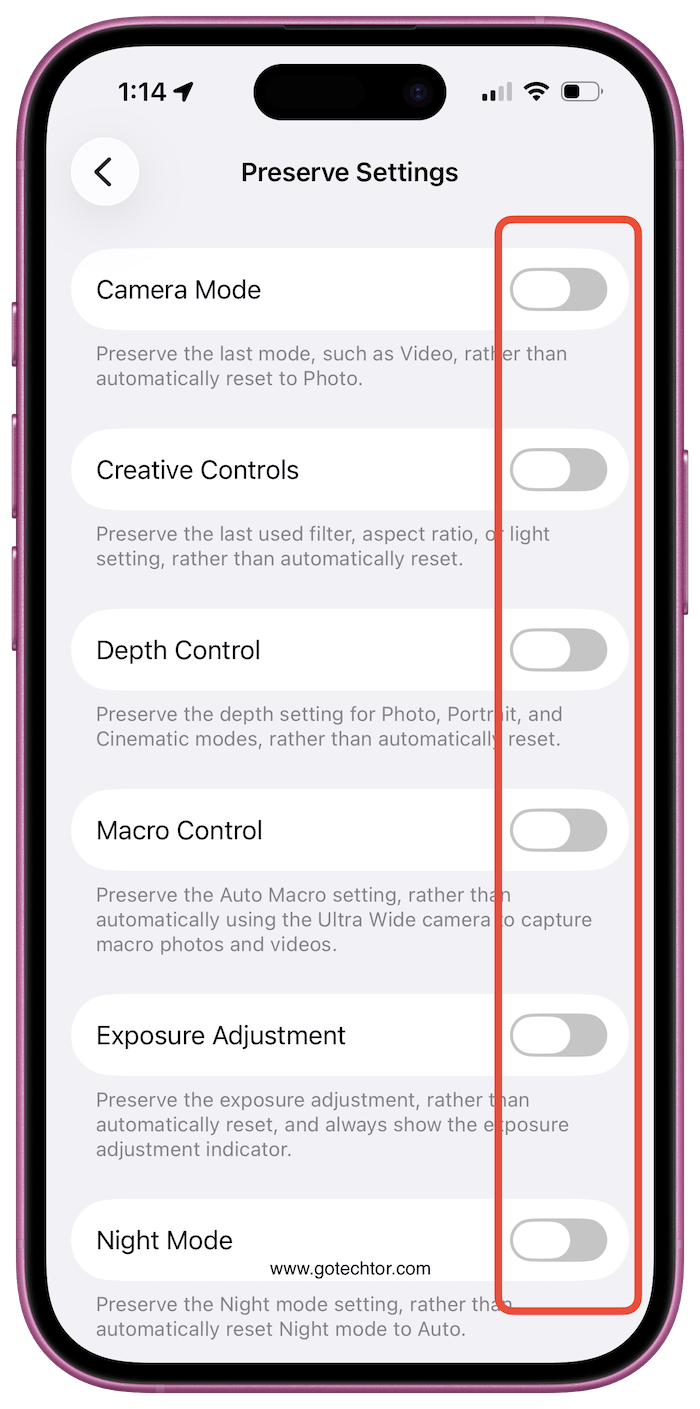
Hate Live Photos eating up your storage? Lock it off permanently. Prefer shooting in video mode? Keep it there. The camera will open exactly how you left it.
Also: Your iPhone has a new feature that can now verify your age without handing over your real ID
Your Phone Is Quietly Downgrading Your Photos at High Speed
Rapid-fire shooting sounds great until you realize what Apple does to keep up with the pace. When Prioritize Faster Shooting is turned on, your iPhone reduces processing quality during bursts to avoid lag between shots.
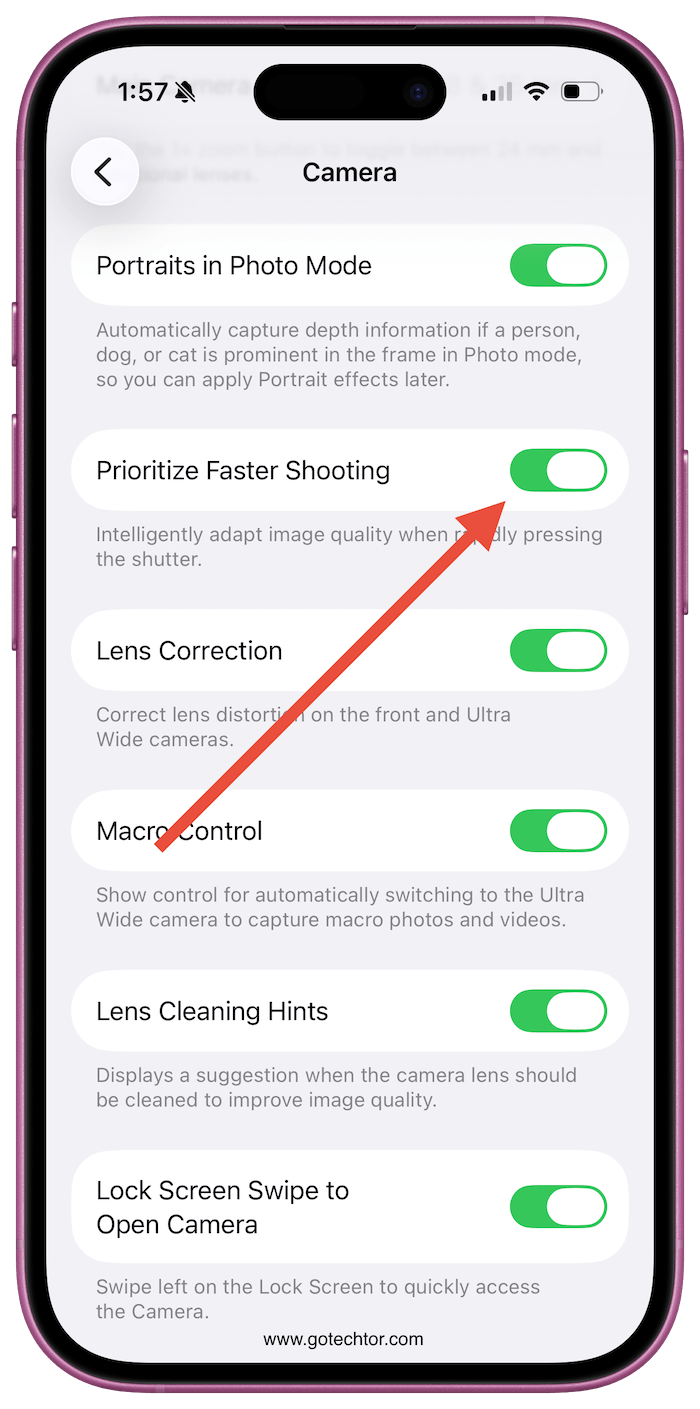
For sports or fast-moving subjects, that trade-off makes sense. For everything else, you’re leaving quality on the table.
Find the lone toggle for this setting below the photo capture section and switch it off. The difference in shutter delay is almost unnoticeable in everyday use, and you can always flip it back on whenever a situation calls for speed over sharpness.
Also: Fix iOS 26 battery drain right now (top 5 settings that actually make a difference)
That Lock Screen Swipe Has Probably Opened Your Camera by Accident
Swiping left on the lock screen to open the camera seems handy until it starts happening when you’re just trying to dismiss a notification.

iPhone 16 users already have the Camera Control and Action buttons as shortcuts. Newer models offer even more ways in. The swipe gesture becomes redundant fast.
Scroll all the way to the bottom of the Camera settings page, and you’ll find Lock Screen Swipe to Open Camera near the end of the list. Turning it off takes one tap, and you almost certainly won’t notice it’s gone.
Also: 5 Mac settings you should turn off to keep your data safe and your battery lasting longer
A Crooked Horizon Ruins More Shots Than You’d Think
You’ve probably been there. A beautiful wide shot, slightly tilted, and straightening it in editing means losing a sliver of the frame. The Level tool fixes this before the shutter clicks.
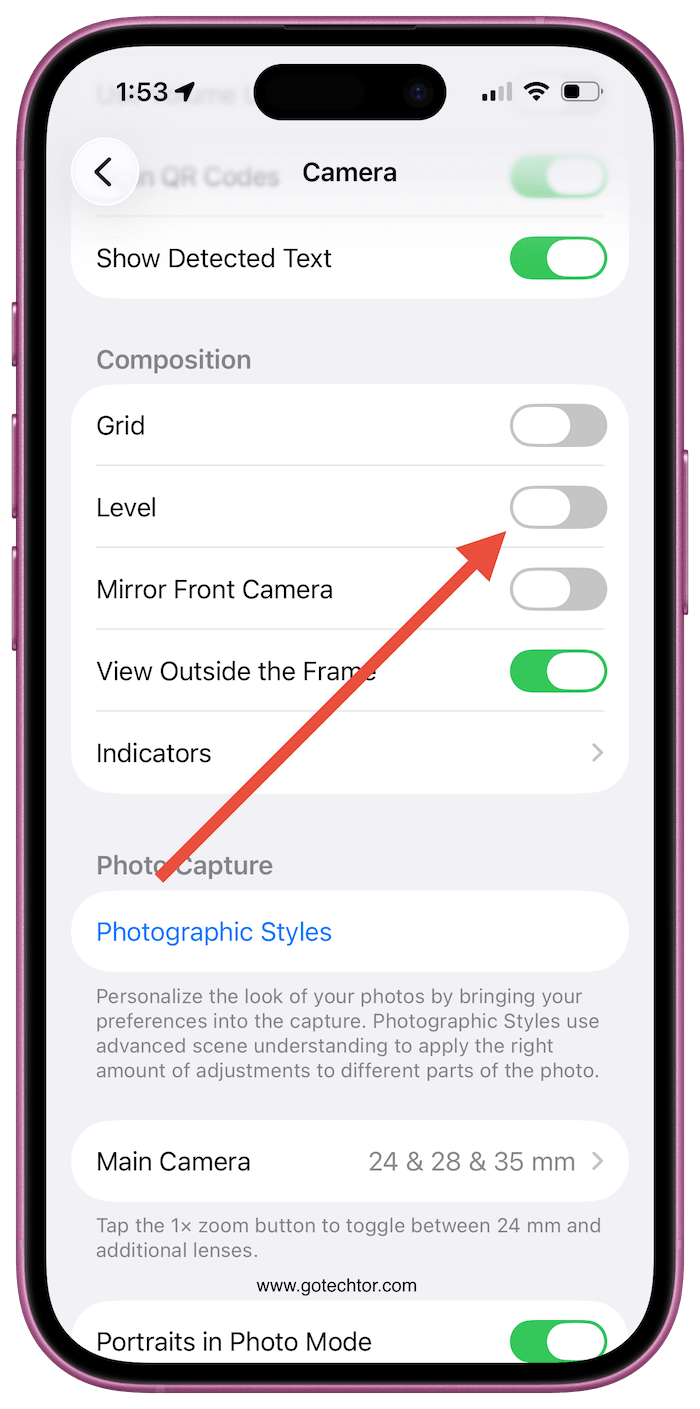
Scroll to the Composition section and toggle Level on. From that point forward, a yellow guide appears whenever your phone is even slightly off-angle, and it merges into one clean line once you’re perfectly straight.
It only activates when it’s actually useful, so it won’t clutter every shot you take.
The Camera Control Button Can Actually Work for You
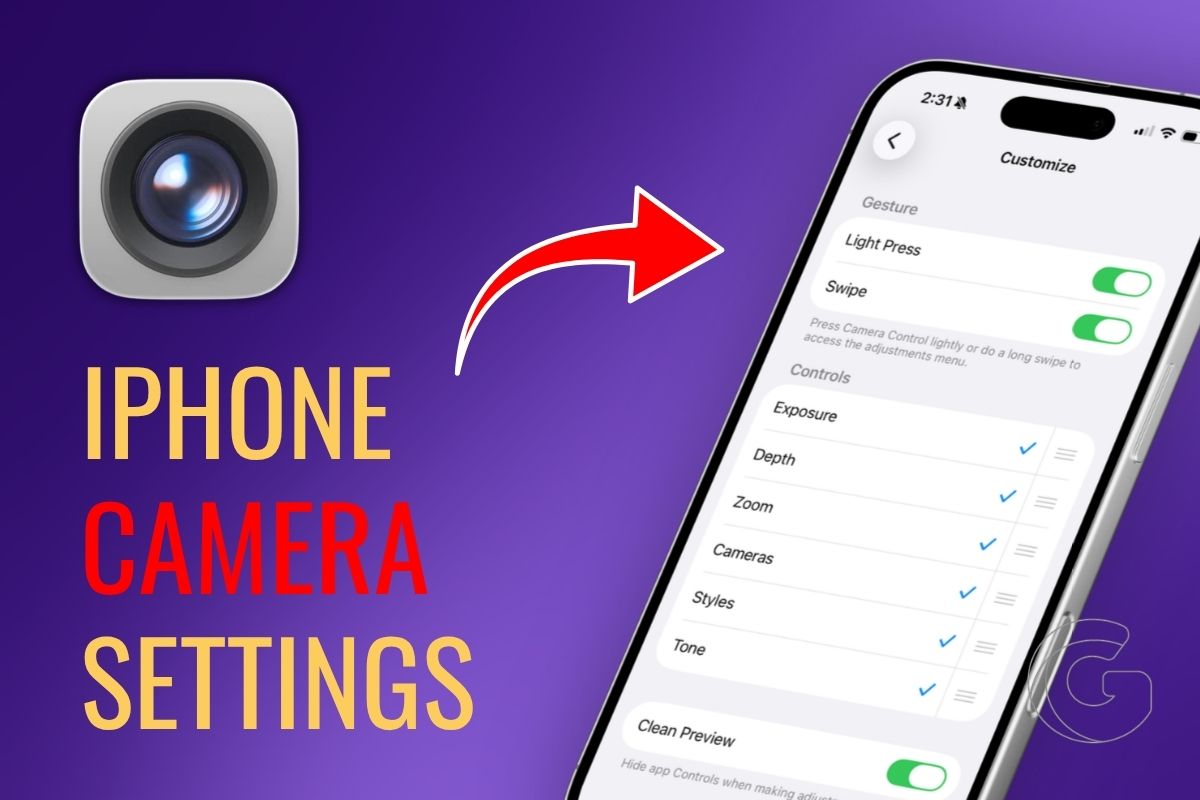
If you have an iPhone 16 or newer, that side button was designed to act like a DSLR shutter, giving you control over zoom, exposure, and depth all in one place.
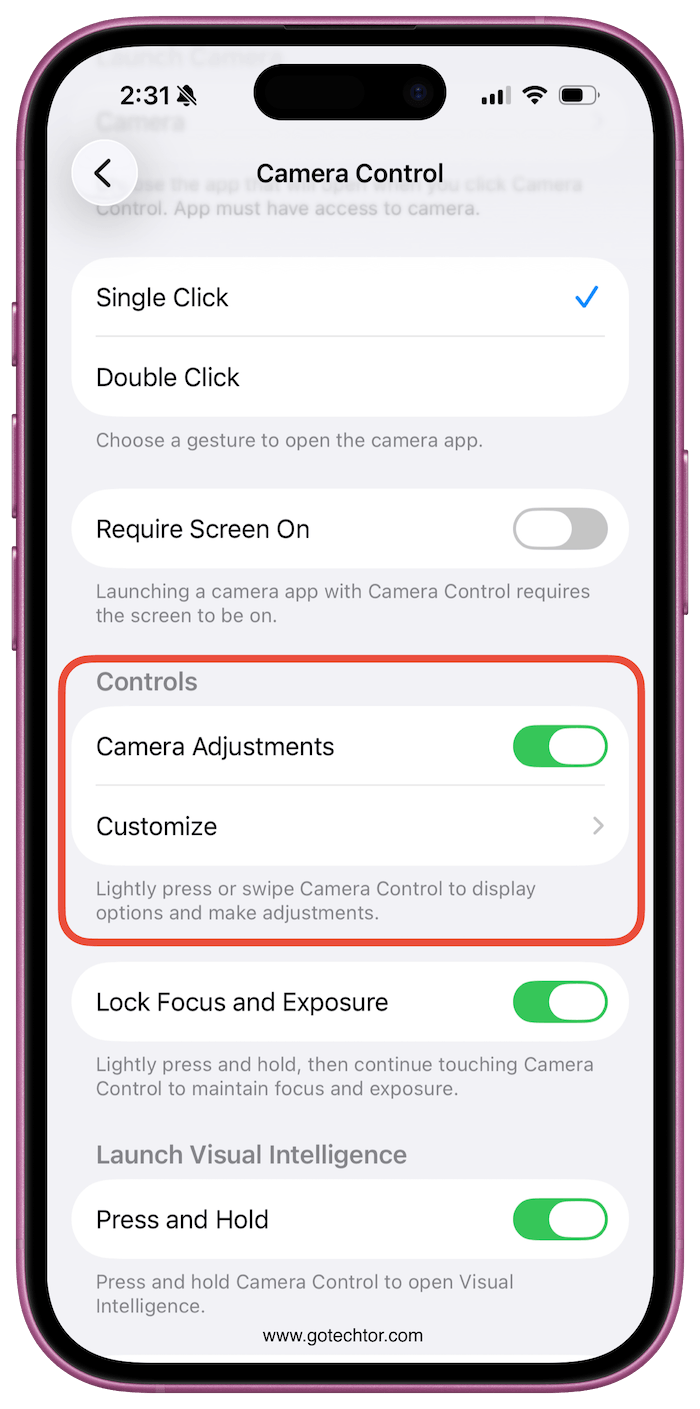
In practice, plenty of people find it awkward and end up ignoring it completely. What most people don’t realize is how much you can customize it.
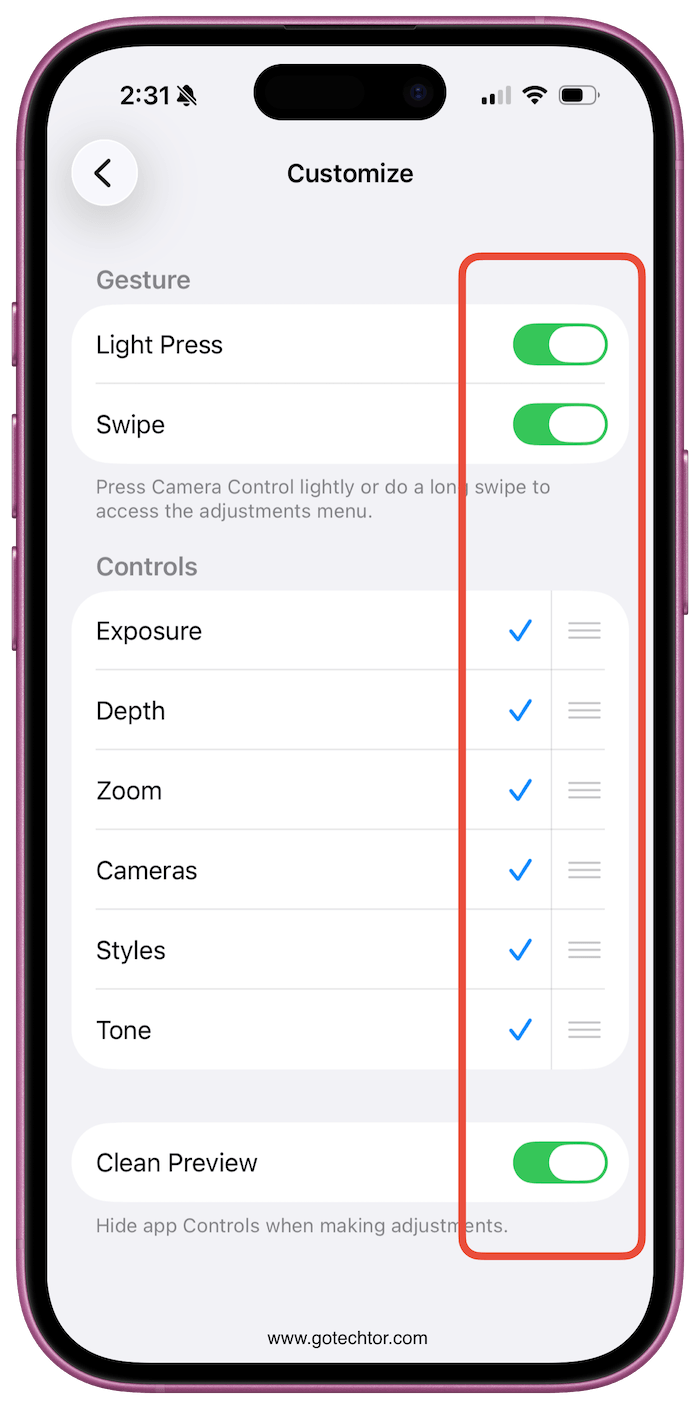
You can reduce the number of swipe actions tied to it, set it to open a different app, such as a social media camera or the Magnifier, or disable it entirely to avoid accidental presses.
If Zoom is the only thing you care about, you can strip everything else away and keep just that. It’s worth a look before you write the button off for good.

