
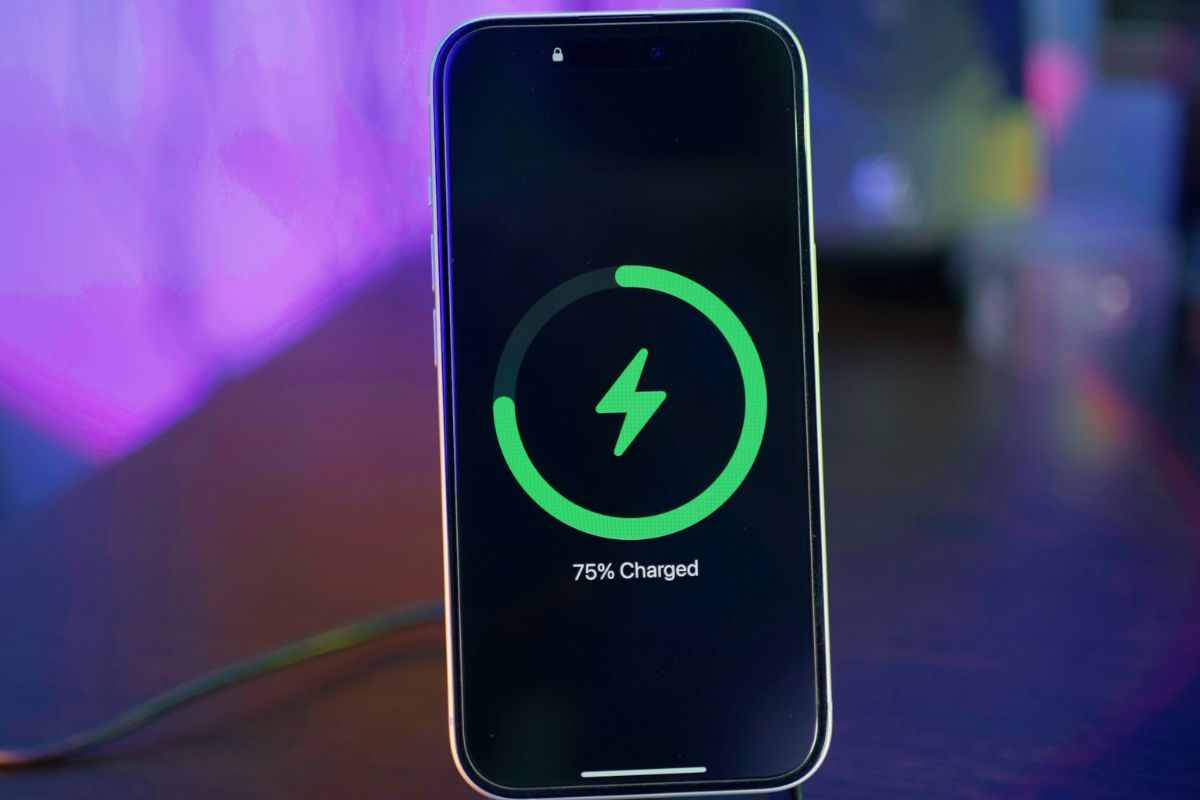
Most of us plug our phones in to charge and hear the same default chime every single time. You’ve heard it a thousand times. It’s fine, but it’s boring.
What you probably didn’t know is that you can swap that out for literally any audio clip you want, whether that’s a snippet from your favorite song, a quote from a TV show, or any sound that makes you smile the moment you hear it.
Yes, your iPhone can do this. It just needs a little nudge from the Shortcuts app. Here’s exactly how to pull it off.
Step 1: Pick Your Sound
Before you touch any settings, decide what you actually want to hear. A few seconds of a song you love works great. A short clip from a show or movie is even better.
Think about what would genuinely make you grin at 11 pm when you finally remember to plug in your phone. Once you’ve got something in mind, you’re ready to move.
Also: This clever iPhone feature translates your texts in real time without you doing anything extra
Step 2: Get the Audio Onto Your Phone
If you’re working with a song, download the audio file directly to your phone. If your clip comes from a video, download the video first, then open your Photos app and trim it to just the part you want.
Keep it short; a few seconds is plenty. Then save that clip to its own dedicated album so it’s easy to find later. That one small step will save you a headache during setup.
Step 3: Open the Shortcuts App
Find the Shortcuts app on your iPhone and open it. If you deleted it at some point, grab it again from the App Store for free. Once you’re in, tap the Automation tab at the bottom center of the screen.
Step 4: Create a New Automation
Tap the + button in the upper-right corner. In the search bar, type “charger” and select the Charger option from the results. Make sure “Is Connected” is selected at the top, then choose “Run Immediately” before moving on.
Step 5: Build the Automation
Tap Next, then select New Blank Automation (some iOS versions label this as “Create New Shortcut”).
From here, search for Photos and add it as your first action. Use the filter option to point it toward the album where you saved your audio clip.
Next, add a second action by searching for Encode Media. Once it appears, open the dropdown for that action and toggle Audio Only on.
Finally, add one more action: search for Play Sound and select it.
Step 6: Save and Test It
That’s the whole setup. Plug your phone in, and your custom sound should play instantly. If something feels off, double-check that your clip is saved in the right album and that the filter in your Photos action is pointed to it correctly.
It takes maybe five minutes from start to finish, and the payoff is genuinely fun. Charging your phone stops being a forgettable habit and starts being a tiny moment you actually look forward to.

