

Wondering why your AirPods keep disconnecting from your iPhone and what to do when AirPods keep disconnecting? Great, we’ve got a few fixes for you to try.
Fixing AirPods connection issues isn’t a clean, cut-and-dried process, though. There’s no definitive way to know why your AirPods keep disconnecting. It could be the sensors inside the AirPods, the microphones, or Bluetooth interference.
Or maybe you’ve bought yourself a fake pair of AirPods. You can learn more on how to spot fake AirPods.
To understand your AirPods connection issues, follow the steps below and cross-reference your results.
1. Check AirPods Battery Status
The first step you must take might seem obvious, but so you can rule it out as the cause of your issues, ensure your AirPods are fully charged.
To check the charge of your AirPods, place them in their case with the lid open and hold the case next to your iPhone.
This displays a pop-up window showing you the charge levels of your AirPods and the charging case.

You can also check your AirPods battery status in the widget section by swiping to the right on your iPhone home screen.
But first, you’ll need to add the batteries widget. Scroll down to the end and tap Edit, then add Batteries. This widget will show all your connected Apple devices to this iPhone.
2. Checking Your Bluetooth Status
After confirming your AirPods are fully charged, you’ll want to check to see if your Bluetooth is turned on for your iPhone as well.
To check if your Bluetooth is turned on, navigate to the control center by swiping up on the phone.

The bottom right icon in the box on the top right corner should be blue if your Bluetooth is turned on.
You may also want to try turning your Bluetooth off and on by simply tapping the Bluetooth button.
3. Check iPhone Audio Settings
Next, you’ll want to see if your AirPods are the selected audio device for the app you play audio through. You can check which device your app tries to play audio through on the lock screen.
Press the button next to the description of what is playing and pull up a small menu for selecting an audio device.
If you’re trying to use your AirPods during a phone call, pressing the speaker button also brings up this menu.
4. Disconnect and Reconnect Your AirPods
Just like most technology, turning your AirPods off and on again could solve your issues.

To disconnect your AirPods from any devices simply put them in their case and close the lid. After about 15 seconds, they will shut off.
After they shut off, open the lid back up and hold the button for setting up the AirPods on the back of the case until the light flashes amber then white.
This resets your AirPods completely, disconnecting them from your devices. Check what to do if your AirPods are flashing orange.
Now that your AirPods are completely disconnected, you can reconnect them. To reconnect them, simply place them next to your iPhone with your Bluetooth turned on.
This causes a pop-up on your iPhone with a button that says Connect. Press the Connect button and follow the setup instructions.
5. Turn Off Automatic Ear Detection
The AirPods’ Automatic Ear Detection feature seems to cause issues with their connections if they don’t detect that they are in your ear.
This can cause them to not register as an audio device for your iPhone. Turning off the automatic ear detection determines if this feature is causing your issues.

To turn off the Automatic Ear Detection feature, navigate to the settings of your iPhone, then select Bluetooth.
You should see your AirPods as one of the devices within this menu. Press the “i” on the right side of the AirPods line, then deselect the automatic ear detection feature.
6. Turn Off Automatic Switching
Automatic Switching allows you to switch from listening to one device with your AirPods to listening to another using the same iCloud account.
When connected to your Mac and iPhone, AirPods will automatically detect which device is playing audio and use it as a source.
However, Automatic Switching can sometimes cause your AirPods to keep disconnecting.

Try turning off the automatic switching feature to prevent your AirPods from switching to other devices.
Here’s how to turn off automatic switching:
- With your AirPods in your ears and connected to your iPhone, open Settings > Bluetooth. Alternatively, you can go to Settings > (your AirPods).
- Tap the More Info “i” button next to your AirPods in the devices list.
- Tap Connect to This iPhone (or iPad).
- Tap When Last Connected to This iPhone (or iPad).
7. Use Only One AirPod
Sometimes, the way the AirPods communicate with each other causes connection issues. So, sometimes, using just one AirPod and leaving the other in the case solves the connection issues.
While this might not be optimal, it allows you to use them until you find a more permanent solution.
To use only one AirPod, leave one in the charging case instead of taking both out. This allows you to pair only one with your device.
You could also try turning off the microphone on just one AirPod. To do this, navigate to the settings of your iPhone, then select Bluetooth.
Within this menu, press the “i” icon next to your AirPods and select Microphone. You can choose to activate the microphone only on one of your AirPods instead of both.
8. Clean Your AirPods
Dirt and grime could cause interruptions in the Bluetooth of your AirPods. So, cleaning them could be the solution you need.
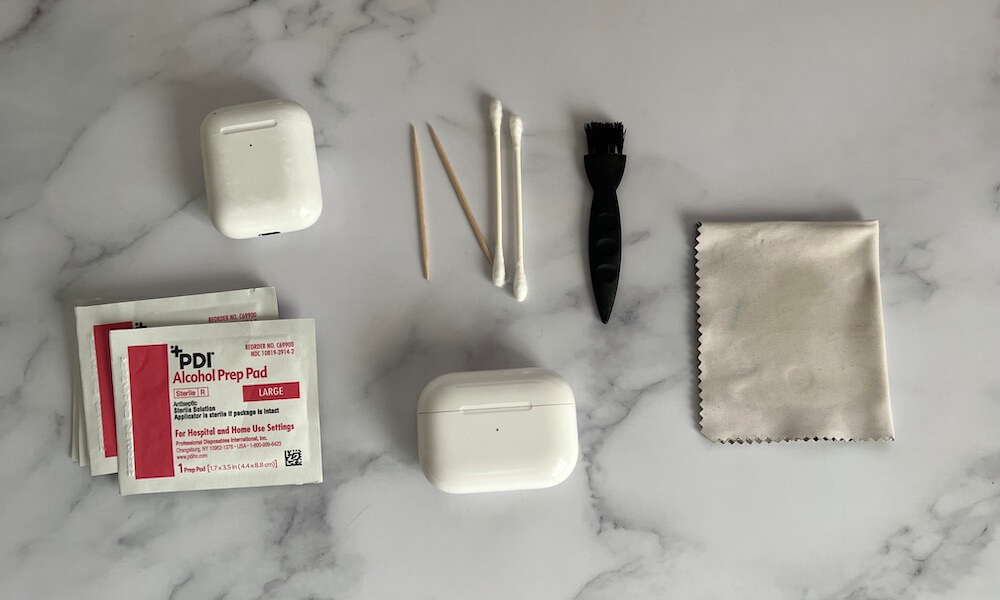
To clean your AirPods, take a microfiber cloth and wipe down the entirety of the outside of them.
Then, use a toothbrush with soft bristles to clean the areas that go inside your ears. AirPods are not cheap. Clean them regularly to prevent connection issues.
9. Turn Off Wi-Fi
Some people found that turning off their Wi-Fi resolved their AirPods connection issues. It’s still unclear why this helps, but some found this to be the solution that worked for their device.

You can easily turn off your Wi-Fi from the command center. Simply swipe up on your screen, then press the icon in the top right of the box in the top left. You can also turn off your Wi-Fi from the settings of your iPhone.
10. Unpair Other Apple Devices Connected to Your iPhone
Other Apple devices could cause conflicts within your iPhone, causing it to disconnect your AirPods. So, try unpairing any other Apple device connected to your iPhone.

You can unpair other devices by navigating to the setting app and then selecting Bluetooth. From this menu, select the “i” icon next to any device you want to unpair and press “Forget this Device.”
It could also be any other Bluetooth device connected to your iPhone, so you can try unpairing any other devices you have connected to your iPhone as well.
11. Check for Wi-Fi and Bluetooth Interference
Finally, the problem could be from interference with your Bluetooth connection from an entirely separate device.
There are a wide variety of devices that produce frequencies similar to the ones used by Bluetooth that can cause interference.
If you find your AirPods only disconnect when they’re not in close proximity to your phone, this is most likely the issue.
The most common household items that can cause Bluetooth interference include the following:
- Microwave ovens
- Fluorescent lights
- Wireless video cameras
- Cordless phones
Your Wi-Fi could also cause interference with your Bluetooth connection. This is due to both Wi-Fi commonly using the 2.4 GHz frequency spectrum, the same one as Bluetooth.
So, if you can, switch all of your devices over to a 5 GHz Wi-Fi connection common on most modern routers.
Wrapping Up: AirPods Keep Disconnecting
Let me know if this helped fix your AirPods connection problems. If you found success doing something else, leave me a comment down below!
If you manage to have your AirPods connected, but you have no sound, check this guide for tips when AirPods are connected but have no sound.
If none of the above tips helped you fix your AirPods keep disconnecting issue, you might need to contact Apple support. Before going to the Apple store, it’s worth checking your AirPods warranty status.
In case your coverage has already expired, and the geeks weren’t helpful at all, there’re some amazing AirPods deals at Amazon that you can grab right now.


NOT the REAL Fix. This fix is the same as all over the web and doesn’t work.
Just FYI I had this issue and I clicked on “AirPods” on the Bluetooth connection screen and named my AirPods and they are connected and haven’t disconnected since.
Hello All. Dear Justin, unbelievable but true, it works!
I literally tried every option multiple times, thinking that I would have to send them back.
I renamed them to “my Airpods”, and now they are not disconnecting.
Having already renamed them upon initial setup, I was sceptical, but they work.
The initial name I gave them was one word. I’m not in the mood to try and rename them to test if it is the one word that is the issue, as I spent hours on this 😀
Thank you!
Yeah this worked for me too lmao. I just tried to rename it asap before it disconnected and ended up spamming the keyboard and naming my airpods didjs (Airpod pros btw). This is the real fix lol
Hey DK,
Thanks for stopping by. There is no one-size-fits-all solution to fixing Airpods that keep disconnecting. However, these tips have worked for other people, including myself.
My Airpods keep disconnecting from every kind of devices; iPhone, iPad, MacBook, Sony Vaio notebook, Samsung Galaxy S10+ android mobile phone, etc; after every several seconds of connecting, starting with the right side then the left side after a few months.
My Airpods started this repeated auto-disconnect by one side. I tried every solution I could find out on the internet, but still not solved.
Check the AirPods Battery Status to 100%
Check for Wi-Fi and Bluetooth interference
Use only one AirPods
Use Either Left or Right Microphone
Turn off Automatic Ear Detection
Disconnect and reconnect AirPods
Forgetting and Re-pairing AirPods
Clean my AirPods
Reset Network Settings
Changing Outputs on devices
I took the AirPods to the official apple service in Thailand tried all the resetting including the AirPods and my other apple devices and got nothing solved. Just wasted plenty of time.
Now, this happened to both sides of my AirPods. Someone advised that the problem is the Bluetooth unit of the AirPods that have a short lifespan. Fortunately, I didn’t try the expensive bluetooth replacement with the first broken before the second side followed.
Is Apple ignoring this low standard short-life device resulting in untrustworthy?
Am I one of the poor Apple followers…?
Hi Aroonchai, happy to have you in the comments. Do you have the Airpods 1st GEN by any chance? They’re known for having connection issues.
Why are my Apple AirPods losing connection?
Hey Mary, thanks for dropping by. Sorry to hear that your AirPods are losing connection. Did you follow the steps in this guide and still need help?
I have 1st Gen AirPods and they will not stay connected for more than 20 seconds. They used to work fine until the second-gen came out. every 3 months or so I try to see if there is a fix but nothing has worked, I tried all the ones above but nothing. even tried renaming it a bunch of times but nothing helps. anything else? I want to buy new ones but I was always hoping I could get these to work again.
Hey Doug, sorry to hear that. When did you buy them? Do you have AppleCare?
Thank you so much! I finally got my AirPods to start working again. It’s nice to be able to use them again.
Hi Adelyn, You’re welcome! We’re glad you were able to fix your AirPods.
My AirPods only disconnect while talking on the phone. They are Gen 2, and my iPhone is a 6S+. Will buying a new pair of AirPods actually fix this disconnecting issue do I also need to purchase a new iPhone?
Hi Michelle, Actually I own the 2nd gen AirPods and they still work fine with my iPhone SE 1st gen. Never had any prob with them. I wouldn’t buy a new phone, I’ll try to fix the connection issues first. Did you follow the steps in this guide and nothing worked?
Yes, and they still disconnect as I’m talking on the phone.