
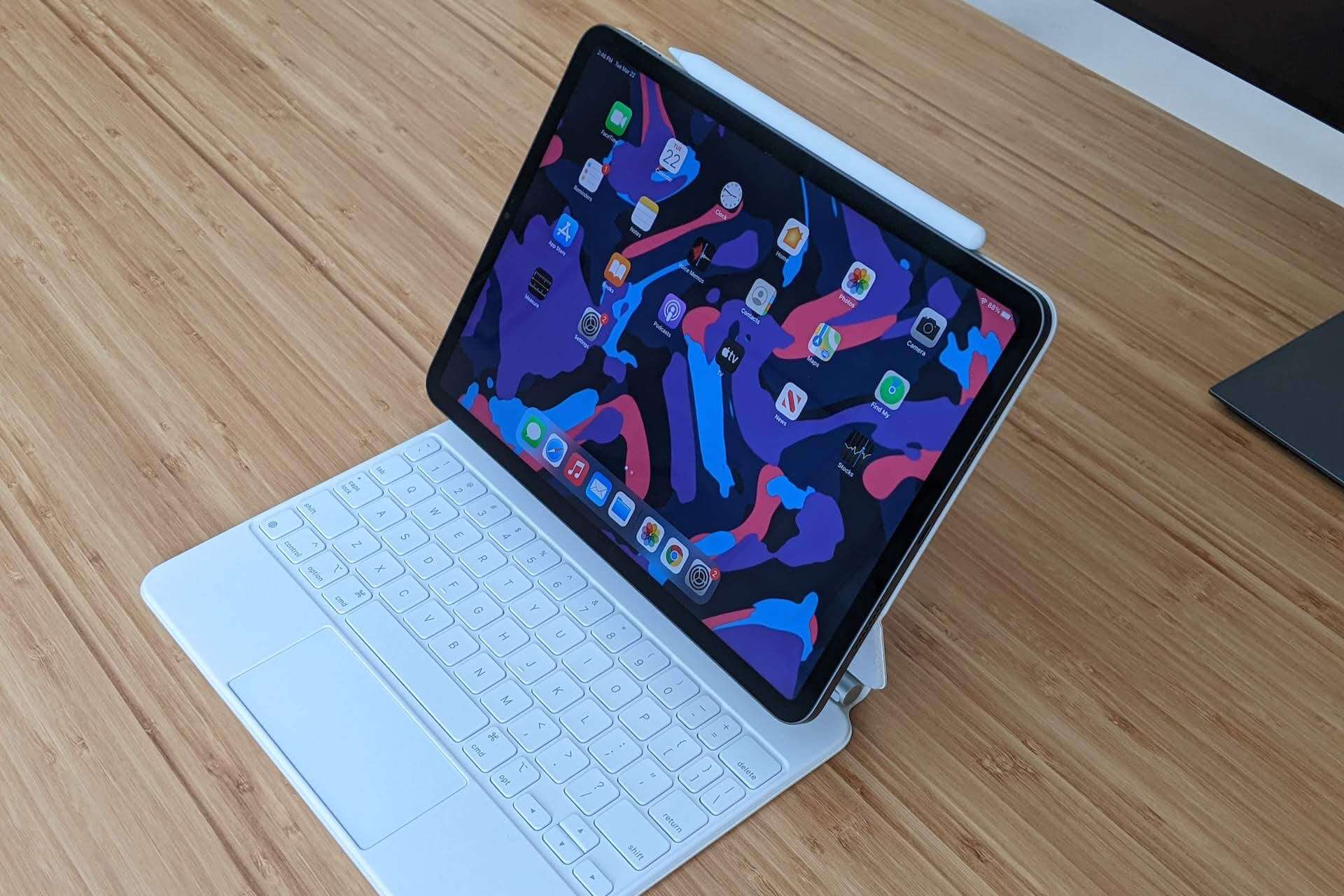
Split View lets you run two iPad apps side by side, whether you’re researching in Safari while taking notes, reading an email alongside a document, or following a tutorial while working in another app.
You can set it up in three ways, and here are a few controls to know once both apps are open.
Turn on multitasking first
Open Settings > Multitasking & Gestures and make sure Allow Multiple Apps is enabled. Depending on your iPad and version of iPadOS, you may also see Stage Manager controls here.
Once multitasking is enabled, you can open two apps together using the Dock, the three-dot menu, or a shortcut.
Drag an app from the Dock
Open your first app, then swipe up slightly from the bottom of the screen to reveal the Dock.
Press and hold the second app and drag it toward the left or right edge of the display. When the first app moves aside, release it to open both apps together.
This is usually the quickest method when both apps are already in your Dock.
Use the three-dot menu
Open an app and tap the three-dot multitasking button at the top of the screen. Select Split View, then choose the second app you want to open.
iPadOS will place the two apps together without requiring you to drag anything into position.
Create a shortcut for apps you frequently pair
If you regularly use the same two apps together, open Shortcuts and create a shortcut using the Split Screen Apps action.
Choose the two apps, name the shortcut, and add it to your Home Screen. Tapping it will open that combination without going through the Split View setup each time.
Resize and use your apps
Drag the divider between the two apps to change how much screen space each receives. You can give one app more room when needed and adjust it again without closing either app.
Split View also works when you hold the iPad vertically, with the layout adapting to portrait orientation.
That can be useful for combinations like reading an article while taking notes, or following instructions in one app while working in another.
What about Stage Manager?
Stage Manager takes multitasking further by letting you use resizable, overlapping windows and more apps on screen at once.
You don’t need it for basic two-app multitasking. If all you want is Safari beside Notes or Mail next to a document, Split View provides the simpler setup.

