
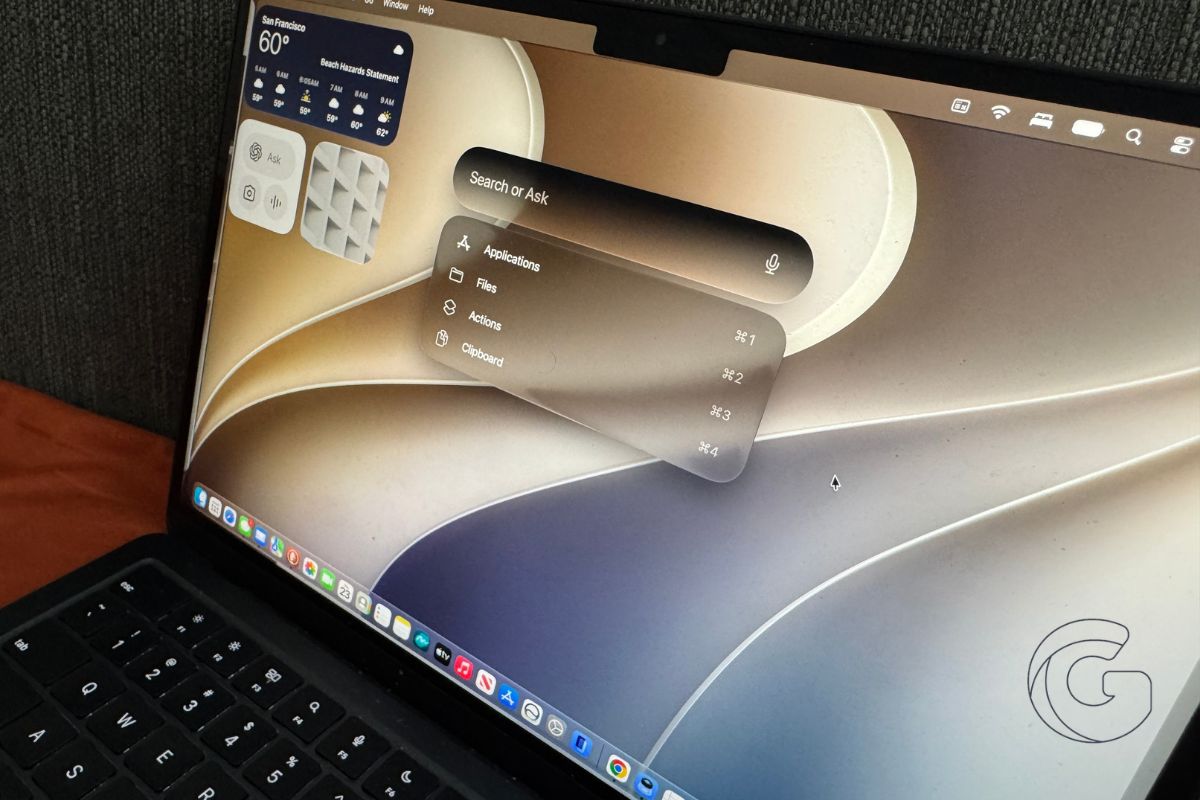
macOS 27 Golden Gate fixes several rough edges from macOS 26 Tahoe while adding new tools that are easy to miss if you don’t know where to look.
You can finally record your Mac’s system audio without another app, tone down Liquid Glass, see which apps keep running after you quit them, and let Apple Intelligence handle a few tedious jobs.
Here are eight macOS 27 features worth trying after you update.
Screen recordings can finally capture system audio
The Mac’s built-in Screenshot tool can now record audio coming directly from your Mac.
Press Command-Shift-5, choose one of the screen recording options, then open Options and enable Include System Audio.
That means a screen recording can capture the sound from an app, website, or other content you’re demonstrating instead of relying on your Mac’s microphone or third-party recording software.
There are still restrictions. Apps can prevent their audio from being captured, including the Apple TV app.
You can turn down Liquid Glass
If you liked macOS Tahoe’s Liquid Glass redesign but found some parts too transparent, Golden Gate gives you more control over it.
A new slider lets you move between a more tinted appearance with greater contrast and the full transparent Liquid Glass effect.
You can find it under System Settings > Appearance if you skipped the option during setup.
It’s worth leaving a few apps open while moving the slider so you can see how the different levels affect windows, sidebars, and other interface elements before settling on one.
Finder can give your files better names
Apple Intelligence can now suggest filenames based on what’s actually inside a file rather than leaving you to come up with one yourself.
It’s particularly handy for screenshots, which can quickly leave your desktop or Downloads folder filled with filenames based on dates and times.
Start renaming a file, and Finder can suggest something more descriptive based on its contents and file type.
You can check whether the feature is enabled under Finder > Settings > General.
Your Mac tells you when an app keeps running after you quit it
Closing an app doesn’t always mean the app has stopped running.
macOS 27 can notify you the first time an app continues running in the background after you’ve quit it. Control-click its Dock icon, and you’ll also find a Stop Running in Background option.
For a complete list, go to System Settings > General > Login Items and Extensions, where you can control background activity for individual apps.
Don’t switch everything off indiscriminately. Apps such as Google Drive and Dropbox rely on background activity to keep files synchronized even when their main windows are closed.
Safari can organize your tabs for you
Safari can use Apple Intelligence to automatically group related tabs.
If you’re planning a trip with hotel pages, flight searches, restaurant recommendations, and rental cars scattered across your tabs, Safari can recognize the relationship and organize them into a group.
You’ll find the option under Safari > Settings > Tabs.
If you’d rather decide for yourself, Show Related Tabs gives you grouping suggestions without automatically reorganizing anything.
You can build Safari extensions by describing what you want
macOS 27 also lets you create simple Safari extensions without writing code.
Click the three-line icon in Safari’s address bar and choose Describe Extension, then tell Apple Intelligence what you want the extension to do in plain language.
Apple includes several prompts to get you started, but you can write your own description as well.
These generated extensions are intentionally limited. They run locally and can’t access data elsewhere on your Mac or retrieve remote content.
Shortcuts can build automations from a sentence
You no longer have to understand how all the individual Shortcuts actions fit together before building an automation.
Open Shortcuts, press the plus button, and describe what you want the shortcut to accomplish. Apple Intelligence can assemble the actions for you.
That removes one of the biggest barriers to Shortcuts on the Mac. You can start with the task you want done instead of staring at a blank automation and figuring out how to build it yourself.
Visual Intelligence can understand what’s on your Mac screen
Visual Intelligence can now work with content already displayed on your Mac.
Press Command-Shift-Space and select a window, or use Command-Shift-6 to select a specific area of the screen.
You can then ask Siri about what you’ve selected, search for related images, or use information it recognizes to perform another action.
Select event details, for example, and macOS can offer to add them directly to Calendar instead of making you copy the information over manually.

