
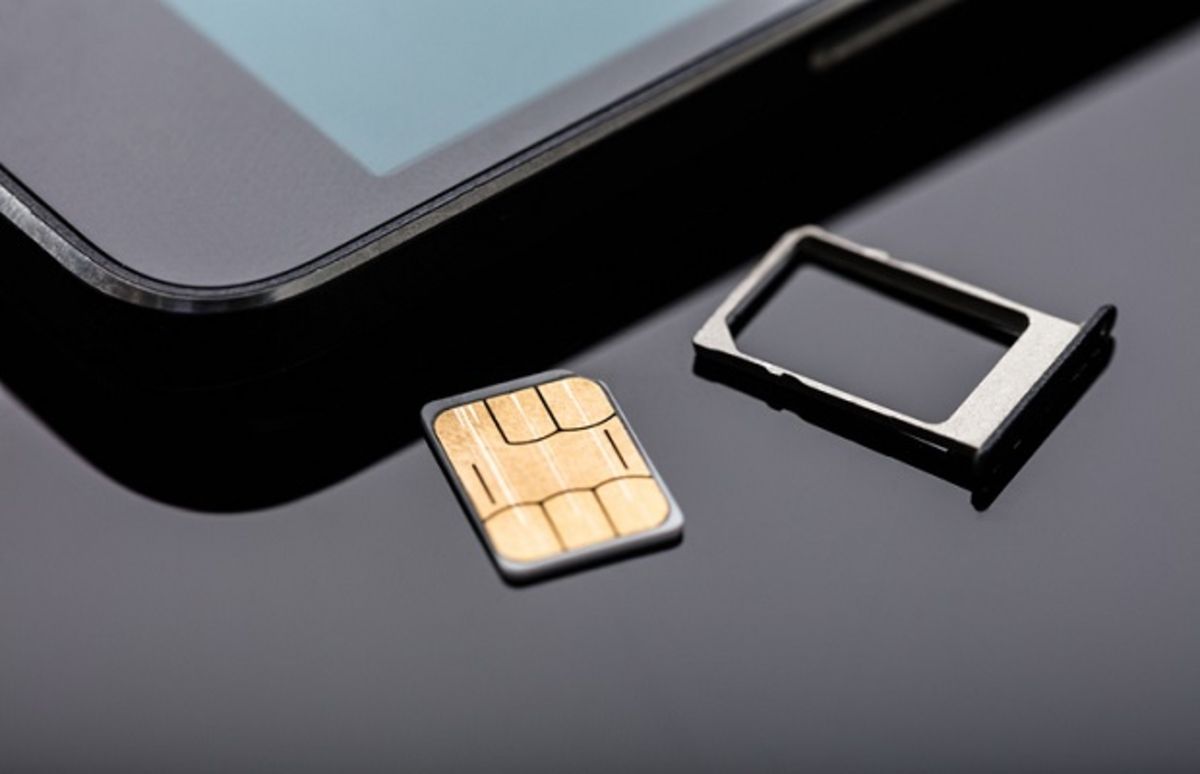
If your Android phone is showing a “No SIM Card Detected” error, you can’t connect to your cellular network.
When that happens, you can’t use your phone to make or receive calls, send texts, or connect to the internet.
There are several reasons for the ‘Android No SIM’ error. It‘s possible that you haven’t inserted the SIM card correctly into your phone.
This problem can also be caused by putting your phone on Airplane mode or a problem with your phone’s Android OS.
There is no one-size-fits-all solution to this issue, but don’t worry. We’ll walk you through different steps to help you troubleshoot it. Let’s get started.
1. Restart Your Android Device
One of the first things you should try when your Android device shows a “No SIM card detected” error is to restart it.
This will give your device a fresh start by flushing the RAM and clearing up temporary files and processes.
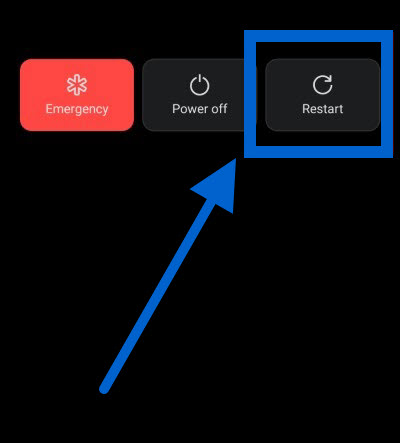
Once you’ve turned off your phone, wait about 20 seconds before turning it on again.
2. Remove and Properly Insert the SIM Card
Smartphones nowadays come with a tiny SIM tray. Android phones with expandable storage options have a dedicated microSD card slot and a SIM card slot. You want to ensure you’ve inserted the SIM card properly in the SIM tray.
You can also check whether the SIM card you insert is aligned. Once you’ve inserted the SIM card properly, check if the issue is fixed.
3. Check if the SIM Card Is Active
If you recently got a new SIM card or are trying to use an old one, chances are it’s not active.
If the SIM card is not active, your Android device will show a “No SIM card detected” error.
So, before inserting your SIM card, ensure it’s activated and ready to use. You can cross-check with your SIM card provider to find out.
4. Turn Off Airplane Mode
Next, you’ll check if your Android device’s airplane mode is activated.
When Airplane mode is enabled, it turns off all your phone’s network connections, including cellular networks, Wi-Fi, and Bluetooth.
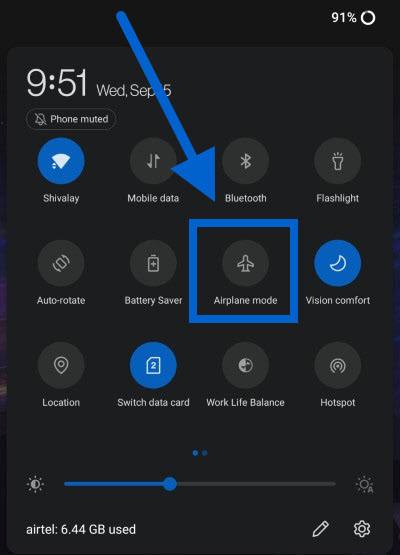
Swipe down the notification shade to check and turn off airplane mode. From the Quick Settings icons, select the one with an Airplane logo.
Alternatively, you can turn Airplane mode On/Off via the Settings menu.
- Go to Settings.
- Select Network & internet.
- Then, toggle the Airplane mode button off.
After turning off Airplane mode, see if this fixes the “No SIM card detected” error on your Android phone.
5. Manually Select Your Network Operator
Sometimes, a recent update or data restoration can change a few settings on your Android phone, including your device’s network settings.
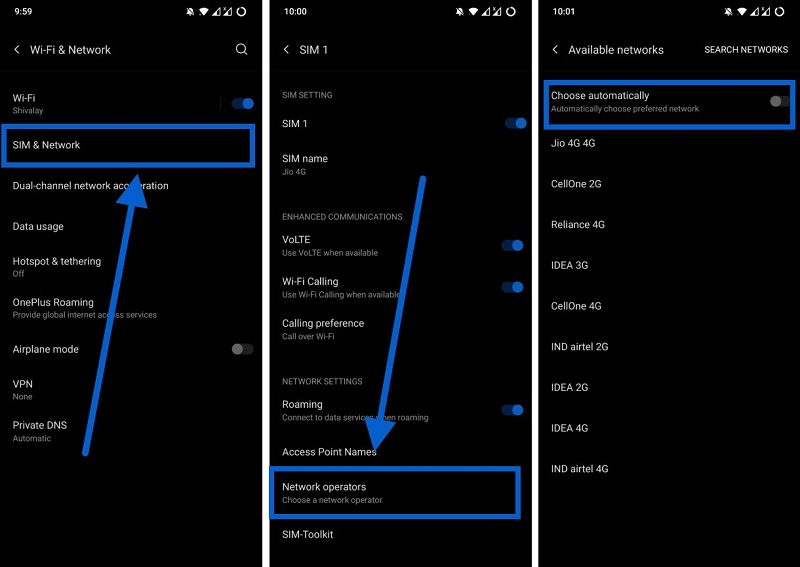
If you think this could be the reason behind the no SIM card detected error, then you can follow the steps below to manually select your network operator:
- Open the Settings menu on your phone.
- Tap on Wi-Fi & Network.
- Now select the SIM that is causing the issue. Under that specific SIM menu, tap on the Network operators option.
- Toggle off the Choose automatically option. This will make your device automatically search for the network operator.
- Simply select the network operator of your SIM card.
6. Switch Network Mode to Auto
When you’re in an area with poor network coverage, the SIM card will struggle to provide optimal network reception to your phone.
In such cases, you may need to manually switch the network mode to auto. This will allow the SIM card to search for either 2G/3G/4G or even 5G, based on the network coverage.
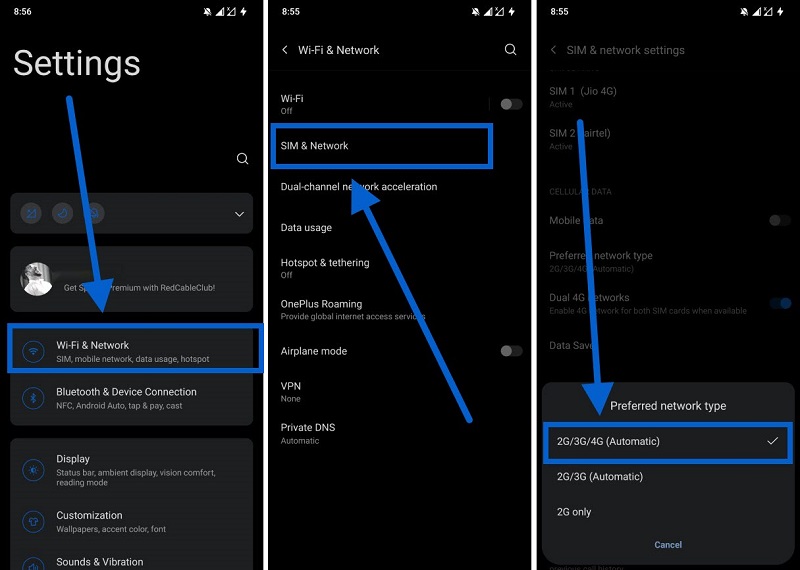
- Go to Settings.
- Tap on Wi-Fi & Network.
- Under “Wi-Fi & Network,” you need to select “SIM & Network.”
- Now, select ‘Preferred network type’ and choose the ‘2G/3G/4G (Automatic)‘ option.
7. Turn Your SIM Card On
A simple solution that slips under our noses is to turn our SIM cards on. Yes! Every modern smartphone has an in-built option to turn on the inserted SIM card.
The steps below will show you how.
- Go to Settings.
- Select Wi-Fi & Network.
- Then, select SIM & Network.
- Tap on the SIM, which shows the “No SIM card detected” error.
- Under the SIM SETTING option, toggle the SIM switch On and see if this fixes the issue or not.
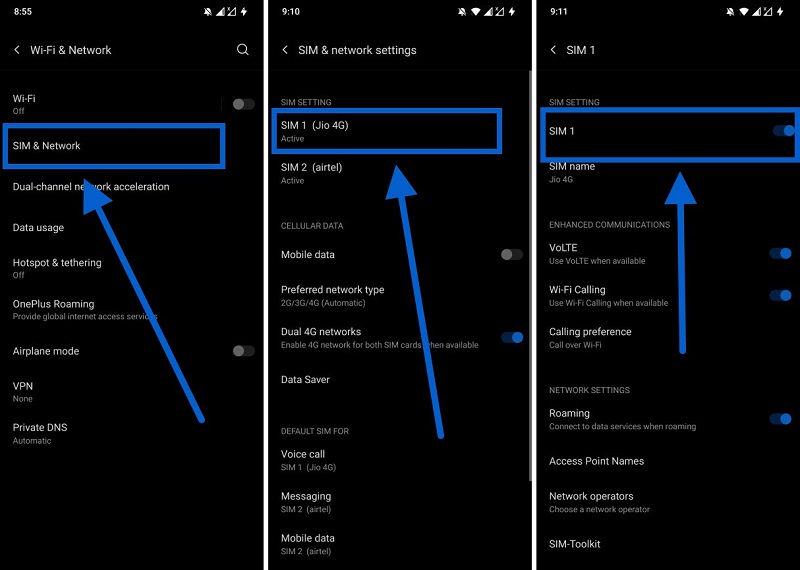
For dual-SIM phones, you can select which SIM you want to enable by following the above-mentioned steps.
8. Reset the Network Settings
Your Android phone has a network reset option that can be useful in situations like this.
There might be an issue with the network settings triggering the “No SIM card detected” error on your Android device.
You can easily reset the network settings by following the below steps:
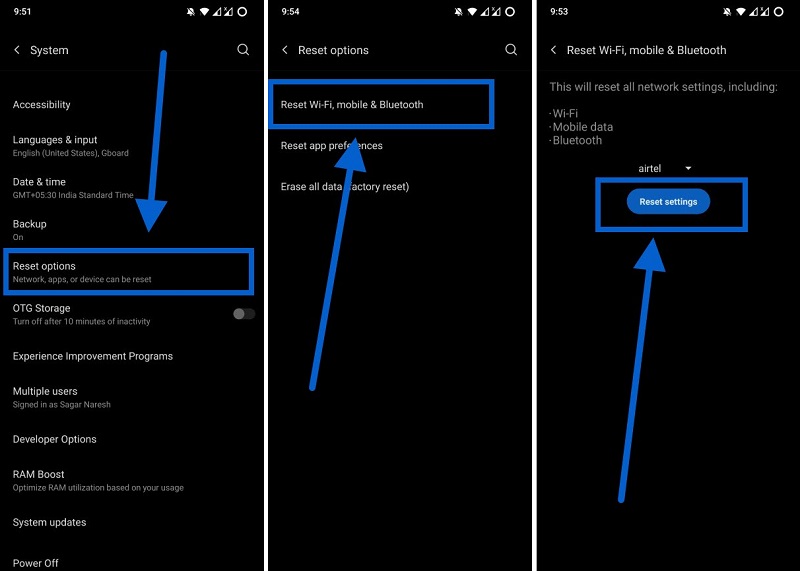
- Go to Settings > System.
- Now tap on Reset options.
- Here, select the Reset Wi-Fi, mobile & Bluetooth options.
- Select the SIM card that is experiencing issues and finally hit the Reset Settings button.
Wrap Up
We hope that one of the above methods worked for you in solving the “No SIM card detected” error.
If nothing works, you can factory reset your Android phone or take it to an authorized customer care center to have it checked as a last resort.
Let us know in the comments below if you have any questions regarding these troubleshooting tips.

