
Scrolling through a long webpage on your iPhone to find one detail is frustrating. You know the word is there, but your thumb keeps flying past it, and eventually you give up.
What most people don’t realize is that iPhone already has a built-in version of Cmd+F, it’s just hiding in plain sight.
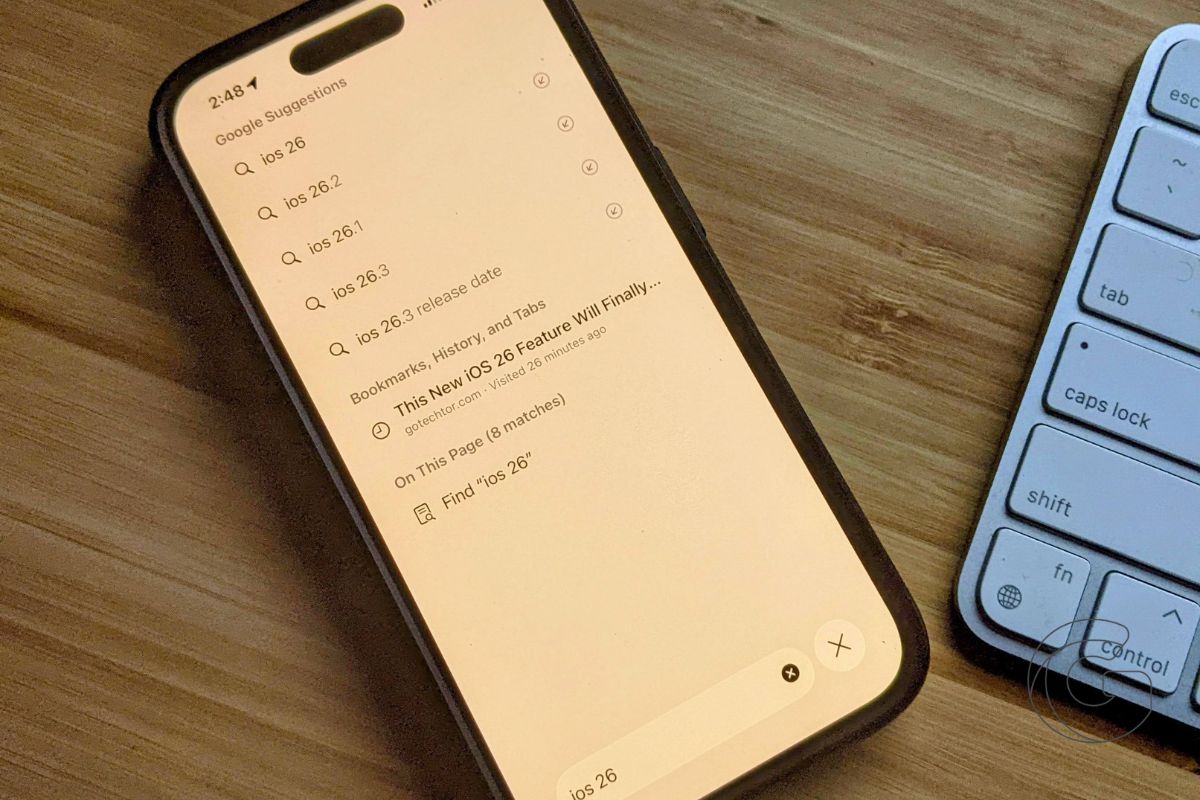
To use it, tap the address bar in Safari while you’re on a webpage and type the word or phrase you’re looking for.
Scroll down in the suggestions all the way to the bottom, and you’ll see an option labeled “On This Page,” along with the number of matches.
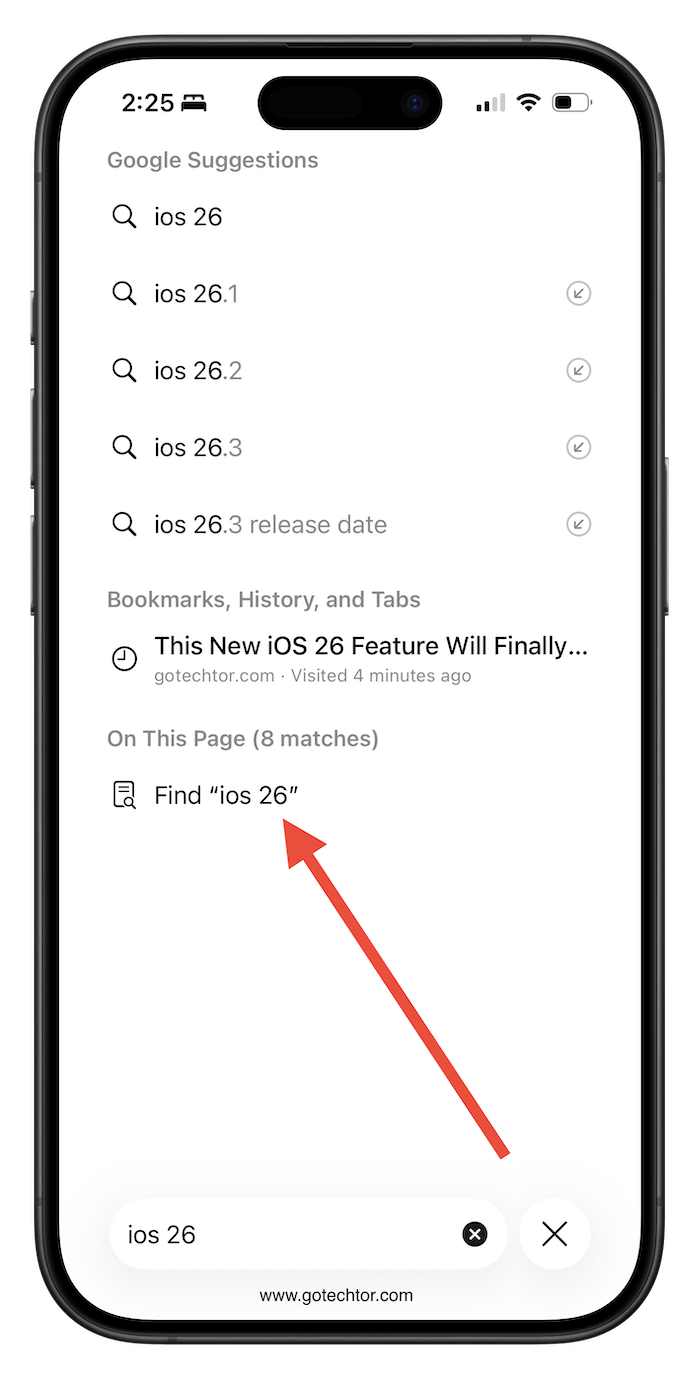
Tap it, and Safari highlights every instance of that word on the page. You can jump between results instantly.
This saves time because it eliminates blind scrolling and visual scanning. Instead of reading an entire article or product page line by line, you can jump straight to the exact section you need.
Also: iOS 26 solves a tiny but infuriating iPhone problem that’s been wasting your time every single day
It turns Safari into a precision tool rather than a guessing game, especially on long pages where information is buried halfway down.
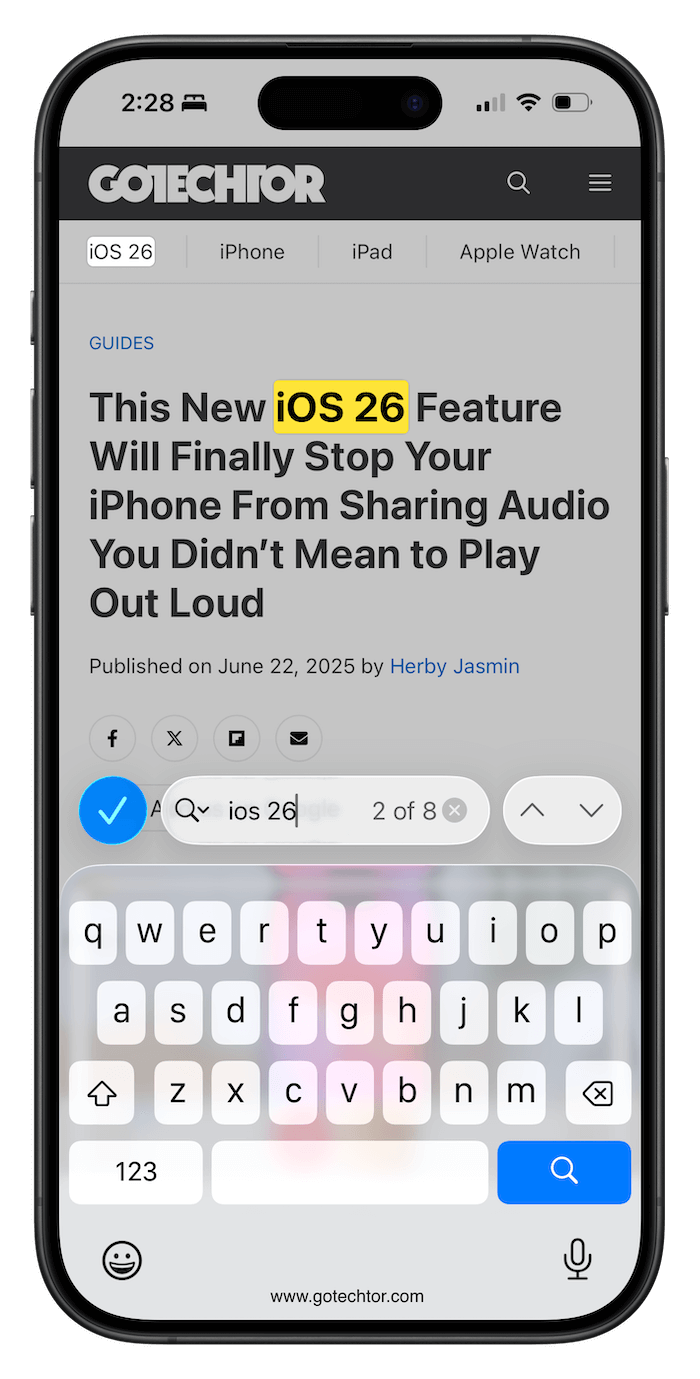
This saves time because it replaces scanning with precision. Instead of skimming paragraphs and hoping your eyes catch the right line, you can go straight to the exact term you need. It’s especially helpful on dense pages where important information is buried far from the top.
I rely on this most when dealing with practical, everyday stuff. When checking airline or hotel pages, I search for “baggage,” “fees,” or “cancellation” instead of reading fine print.
When looking up recipes, I jump straight to “salt” or “oven” to confirm measurements. Even on long support pages, typing “reset” or “password” gets me to the relevant instructions immediately.
Once you start using Find on Page this way, scrolling without it feels inefficient. You’ll reach for the address bar automatically, type what you need, and move on.
It’s one of those small changes that quietly make browsing on an iPhone feel smarter, and once it clicks, you won’t go back.

